
Pressing the buttons for a screenshot on your Samsung phone keeps changing the volume instead, because the timing takes a moment to learn.
I'll help you take the picture, find the saved file and choose an alternative when needed. You can do this with Samsung's built-in tools.
Take the picture without a physical Home button
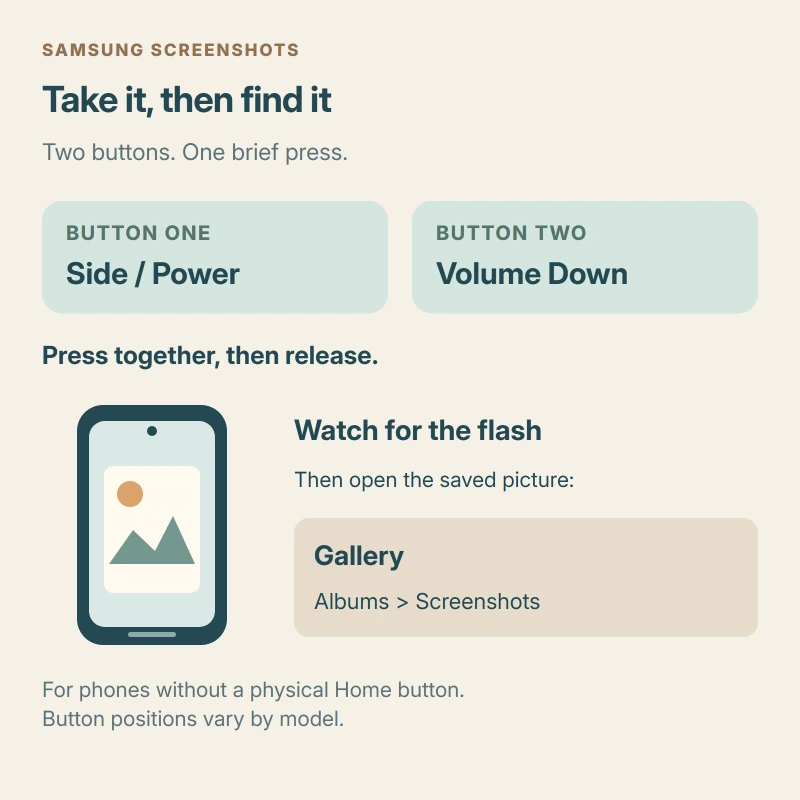
Open the screen you want to save. Press Side (or Power) and Volume Down together briefly, then release them. Samsung's screenshot instructions say the screen flashes when the capture succeeds.
Think of a quick squeeze and release. You don't need to keep holding the keys until a power menu opens.
If shutting down an A15 was the goal, follow its power-menu button hold instead of the quick capture press.
Holding those buttons has a separate purpose. The Galaxy reboot controls explain the longer press if restarting was your goal.
If holding Side alone launches Bixby, change that button assignment in Advanced features. It is separate from the two-button capture gesture.
Status: Samsung and Google instructions checked 17 October 2026. Features and button positions vary by model and software. No Galaxy phone was tested here.
If you only see a volume slider, try pressing the pair together again. I would practice on the Home screen first, where an app's capture restrictions won't confuse the result.
Have a physical Home button? Samsung's model-specific guide uses Power and Home held together until the screen flashes to confirm the capture on those older phones.
Open the saved picture and share it
Open Gallery, choose Albums, then Screenshots. Tap the picture you just made to check that it includes the part you wanted. You haven't lost it when the preview disappears.
A clean capture with stripes still visible on the handset calls for Android display-line checks rather than another attempt at the buttons.
A saved capture can also become a Samsung Home or Lock screen wallpaper; check its crop before applying it.
A stripe visible on a Note 8 but missing from the saved capture needs screen checks beyond screenshot timing.
A saved object picture can also become a Google Lens image search; select the relevant subject rather than searching the entire screen.
For sending it, tap Share and choose the person or app. Samsung also gives a file-based route: open My Files > Images, select your screenshot and use its sharing control.
If you're using Google Photos, Google says in its Android screenshot guide to open Collections > On this device > Screenshots for your saved captures. That route is for Photos, while the Albums route is for Samsung Gallery.
Check important pictures have a backup too. Our Android backup guide explains why a device backup and a photo backup are different jobs. Seeing a screenshot in Gallery only confirms a local copy.
If you need the image on your PC, our phone photo import guide covers the cable connection and the permission on your phone. Find your screenshot before troubleshooting the transfer.
Capture a longer page when Scroll capture appears
Long receipts can extend past the screen. Take the ordinary screenshot, then look for Scroll capture, the icon with two downward arrows in the capture toolbar.
Tap it to include more of the page. Samsung documents this option only when scrolling is possible, so it won't appear for every screen you capture.
Afterward, open the result and check the text at both ends. I would do that before sending a long image, since the useful part may be farther down than the first view.
The toolbar also offers Draw for editing, including cropping, before saving or sharing. Use that if you only need a small part of what you captured.
When one still frame cannot show the action, record the Galaxy screen as a video and check the chosen audio before sharing.
Use your palm if the button combination is awkward
On a supported Galaxy, open Settings > Advanced features > Motions and gestures. Turn on Palm swipe to capture, then move the edge of your hand across the display.
Samsung's gesture guide notes that palm swipe isn't available while the keyboard is showing. Close the keyboard before trying it.
If the gesture is missing, Samsung states that availability depends on the model and software. Use the buttons if your phone doesn't offer it. There is no need to install another capture app for this guide.
If one app refuses a screenshot
Samsung says some apps and screens block capture for privacy or security. A screenshot that works on Home but fails inside one app doesn't, by itself, show that your buttons are broken.
Look for that app's own sharing or download option if you need a copy. Protected screens may still block these tools.
The Short Version
Use the brief Side or Power plus Volume Down combination. Find the saved image in Gallery's Screenshots album, and use Scroll capture when the toolbar offers it for a longer page.
Where to Next
Which part is stopping you: the button timing, a missing palm gesture or finding the saved image? Tell me your Galaxy model and what happens on the Home screen so I can separate those problems.

Isaac Smith is the founder and editor of PC Glance, a website that covers computers, laptops, and technology. He is a tech enthusiast and a computer geek who loves to share his insights and help his readers make smart choices when buying tech gadgets or laptops. He is always curious and updated about the latest tech trends.