

Horizontal lines on an Android phone can come from the screen itself or its software. Restart your phone, then check several apps to see whether the stripes affect the whole display or just one video or app.
For lines that won't go away on a Pixel, check for an update, then contact support about repair if it doesn't help. On a Galaxy, Safe mode lets you check whether a downloaded app is causing the lines. Try these before erasing your phone.
1. Restart and check what actually has lines
Choose Restart from the power menu. Many newer phones open it with Power and Volume Up; Galaxy models often use Side and Volume Down. Follow the restart controls for your model if those differ.
After the phone starts, look at the lock screen, Settings and the app that first showed stripes. A stripe that stays in the same spot on all three needs more attention than one that appears in just one app.
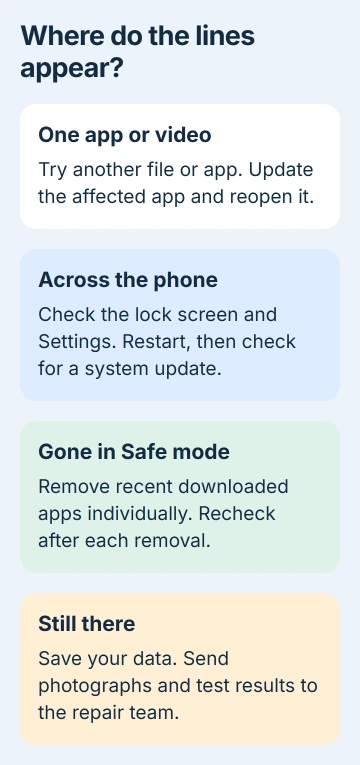
If only one video has stripes, play a different recording. If just one app is affected, install any available update and reopen it. This helps you tell a damaged video or an app display problem from a broken screen.
Take a screenshot and view it on another device. The screenshot saves the image your phone creates. A photograph of the screen shows what you actually see, including any lines from the display itself.
Follow the Galaxy screenshot controls if the phone uses Samsung's buttons. Keep both the screenshot and a photograph when possible so a repair technician can compare them.
If the screenshot has stripes too, the image or software may be causing them. If it looks clear on another device, the phone's display system may be at fault. This helps narrow the cause, but it doesn't pinpoint a failed part.
2. Remove pressure and check the screen surface
Set your phone on a stable surface and remove a tight case. Look for chips, cracks, a lifted edge or a screen protector that caused trouble as soon as you fitted it. Wipe the glass with a clean, soft cloth.
Google's Android screen checks start with damage, cases, protectors and a clean display. Try removing an ordinary removable protector if the fault began when it was fitted.
Don't peel the factory screen layer from a foldable phone. If you're unsure which layer you can remove, ask the manufacturer first. Its built-in film needs different handling from a separate glass protector.
If the case or protector caused the problem, removing it should clear the display. Check the same app at the same brightness where you saw the stripes. A few seconds without lines isn't enough to tell whether the fix worked.
Black spreading patches, unusual colors after an impact or a growing line need service advice. The Galaxy damage guidance connects those symptoms with internal panel damage, even when the outer glass looks intact.
3. Install the system update for your phone
On a Pixel, open Settings > System > System update and check for an update. Some Android versions put the update control inside Software updates. Install what's offered, restart and inspect the display again.
For Galaxy, open Settings > Software update > Download and install. Carrier models can show System updates instead. Use the update menu on the affected phone so the package matches its model.
The Pixel appearance instructions cover horizontal lines, vertical lines and green tint. If an update doesn't help, the next step is to contact support or arrange a repair.
An update can fix a software problem. Physical screen damage still needs repair. If the lines remain, record whether they began before or after the update and continue to Safe mode where supported.
4. Check apps with a Safe mode startup
Safe mode starts your phone without running downloaded apps. It doesn't uninstall them. This lets you check whether an app is affecting the screen before spending time resetting the whole phone.
On a Galaxy, open the power menu, then touch and hold Power off until Safe mode appears. Tap that option. After startup, look for Safe mode near the bottom of the display.
Look for the same stripe in Settings and other built-in screens. Downloaded apps won't run in this mode, so you can't use an affected game to check whether its video problem is fixed.
For other brands, follow the manufacturer's Safe mode procedure. Google's app diagnosis instructions explain the test, but the button sequence varies by handset.
If the lines disappear, leave this mode with a restart, then remove recent apps individually. Recheck after each removal. Start with apps installed just before the display changed, especially anything that draws over other apps.
If built-in screens still have lines, a downloaded app is less likely to be the cause. Restart normally, then consider repair. You may need to add a few Home Screen widgets again afterward.
5. Preserve your files before arranging service
While the screen still works, back up your Android phone. Check your photos separately and copy anything important that isn't included in the backup, such as files stored only inside a particular app.
On phones with Google's backup controls, open Settings > Google > All services > Backup. Check the account and latest backup details. What's backed up varies, so look through the included items rather than just checking the switch.
I'd contact support before erasing a phone with a permanent stripe that also appears during startup. An erase removes your data; it doesn't repair a damaged panel. Send support the model, photographs and results of the earlier checks.
If support recommends a factory reset to finish checking software, confirm your backup and account password first. Follow the manufacturer's reset procedure, then inspect the freshly started phone before restoring downloaded apps.
Ask the manufacturer or an authorized shop to check lines that won't go away. Check your warranty coverage and any display program for your model. Have your purchase details ready when you contact them.
The Short Version
Restart, compare apps and check for pressure or damage. Install the system update and try Safe mode with downloaded apps disabled. Save your data and ask about repair if a stripe stays in the same spot after those checks.
Checked November 5, 2026.

Isaac Smith is the founder and editor of PC Glance, a website that covers computers, laptops, and technology. He is a tech enthusiast and a computer geek who loves to share his insights and help his readers make smart choices when buying tech gadgets or laptops. He is always curious and updated about the latest tech trends.