
Searching with a picture on Android uses Google Lens to look for objects, similar images and related webpages. Open the Google app, tap Lens in the search bar, then choose an existing photo or take a new one.
Select the actual subject to make the search more specific.
Search an image already on the phone
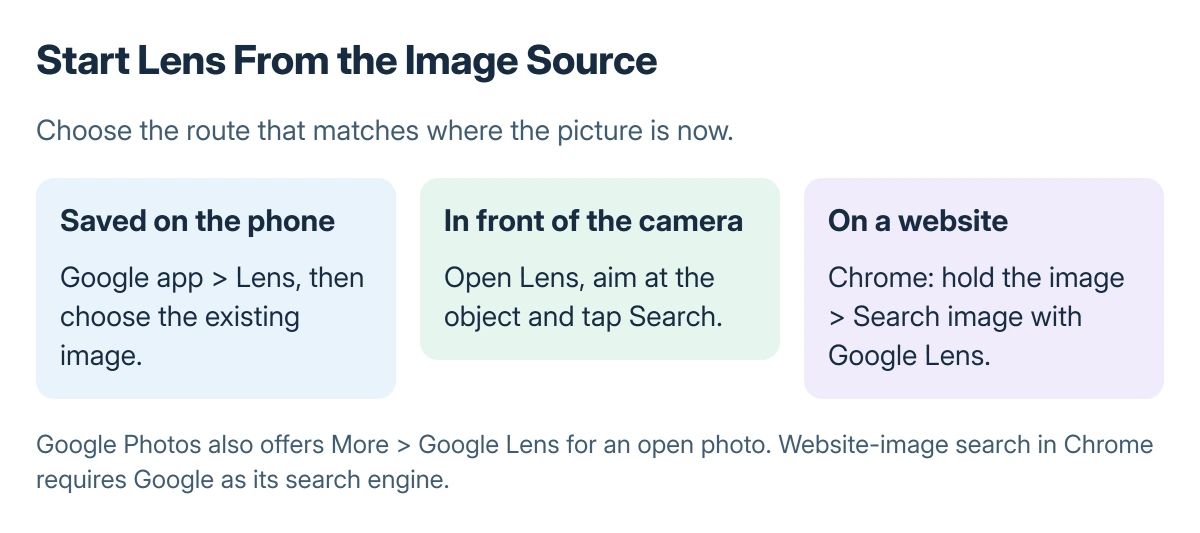
Open the updated Google app and tap Google Lens in its search bar. Choose the saved image from the offered photo or screenshot choices, then select the area to search.
Status: Google's documented Android Lens routes. The selection example is a diagram, not a captured search result. No private image was searched here.
Google says the results can contain similar images, websites with the image, and results for objects in it. A result is a search lead to inspect, not proof that the object or person has been identified correctly.
In Google Photos, open the picture, tap More at the top, then choose Google Lens. This route is documented by Google for an image already open in Photos.
A webpage or app view can first be captured using the Samsung screenshot steps or Pixel screenshot controls. Save only the relevant view before selecting the picture for a search.
Take a new picture for Lens
In the Google app's Lens view, point the camera at the object and tap Search. Follow the permission prompt if camera access is needed. Choose an existing picture instead when the subject is already saved.
Google states that the Google app should be up to date for its Android image search procedure. If the displayed controls differ, update the app through its normal store before relying on an old menu description.
Search a picture on a website
In Chrome, open the webpage, touch and hold its image, then choose Search image with Google Lens. Google's instructions require Google as the default search engine for this website-image route in Chrome.
Drag the selection corners to focus on part of the picture, then scroll through the related results. A whole-page screenshot with several objects can produce broader results than a selection around the object of interest.
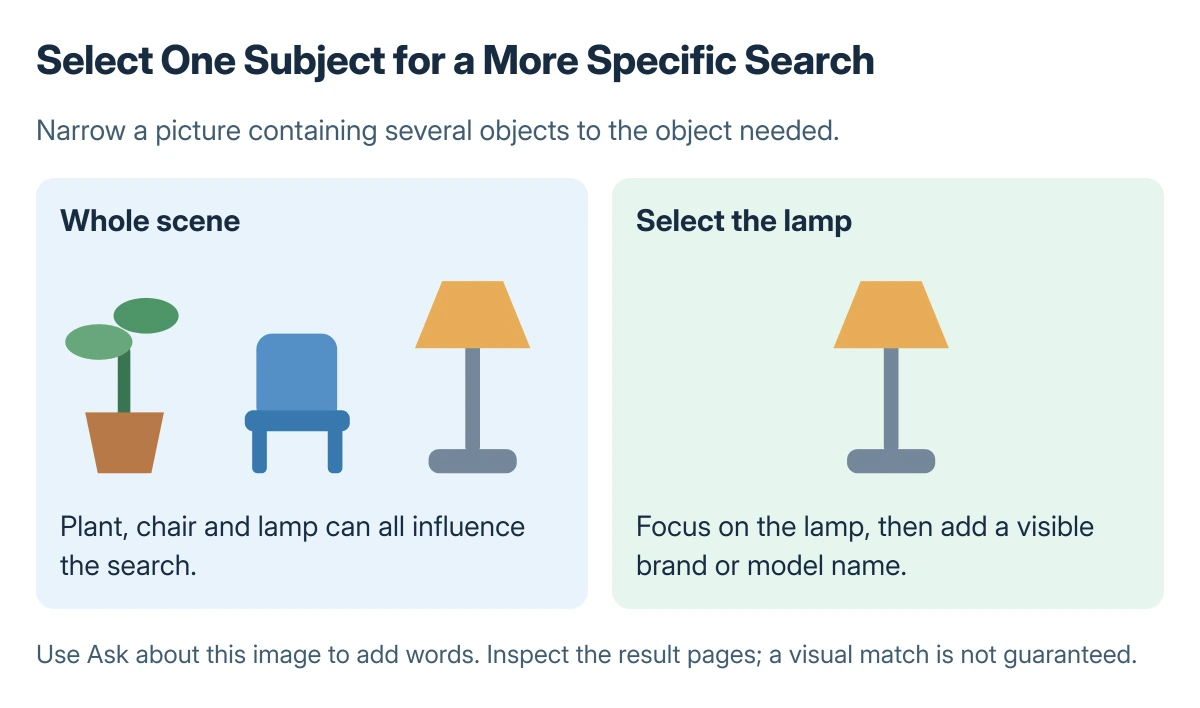
Use Ask about this image to add useful keywords, such as the item type or a visible model name. Compare the resulting pages with the original picture before relying on a suggested product or object match.
When a picture is missing or the match is poor
Confirm the image is saved on the device and available through the offered picker. If Android requests photo access, select the image needed for the task. Do not grant unrelated permissions to make a missing match appear.
To use a saved picture behind the typing keys instead, choose a Gboard photo theme. That appearance setting is separate from Lens search.
Try a closer, clearer view with one subject selected. If Lens still gives unrelated results, search visible text or a model number instead. Repeated searches cannot guarantee an accurate identification from a blurry or ambiguous image.
The Short Version
Open Lens in the Google app and choose a saved image or camera capture. For a Chrome website image, press and hold it and choose Search image with Google Lens. Narrow the selected area and inspect the actual result pages.

Isaac Smith is the founder and editor of PC Glance, a website that covers computers, laptops, and technology. He is a tech enthusiast and a computer geek who loves to share his insights and help his readers make smart choices when buying tech gadgets or laptops. He is always curious and updated about the latest tech trends.