
A Samsung Note 8 screen problem can mean a frozen phone, missed touches, a color setting or a damaged display. For a frozen Note 8, press Volume Down + Power for more than 7 seconds to restart it.
For a working screen with a tint, check its display settings first. A permanent stripe or black patch needs a different response from an app that stops reacting. Record whether the picture, touch input or both have failed.
Restart a frozen Note 8 with its physical buttons
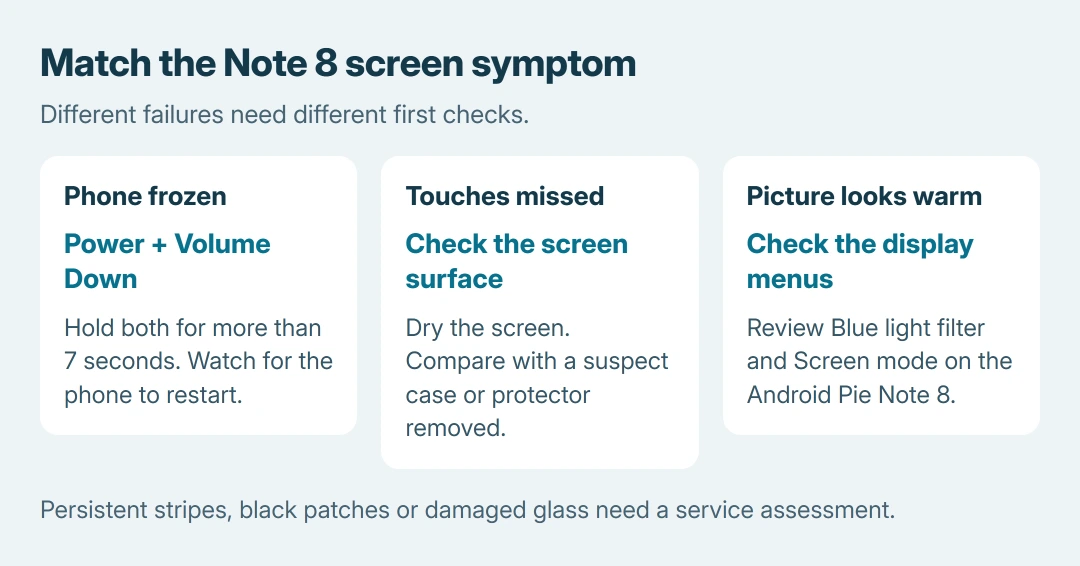
Samsung says the Power + Volume Down hold restarts an unresponsive Note 8 in its model-specific restart instructions. Hold both for more than seven seconds and watch for startup.
Use the Power key, not the separate Bixby button. This is a forced restart, rather than a factory data reset. Unsaved activity can be lost, but the procedure is not an instruction to erase stored files.
Status: Note 8 restart guidance and the SM-N950F Android Pie manual checked October 26, 2026. Menus vary with software and carrier. No phone or screen repair was tested.
If the screen responds after startup, check whether the failure returns in one app or throughout the phone. Our Galaxy restart guide covers the distinction between ordinary and forced restarts.
Restore touch response before attempting an erase
Remove gloves and dry your hands. Dry the glass gently using a clean, soft cloth. Compare touch response with a suspect case or protector removed, especially around the edges.
These causes are documented by Samsung in the Note 8 manual's The touchscreen responds slowly or improperly section. Scratched or damaged touchscreens are directed to a Samsung service center.
If touch fails only while charging, disconnect the charger and compare. Samsung's current touchscreen troubleshooting says a damaged charger can affect touch operation. Replace a damaged charger rather than continuing to use it.
For failures that began after installing an app, Samsung recommends checking Safe mode. With the screen responding, hold Power, then touch and hold Power off until the Safe mode option appears. Select it and compare touch response.
If the fault stops there, remove one recently added app, restart normally and compare. Check another suspect app only if needed. Safe mode can narrow an app-related fault; it cannot prove that a cracked panel is healthy.
Check the Note 8's older display menus for a tint
On the SM-N950F running Android Pie, open Settings > Display > Blue light filter. Turn off Turn on now and check Turn on as scheduled if the warm tint returns at a particular time.
Samsung states that this filter reduces the blue light emitted by the display. A deliberate warm picture from that setting does not establish a failing panel.
Then inspect Settings > Display > Screen mode. The Note 8 manual documents this control for color and contrast. Note the original selection before comparing another mode, and restore it if the change does not help.
These are Note 8 menu names. Newer Galaxy instructions may instead refer to Eye comfort shield. Do not expect every current Galaxy display option to exist on this older phone.
Send persistent lines, patches or darkness for assessment
If the phone still responds, take a Samsung screenshot and view it on another screen. A defect missing from the saved image directs attention toward the display hardware or its output path, without identifying a specific replacement part.
Photograph the visible defect as well. A screenshot cannot record a physical panel mark that was never part of the image data.
Google's Android screen guidance recommends manufacturer assistance for a continuing fault. Tell Samsung whether it survives restart, appears during startup and affects touch as well as the picture.
Back up accessible files before service. Do not press, heat or open the panel to try to remove a stripe. Ask for a repair assessment and price before authorizing work on an older Note 8.
The Short Version
Restart a frozen Note 8 with Power and Volume Down. Check moisture, accessories and app behavior for touch faults. Compare Blue light filter and Screen mode for a tint. Persistent physical defects need a documented service assessment.

Isaac Smith is the founder and editor of PC Glance, a website that covers computers, laptops, and technology. He is a tech enthusiast and a computer geek who loves to share his insights and help his readers make smart choices when buying tech gadgets or laptops. He is always curious and updated about the latest tech trends.