

The Galaxy Note 8 software update offered to your phone depends on its model, region, and carrier. Check Settings > Software update first. Some variants received maintenance in 2026 while remaining on Android 9.
Compare your phone's full model and build number with the release record for that model. A build listed for another Note 8 isn't an update to install on yours.
In this guide
Record the model, Android version and build
In Settings > About phone, record the full model code. Examples include SM-N950F, SM-N950U, and SM-N950U1. The words Galaxy Note8 alone aren't specific enough to select firmware.
Next open Software information. Record Android version, Build number, and Android security patch level. These show which Android version and system software are installed, along with the security patch date.
Samsung's SM-N950F release record lists build N950FXXUGDZEE, released July 30, 2026. It remains Android 9, with May 1, 2021 as the security patch level.
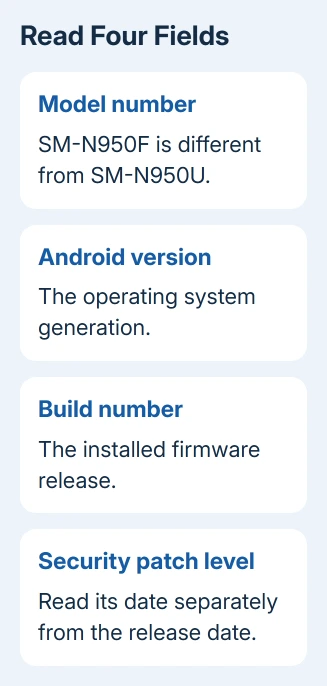
That release lists improved stability and reliability. It isn't Android 10, and its 2026 release date doesn't turn the stated security patch into a 2026 patch. Keep those dates separate when deciding what changed.
That release record applies to the N950F version linked here. The unlocked US N950U1 has its own record, and carrier-branded N950U models follow their own packages. Don't compare only the last few letters of a build.
The general Android version check explains the version and security-update fields. On this Galaxy, Software information is the place to read them together.
Install the update the phone offers
Back up important photos and files before installing system software. Connect to dependable Wi-Fi, charge the phone, and leave time for the restart when you won't need it for calls.
Open Settings > Software update > Download and install. Older software may use Download updates manually. The carrier can also change the name of the update section.
For a Verizon Note 8, look under Settings > System updates > Check for system updates. Follow the prompts on your Note 8. The labels can differ on a current Galaxy.
If an update appears, read its details and start the download. When installation is ready, follow the phone's prompt to install and restart. Leave it connected to power if needed and let the installation finish.
After the phone returns to the lock screen, unlock it and revisit Software information. Compare the build with the one you recorded. The Android version can stay the same when an update only changes how the phone's system software works.
Run the update check again if the phone started several releases behind. Some updates must be installed in sequence. A successful installation doesn't always take an old phone directly to the final available build.
The Galaxy update guide covers model-dependent availability on newer devices. Its newer One UI release isn't an upgrade offered to the Note 8.
Understand an up-to-date message
An up-to-date message means your phone has no further update offered through that updater right now. Your Android version and security patch can still be old.
Read the installed patch date as well as the message. The N950F example shows why: a maintenance release can arrive years after the security patch date it carries.
For an imported or secondhand Note 8, identify the original carrier and model. The SIM you're using today doesn't make the handset identical to a different carrier's version. Ask the original carrier about its supported update route.
Check the release history linked from the phone's update information when available. Match the model and carrier before comparing dates. A firmware download search can mix several Note 8 variants in the same results.
I'd use the phone's own updater before a computer method. It selects a suitable update for your handset. If it says the phone is up to date, check availability for your model. Don't erase your files to chase an update.
If an app now requires Android 10 or later, installing another Android 9 maintenance package won't meet that requirement. Check the app's store listing before spending time chasing an update that cannot solve that limitation.
Check for an offered update through Smart Switch
If the phone updater fails or an expected package doesn't appear, try the desktop version of Smart Switch, available for Windows and macOS. Install the official desktop application, then connect the Note 8 with a USB data cable.
Open Smart Switch and let it detect the phone. Unlock the handset and allow the connection when prompted. A cable that only supplies power won't give the computer the data connection it needs.
Smart Switch offers Update only when an update is available. Select it, let Smart Switch download the package, then work through its installation prompts. Installing Smart Switch doesn't give the Note 8 a newer Android release.
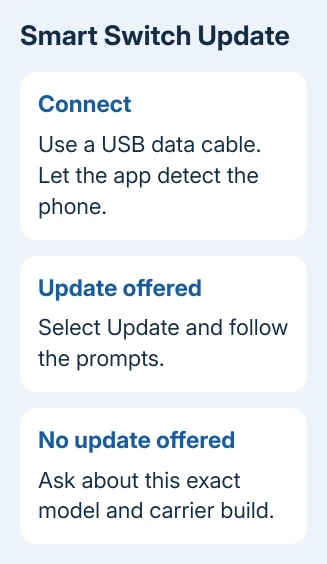
Leave USB attached until the update finishes. Once the phone restarts and the program finishes, check its build number again. If Smart Switch offers no Update control, tell support that, rather than repeatedly reinstalling the app.
The desktop software can also back up supported phone data. Backing up and updating are separate actions: a completed backup doesn't mean a firmware update has been installed.
Deal with a failed download or repeated error
For a download that stops, check the Wi-Fi connection and free storage, then restart the phone and retry. The Samsung restart steps distinguish a normal restart from the forced button hold used for a frozen handset.
If the same error returns, note the exact message and current build. Contact Samsung support or the original carrier and ask which update is available for that full model and region, and whether Smart Switch can install it.
For work apps or banking apps that require newer software, ask the service about its minimum supported Android version. When it exceeds the Note 8's official software, moving to a supported phone is the practical next step.
The Short Version
Match your Note 8 model and build before using its updater. Later maintenance can still mean Android 9 and an old security patch. Smart Switch installs an available package; it doesn't create a newer Android release.
Checked November 15, 2026.
 If you have any business, I can build it online






