
Theme Park is a Samsung customization app that you can install through Good Lock. Open Galaxy Store, install Good Lock, then open it and download Theme Park from its list of apps.
Good Lock is only the first install. Theme Park is a separate app, called a module, within Good Lock. Once you've added it, you need to create, save and apply a theme to change your phone's appearance.
Install Good Lock from Galaxy Store
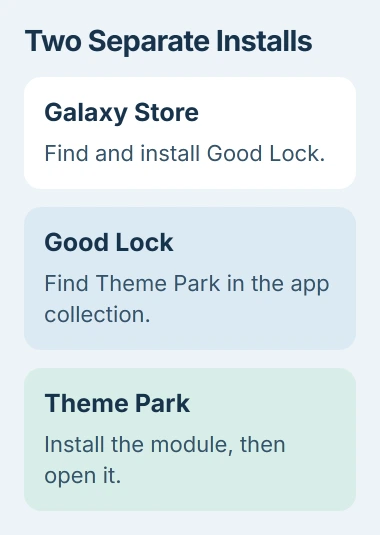
Open Galaxy Store on your Galaxy phone and search for Good Lock. Select its listing and tap Install. When the button changes to Open, tap it and accept the introductory agreement if one appears.
Samsung explains these steps in its Good Lock installation instructions. Good Lock brings together separate apps for the Home screen, keyboard and Quick panel.
Search for the full name so you can recognize the right listing. If Galaxy Store asks you to sign in to your Samsung account, do that and return to the listing.
If the store says Good Lock isn't compatible with your device, save that message. Your Galaxy model and version of One UI affect which modules you see. A missing module doesn't always mean a download failed.
These steps are for Samsung Galaxy devices. A Pixel or another maker's Android phone won't gain the same Samsung customization features just because it can install ordinary Android apps.
Download and open Theme Park
Open Good Lock and find Theme Park in its list of apps. Tap the download or install control beside it and let the installation finish. Then open Theme Park from Good Lock.
Good Lock's app list can change between versions, so look for the module's name rather than its position in an old picture. Some versions group apps into categories such as Make up and Life up.
Allow photo access when asked to make a theme from your chosen image. Theme Park uses it to suggest matching colors. For your first theme, choose an ordinary photo saved on the phone so you can recognize it in the preview.
If you only want to change the picture behind your apps, use the Galaxy wallpaper controls. Theme Park lets you build a matching theme or change individual parts of the phone's appearance too.
Create and apply your first theme
Open the theme section in Theme Park and choose Create new. Pick a wallpaper image, tap Next when it appears, then choose the colors or style you want in the preview.
Check that you can read the text against your chosen backgrounds, as well as checking the main accent color. A bright combination may look good in one tile but make small labels hard to read elsewhere.
The Theme Park walkthrough shows how to check the dark appearance with the sun control. Then use the download control to save your theme, enter a name and tap OK.
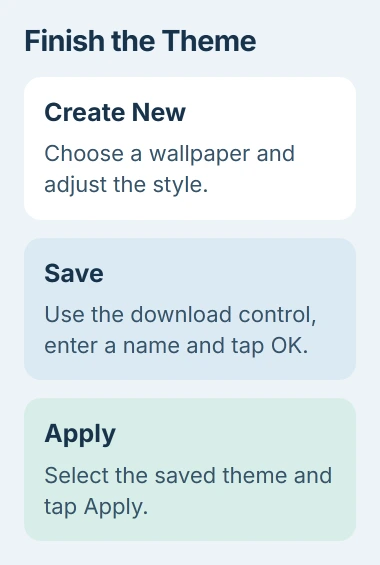
Select your saved theme and tap Apply. Saving only keeps the design in Theme Park; applying it changes how your phone looks.
Return Home, open the Quick panel and check an app that uses the theme. Try a few everyday screens before adjusting more colors, because the applied theme can look different from the preview.
If your phone still looks the same, reopen Theme Park and check that you selected and applied the saved theme. I'd check that before building the design all over again.
Change one part instead of the whole phone
Theme Park also lets you design supported parts separately, including the Samsung Keyboard, Quick panel, volume panel and icon pack. Choose the section you need instead of building a whole theme for one small change.
For a keyboard design, check which keyboard you're using. A Samsung Keyboard design in Theme Park won't apply to Gboard. The Android keyboard background guide covers the controls for different keyboard apps.
After changing Quick panel colors, check the toggles and brightness control. After changing icons, go Home and check several apps. Make sure the design works on those screens as well as in the editor.
I'd start with just the keyboard or icons. Changing the full theme and several parts together makes it harder to work out which saved design to adjust later.
Check light mode and dark mode separately
After applying the theme, open Settings > Display and compare Light and Dark. Check the text, buttons and keyboard in both, especially if your phone normally switches modes on a schedule.
Theme Park has separate dark-mode design choices. Text that's clear on a light background can disappear against a dark one, which is why you need to check both modes.
To get the original overall look back, open Galaxy Themes, use Menu > My stuff > Themes, select Default, and apply it. The Galaxy theme controls let you switch to another theme this way too.
If you applied icons separately, check their selection under My stuff > Icons too. Changing the main theme may not return every part of the phone to the look you expected.
When Theme Park is missing or won't install
Check for an available update to Good Lock and the module in Galaxy Store. Then open Settings > Software update > Download and install to see whether your phone has a system update waiting.
If the store still says the app isn't compatible, give Samsung Support your phone model, One UI version and the exact message. Copying a package from another device won't change which system features your phone supports.
If Theme Park opens but fails when you save or apply a theme, tell support which step fails and your module version. Keep a simple test theme so they can tell a download problem from a theme that won't apply.
The Short Version
Get Good Lock from Galaxy Store and add Theme Park inside it. Create, save and apply a design, then check light and dark appearances. Apply the default Galaxy theme to restore the original overall look.
Checked November 4, 2026.

Isaac Smith is the founder and editor of PC Glance, a website that covers computers, laptops, and technology. He is a tech enthusiast and a computer geek who loves to share his insights and help his readers make smart choices when buying tech gadgets or laptops. He is always curious and updated about the latest tech trends.