
The clipboard on Android is usually opened from the keyboard, after tapping a field where text can be entered. In Gboard, tap Clipboard at the top of the keyboard. Samsung Keyboard has its own Clipboard button in the toolbar.
Open the keyboard inside a note or message first. Searching the phone's files will not open either keyboard's list of copied items.
Open the clipboard in the keyboard you actually use
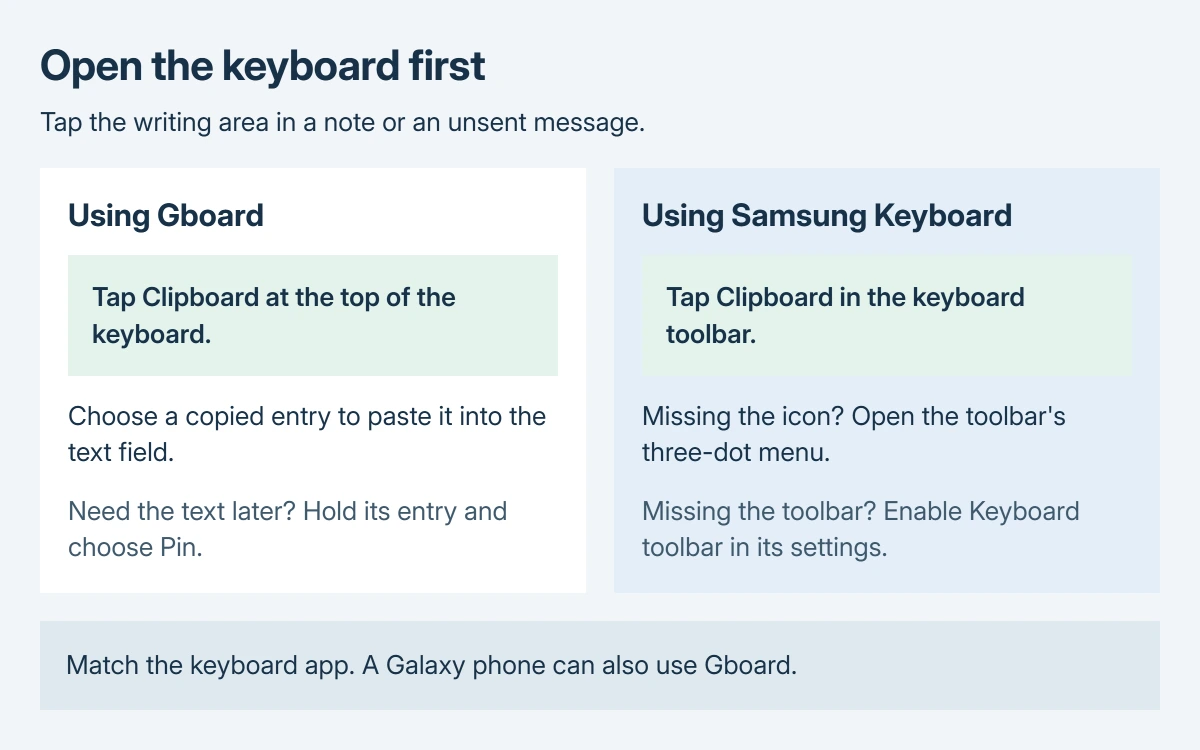
Tap the writing area in a note or an unsent message. The keyboard must appear before its clipboard controls become available. Use a normal text field rather than a password box for this check.
Follow the Gboard instructions or the Samsung Keyboard instructions that match the active keyboard. A Galaxy phone can use Gboard, so the phone's brand alone does not settle which controls appear.
Status: Gboard and Samsung Keyboard clipboard instructions checked October 28, 2026. These are documented controls; no phone clipboard was opened or tested.
On a Galaxy, check Settings > General management > Keyboard list and default > Default keyboard if the keyboard's identity is unclear. Samsung's keyboard settings guide documents that selection screen.
In Gboard, choose an item or pin text for later
Google says to tap Clipboard at the top of the keyboard in its Gboard instructions. Select the copied item to insert it at the cursor.
For a new copy, select a short piece of ordinary text in another app and tap Copy. Return to the note, tap the writing area and open Clipboard. Check the inserted text before sending or saving it.
To retain text for repeated use, touch and hold its clipboard entry and choose Pin. Google places retained entries in a Pinned section. Use this for reusable text such as an address, rather than a password or a one-time login code.
Google states that unpinned history clears shortly after the clipboard was last used. Its current help page does not give a fixed minute count. A missing old item therefore does not establish that the keyboard is broken.
If the keyboard's controls are tucked away, open its features menu to inspect the available commands. Google's Gboard setup page identifies that menu at the top left; layouts can differ.
In Samsung Keyboard, open or restore the toolbar button
With Samsung Keyboard showing, tap its Clipboard icon. Samsung says to use the toolbar's three dots when the icon is missing, then select Clipboard from the expanded tools.
Samsung's clipboard instructions also describe dragging that icon from the expanded tools into the toolbar. Tap an entry to paste it into the active field.
For a toolbar that is entirely absent, open Settings > General management > Samsung Keyboard settings. Turn on Keyboard toolbar, then return to the note. The US keyboard guide confirms this switch and the expanded toolbar.
Some Galaxy text fields also offer Clipboard when touched and held. Use the keyboard route when that text-field menu offers only Paste. The commands available depend on the app and Galaxy software.
The clipboard opens, but the text is missing
Copy a nonprivate word and try it in the note. If the new entry pastes, copying works; it does not recover absent history. Return to the original message or document to copy the missing text again.
If the keyboard closes or stops responding before its tools open, use the Android app-crash checks for that failure. Clearing keyboard storage is not a method for recovering missing copies.
Copying on a phone and expecting it on a PC is a separate task. The Windows clipboard history guide covers the PC's list. Opening this Android panel alone does not set up device-to-device sharing.
For a missing Clipboard command that persists, give Gboard support or Samsung Support the keyboard name, app version, Android version and an example using nonprivate text. Keep actual copied personal information out of the report.
The Short Version
Open a typing field, identify the active keyboard and select its Clipboard tool. Restore Samsung's toolbar if necessary. Pin reusable Gboard text before its temporary history clears; copy absent text again from the original.

Isaac Smith is the founder and editor of PC Glance, a website that covers computers, laptops, and technology. He is a tech enthusiast and a computer geek who loves to share his insights and help his readers make smart choices when buying tech gadgets or laptops. He is always curious and updated about the latest tech trends.