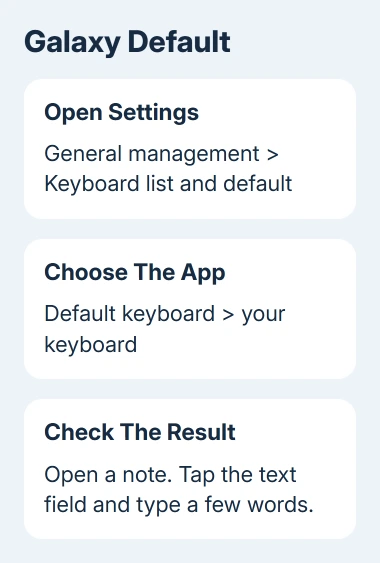
To switch Android keyboards, open the keyboard picker and choose another enabled keyboard. On a Samsung Galaxy, the permanent choice is in Settings > General management > Keyboard list and default > Default keyboard.
A different language doesn't always need another keyboard app. Gboard can switch languages from its space bar, while changing from Samsung Keyboard to Gboard means choosing a different input method.
In this guide
Decide whether to change the keyboard or its language
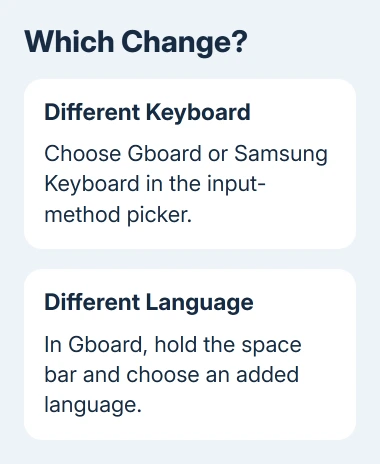
The keyboard app controls the keys, predictions, clipboard and typing features. A language layout changes the letters and suggestions inside that app. Choose the app first, then add the languages you need to it.
For example, switching Gboard from English to Spanish can keep the same clipboard and theme. Switching from Samsung Keyboard to Gboard opens a different app with its own settings. Your old keyboard settings don't carry over to Gboard.
I'd keep the current keyboard installed until the replacement opens and types correctly. That gives you a quick way back if its layout or suggestions don't suit you.
Before installing anything, check whether the keyboard you want is already available. A Galaxy phone can have Samsung Keyboard and Gboard installed together, even though only one appears when you tap a message field.
Choose a different keyboard on a Samsung Galaxy
Samsung's keyboard settings give a direct route to the default keyboard. This changes the typing app, rather than its color or language.
- Open Settings, then General management.
- Tap Keyboard list and default.
- Check that the keyboard you want is enabled. Turn on its switch if its name is listed but isn't available for selection.
- Tap Default keyboard, then choose the keyboard's name.
- Open a note or message draft and tap the text field. Type a few words to check which keyboard opens.
Read any warning shown when enabling a keyboard. A keyboard handles what you type, so choose an app and publisher you trust rather than installing one just for a particular theme.
The keyboard you chose should now open when you start typing. If Samsung Keyboard still opens, return to Default keyboard and check the selection instead of repeatedly reinstalling the replacement.
For quick switching while typing, the same settings page can offer Keyboard button on navigation bar. Enable that option if available, then open the keyboard and use the keyboard button to choose an input method.
Some Galaxy screens and labels differ with One UI and navigation settings. Search Settings for Default keyboard if the route has moved. Choose the result that lists keyboard apps, rather than Samsung Keyboard's own layout settings.
Use the input-method picker on other Android phones
Open a normal text field, such as a new note, so the keyboard is visible. Look for the keyboard selector in the navigation area. Tap it and select an enabled keyboard from the list.
Some phones open the input-method list when you hold the space bar. Choose the app name there. A list with only languages switches languages within your current keyboard; it doesn't show whether another keyboard app is enabled.
If the keyboard you want isn't listed, open it from the app drawer and follow its setup prompts. You may need to enable the keyboard first, then select it for typing. Finish both steps before returning to your note.
Android settings vary by manufacturer. Look under System > Keyboard > On-screen keyboard on phones with those menus, or search Settings for On-screen keyboard or Manage keyboards. Enable the installed keyboard there.
Google says to install Gboard and then choose its settings in the Gboard setup instructions. On some Android devices it's already the default, so a second download isn't needed.
If your only goal is a photo behind the keys, change Gboard's keyboard picture after selecting Gboard. Installing another typing app isn't necessary for that change.
Switch languages inside Gboard
With Gboard open, touch and hold the space bar. Choose the language or layout you want. This is the quickest route when both languages are already set up.
To add a missing language, open Gboard's settings from its toolbar. If Settings isn't visible, open the toolbar's features menu and More, then choose Settings > Languages. Add the language and choose the layout, then tap Done.
Another route on phones using Google's keyboard settings is Settings > System > Keyboard > On-screen keyboard > Gboard > Languages. Choose the language, enable the layout, and finish with Done.
The Gboard language controls also include a language switch key. Open Gboard settings > Preferences and turn on Show language switch key if you prefer a visible globe button.
If that switch is unavailable, turn off Show emoji switch key first. Then enable the language switch key. The space-bar method remains useful when you prefer to keep the emoji key visible.
Changing Gboard's language doesn't change the whole phone's display language. Check the letters and suggestions in your note, rather than expecting Settings menus to switch languages too.
Change languages while keeping Samsung Keyboard
For Samsung Keyboard, open Settings > General management > Samsung Keyboard settings. Choose Languages and types > Manage input languages, then enable the languages you need. Download a language first if its download control is shown.
Return to a text field and tap the keyboard's language button, shown as a globe, to switch between enabled languages. This keeps Samsung Keyboard active; choosing Gboard in Default keyboard would replace the typing app instead.
Check typing features before removing the old keyboard
Write a short sentence, add punctuation, and try the languages you use every day. Open another app with a normal text field too. That checks whether your choice works for everyday typing, outside its setup screen.
Clipboard tools belong to the keyboard currently open. If your saved snippets seem to have vanished after switching, check the clipboard in the active keyboard before deleting data from either app.
A number-only field can show a different set of keys from a message box. Test a normal note before treating a compact keypad or missing language key as a failed keyboard change.
To go back, select the former keyboard through the same input-method picker or default setting. A phone reset isn't needed. Keep both apps if you regularly use features from each one.
If a keyboard is missing on a work-managed phone, ask your device administrator whether keyboards from other apps are allowed. Give them the keyboard's app name and the screen where selection is blocked.
If the replacement alone fails to open, use its Play Store listing's support contact. Include the phone model, Android version, keyboard version and whether the original keyboard still works.
The Short Version
Enable the keyboard, choose it as the input method, and test it in a note. Galaxy phones put the default under General management. For another Gboard language, hold the space bar instead of replacing the keyboard app.
Checked November 11, 2026.