A phone not displaying on a TV over HDMI often has an incompatible adapter or a USB-C port that doesn't support video output. Check the exact phone model first. A charging connection alone doesn't mean the phone can send a picture.
The screen also tells you where to look: No Signal points to the connection or input, while a visible phone screen with one black video points toward that app or protected playback. Those need different fixes.
In this guide
1. Check whether this phone can output video
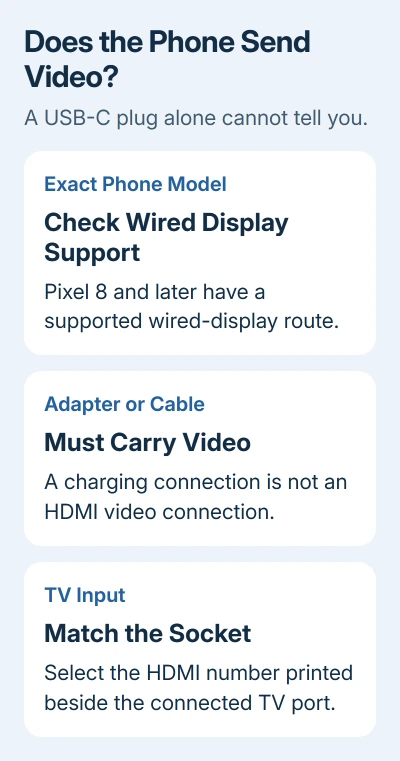
Look up the model under Settings > About phone on Android or Settings > General > About on iPhone. Check the maker's specifications to see whether that model supports a wired display. The shape of its charging port won't tell you.
Google says its wired Pixel display instructions apply to Pixel 8 and later. An older Pixel doesn't gain that supported wired-display feature because a USB-C-to-HDMI adapter fits its port.
For Galaxy phones, check the exact model against the maker's DeX cable or HDMI cable compatibility list. Support differs within phone families. For example, Z Flip7 is listed, but Z Flip7 FE and older Flip generations aren't.
On iPhone, the USB-C display-support list includes the iPhone 15 family and the iPhone 16 and 17 families except 16e and 17e, along with newer supported models. Don't assume every USB-C iPhone has the same display capability.
If the model doesn't support wired output, stop buying passive adapters for it. Use a wireless display method supported by both the phone and TV, or play the content through the TV's own app instead.
2. Match the adapter to the phone's actual connector
A supported USB-C phone needs an adapter or cable that converts its video output to HDMI. A USB charging cable plugged into a TV's USB socket isn't the same connection. The TV's HDMI port needs to receive the video signal.
For an iPhone with Lightning, use a compatible Lightning Digital AV Adapter and an HDMI cable. A USB-C-to-HDMI adapter doesn't fit that phone, and a charge-only Lightning accessory doesn't perform the same job.
A USB-C iPhone that supports displays needs a compatible USB-C video adapter. The iPhone-to-TV connection guide covers the wired and AirPlay paths if you're choosing between them.
Read any power requirement on the adapter or dock. If it has a required external power connection, attach the specified power supply. A hub can charge your phone even when its HDMI output isn't compatible.
I'd confirm the model and adapter pairing before replacing the HDMI cable. Replacing the cable won't add video output if your phone lacks that feature.
3. Select the physical HDMI input and simplify the cable path
Check the label next to the TV socket you've used, such as HDMI 1 or HDMI 2. Use the TV remote's Input or Source control and select that exact input. A different HDMI input can show No Signal with a good cable attached elsewhere.
Then rebuild a simple connection:
- Disconnect the phone adapter and HDMI cable.
- Connect the HDMI cable directly between the adapter and TV, leaving out receivers, switches, extension cables, and extra converters for this check.
- Supply adapter power if its instructions require it.
- Unlock the phone and reconnect the adapter.
- Keep the TV on the selected HDMI input and check for a phone prompt.
If a spare HDMI cable or another TV input is available, try each change separately. If the picture returns, check the cable, socket, or extra equipment you changed. Leave the phone's reset options alone for this connection problem.
An HDMI label can also appear in a computer's sound and display menus. If you're actually connecting a laptop rather than a phone, the Windows HDMI settings use a different display-selection process.
4. Approve the display on a Pixel or Galaxy
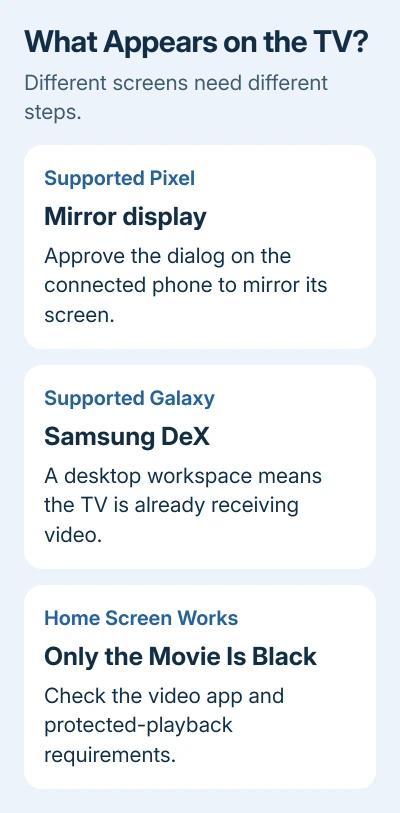
On a supported Pixel, connect the HDMI end to the display and the USB-C end to the phone. Select the Mirror display dialog when it appears, then follow its instructions. The TV should show mirrored content from the phone.
On a supported Galaxy, connecting the cable may start Samsung DeX. It shows a desktop-style workspace on the TV instead of a larger phone home screen. Seeing that workspace means the video connection is working.
Tap Start if the DeX prompt appears. If it doesn't, swipe down with two fingers and select DeX in Quick Settings. Some models start by mirroring the phone instead; that also confirms the TV is receiving a picture.
DeX for a TV through HDMI and the old DeX for PC software are different connections. Installing the PC app isn't a repair for a TV's No Signal message. Keep the check focused on the phone, adapter, cable, and TV.
If no display prompt appears on a supported phone, reconnect the direct cable path and check for system updates. Keep the exact adapter model handy so its maker can check compatibility if it still won't connect.
5. Treat a black streaming video separately from No Signal
Open the phone's home screen or a photo. If that appears on the TV but a particular movie doesn't, the HDMI connection is carrying a picture. Changing the TV input isn't the next useful move.
Some video apps restrict external playback. Protected movies and shows can also require HDCP, a copy-protection system. Each part carrying that protected video needs to support it. An unsupported connection may show an alert.
Apple's Digital AV adapter help explains how app and HDCP limits can stop video even when the cable works. Try the app's supported TV playback method, or use its native TV app when available.
When photos work but one app fails, check its external-display support before buying hardware. If an iPhone gives no picture anywhere, update iOS, reconnect its adapter, and remove extra video converters.
If a compatible phone still gives no picture, send the phone or adapter maker its model, software version, adapter model, and TV model. Ask them to confirm this wired-video combination before arranging repair.
The Short Version
Check the phone's wired-video support, use its compatible adapter, and match the TV's HDMI input. Approve any display prompt. When only a movie stays black, check the app and playback protection instead.
Checked November 10, 2026.