Google Play Store comes installed on Android devices that support Google Play. When it's missing, search the full apps list and enable the store before looking for a download. The store remains installed if only its shortcut was removed.
Some phones have never supported Google Play. Installing a store file won't add all the supported Google services those phones lack. Check your model before downloading anything.
In this guide
Look for the installed store first
Open the phone's full apps screen and search for Play Store or Google Play Store. Many phones open their complete apps list with an upward swipe on Home. The app may simply be absent from the home screen you normally use.
Tap the store if you find it. If it opens and shows app listings, the store is already installed. Add its shortcut back to your home screen using your launcher's normal method instead of installing another copy.
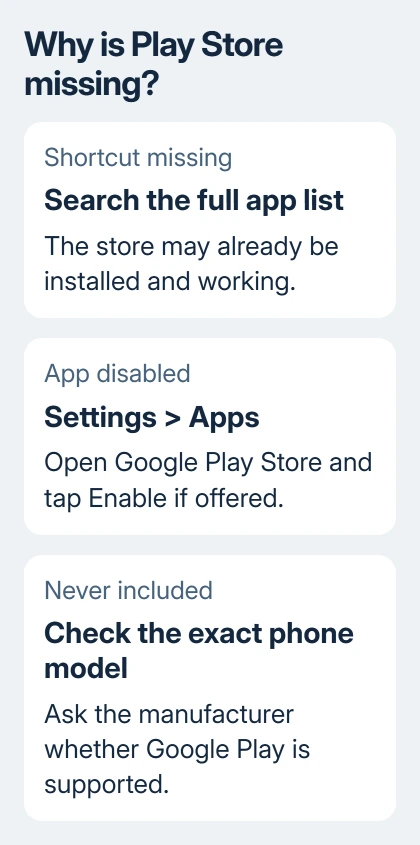
Google says the missing-store checks include device support, disabled apps and restarting. A matching Android version doesn't mean two phone models both include Google Play.
If Play Store used to be present, restart the phone and search the app list again. Try this after changing launchers or installing a system update. This lets you check for the store without changing the app itself.
Keep Google Play Store separate from Google Play services and Google Play system update. They have related names, but the store is the app used to browse and install apps. The other entries aren't substitute app stores.
Re-enable Google Play Store in Settings
Open Settings > Apps and choose See all apps or your phone's app-list option. Search for Google Play Store. On a Galaxy phone, Settings > Apps opens the app list directly.
Open its app-information page. If it shows Enable, tap that button. Then find Play Store among your apps and open it. Disabling a preinstalled app can hide its icon without removing the app from your phone.
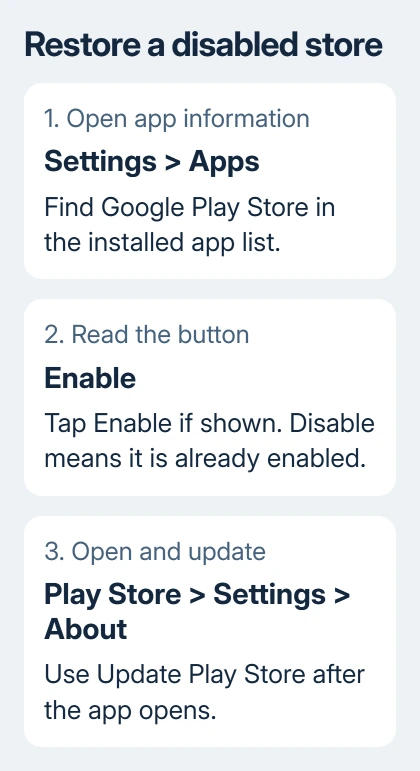
If the page offers Disable instead, the app is already enabled. Leave it enabled and continue with the opening or loading checks. Pressing Disable would create the missing-app problem rather than solve it.
Some launchers can hide an enabled app's icon. If the store opens through Settings but isn't in your apps list, check the launcher's hidden-app options. The menu name depends on the launcher and phone maker.
An administrator can control app availability on a phone managed by your school or employer. Ask whether Google Play or managed Google Play is permitted before trying to add a different store installation.
Install an app after the store opens
Launch Play Store and sign in with your chosen Google Account. Type the app's name into search and open the matching listing. Check the developer name so a similarly named app doesn't become your replacement by mistake.
Tap Install for a free app, or its price for a paid app, and follow the prompts. When installation finishes, the listing should offer Open. That tells you the app is installed and ready, rather than still waiting to download.
If the listing says the app isn't available for your device or region, that isn't fixed by reinstalling Play Store. Check the app's requirements or ask its developer about compatibility with your model.
Purchased apps are tied to the account used to buy them. If the store asks you to pay for an app you already own, check the account from the profile menu before purchasing again. A different signed-in account can have a different library.
For apps removed earlier, open the profile menu and use Manage apps & device > Manage. Change the installed-app filter to Not installed where offered, select the app and reinstall it from your account's list.
Update the store through its own controls
Open Play Store > profile picture > Settings > About. Tap Update Play Store and follow the message. This checks for the store's own update, separate from updates for the games and apps in your library.
If the message says the store is up to date, don't keep requesting another copy. Return to the specific problem, such as an app waiting to download or the store closing when you open it.
For a phone showing a separate stalled system-update entry, the Samsung Google Play system update checks cover that component. Updating the store won't finish that separate system update.
I'd use the built-in update control before looking for a download site. That updates the supported store already on your phone, without making you guess which download matches your device.
Repair a store that opens but won't work
Confirm the phone is online and has free storage available, then restart. Try a small app download. When listings load but downloads stall, troubleshoot the existing store instead of installing another copy.
Touch and hold the Google Play Store icon and open App info > Storage & cache > Clear cache. Samsung's labels are usually Storage > Clear cache. Open the store again and retry the download.
If cache clearing doesn't help, the next option is Clear storage or Clear data on that same Play Store page. This can reset store preferences, including parental controls and password protection, so restore those settings afterward.
Another repair is to uninstall the store's updates. Open its App info page, tap the top menu and choose Uninstall updates if available. Confirm, reopen Play Store and use Settings > About > Update Play Store again.
That action returns the preinstalled store to its earlier version; it isn't the same as deleting all Google services. Make this change only for Google Play Store, then try again before changing accounts or resetting the phone.
If other apps also crash or the phone keeps reporting storage trouble, mention those problems too when you ask for help. The Android backup guide is useful before a repair that would erase the phone.
When the phone never had Google Play
Find the exact model and sales region in the manufacturer's support information. Some Android devices use another app store and don't ship with supported Google Play. A used phone may also have modified software.
If Google Play should be included but doesn't appear anywhere in Settings, contact the maker or carrier. Ask how to restore Play Store for that model, and mention any earlier software changes.
Don't install an APK from a pop-up claiming the store has expired. Check device support with the maker first. If a supported phone's store still fails after these repairs, give Google Play Help the exact error.
The Short Version
Search the app list, enable Play Store if disabled and update it through Settings > About. Repair cache or updates for an existing store. Ask the maker about phones that never included supported Google Play.
Checked November 10, 2026.