Developer options becomes available after you tap Build number seven times in Android's Settings app. On a Pixel, look inside About phone. On a Samsung Galaxy, open About phone > Software information first, then tap the build number.
Enabling the menu doesn't automatically enable USB debugging. Open the new menu afterward and change only the setting needed for your task.
In this guide
Locate the build information
Unlock the phone and open its main Settings app. Use the phone's settings, rather than the settings inside a browser or another app. You'll be tapping the build number for the software installed on your phone.
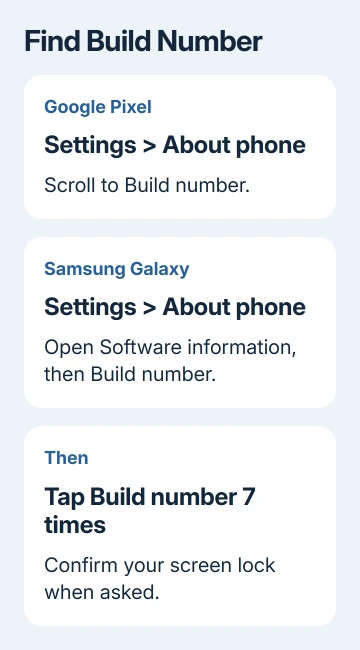
On a Google Pixel, choose About phone and scroll to Build number. On a recent Samsung Galaxy, choose About phone > Software information > Build number. The extra Software information page is easy to miss on Galaxy phones.
Another Android brand may use a different name for its software information page. Search Settings for Build number and open the result in the phone's information pages. You'll open the developer menu after enabling it.
An Android version entry may open a separate screen or an Easter egg when tapped repeatedly. That isn't the same control. Go back and locate the build number before continuing.
Note the model name and installed Android release if the menus don't match. With those details, the manufacturer's support team can give you the path for your phone.
Tap seven times and confirm the screen lock
Tap Build number seven times in succession. The phone should show progress messages as you get close to enabling the developer menu. Keep tapping the same row instead of opening another information page midway through.
If asked, enter your current screen-lock PIN, pattern or password. That screen-lock check confirms you're allowed to change these settings. It isn't asking for the password to your email account or a new developer account.
When the completion message appears, stop tapping and return to Settings. The message means the menu is ready to open. The debugging and performance switches haven't changed yet.
On a Galaxy, go back to the main Settings list and scroll to its end. Developer options should now be available there. Samsung's menu instructions describe both the seven taps and the screen-lock check.
If the phone indicates that developer mode is already enabled, don't repeat the tapping procedure. Look for the existing menu instead. Open it without enabling it again.
Open Developer options in the right settings section
On a Pixel, open Settings > System > Developer options. On a recent Samsung Galaxy, open Settings and find Developer options at the bottom of the main list. Settings search can also locate the enabled menu.
The menu's top switch turns the developer controls on or off. Labels and placement differ across Android releases, so read the switch rather than matching its color alone.
Google's developer settings reference explains that turning the master control off disables most of these options. It also notes that device makers can change the menu's name or location.
I'd leave the other switches as they are and find the one your task actually needs. You don't need to work through that long list of debugging controls just to finish one task.
Opening this menu doesn't root the phone, unlock its bootloader or erase its contents. Those are separate operations. A guide that asks for one of them should explain that operation and its consequences before you continue.
For ordinary app removal, use the Android app uninstall controls instead. The developer menu isn't required simply to remove an app with a normal Uninstall button.
Enable USB debugging only when the task calls for it
For Android development or a tool that uses Android Debug Bridge (ADB), open Developer options and find USB debugging. ADB lets the computer send commands to your phone. Turn debugging on and read the confirmation.
Connect the phone to the intended computer with a data-capable USB cable. Keep the screen unlocked and check for an Allow USB debugging authorization dialog. Approve the request only if it's from your intended computer.
The menu switch and the computer authorization are two different steps. A tool can still be waiting for permission even when USB debugging is on. Check the phone's screen before assuming the computer needs another driver.
If all you want is to copy photos to a Windows PC, the standard USB file transfer procedure uses File transfer in the USB notification. It doesn't require USB debugging.
For a computer that can't see a connected Samsung, the Samsung-to-computer connection checks cover the cable and transfer mode. Turning on more developer switches won't turn a charging-only cable into a data cable.
If the tool still can't connect after authorization, follow its setup instructions for your operating system. When asking for help, say whether the phone showed a permission prompt and whether the tool lists it as unauthorized or missing.
Handle a missing or restricted menu
First confirm that the taps were on Build number, not Android version, and that you completed any screen-lock prompt. Return to the main Settings list and use its search before assuming the new menu hasn't appeared.
A school or employer can restrict developer settings on a managed phone. If the phone shows an administrator restriction or the control is locked, ask that administrator whether debugging is allowed for your device and task.
For a personal phone without a restriction notice, check the manufacturer's instructions for that model. Software information can sit under another heading; a Pixel path can lead to the wrong page on another brand.
Don't factory-reset the phone just to make this menu appear. Give the manufacturer the model, software version, exact completion message and a description of where you looked. That gives support what they need to help you find the menu.
Turn the developer controls off when finished
Return to Developer options and turn off USB debugging after finishing the task that needed that computer connection. To turn off the developer settings together, use the menu's master switch.
On Samsung phones, turning that master switch off also hides the menu. If you need it again later, return to Build number and enable it using the same procedure. Other Android layouts can continue to show a disabled menu.
The Short Version
Tap Build number seven times, confirm your screen lock, and open the new Developer options menu. Pixel places it under System; Galaxy phones show it last in Settings. USB debugging remains a separate choice for tasks that need it.
Checked November 10, 2026.