
Uninstall apps on Android through Google Play > profile picture > Manage apps & devices > Manage. Select the app and tap Uninstall. Save anything needed from the app before confirming its removal.
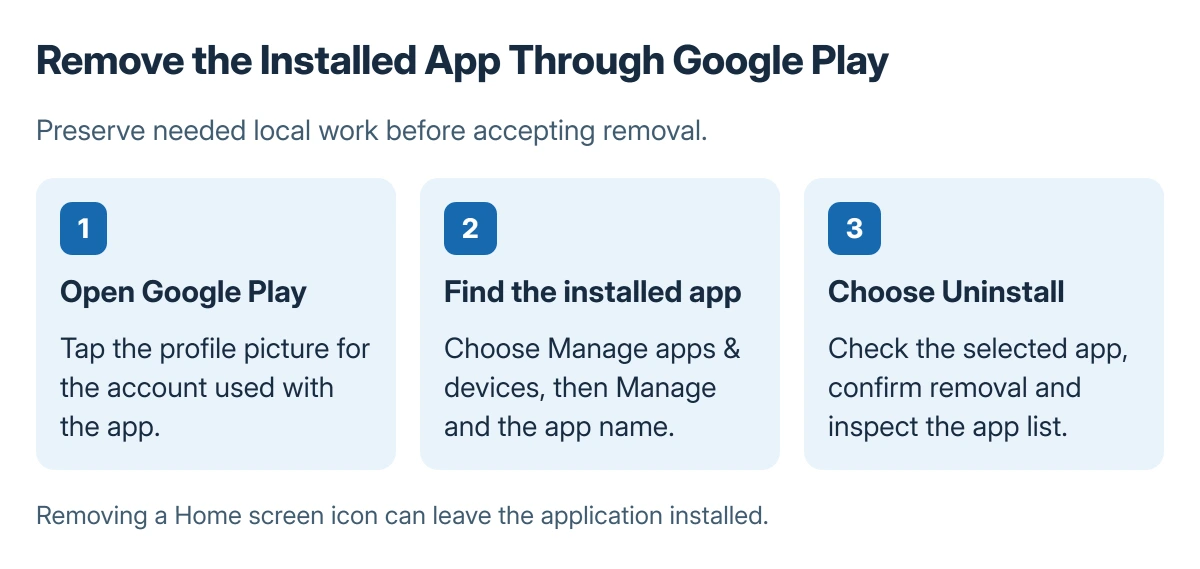
Removing an icon from the Home screen is different. It can leave the app installed, and uninstalling an app does not cancel an active subscription.
Remove the installed app through Google Play
Open the Play Store using the account associated with the app. Tap the profile picture, choose Manage apps & devices, then open Manage. Select the app by name and choose Uninstall.
Google says that is the removal route for installed apps in its Android app deletion instructions. Check the app's name and publisher before accepting a removal prompt, especially when several apps have similar icons.
Status: app removal documented by Google, checked 23 October 2026. Built-in app controls depend on the phone; no installed software was removed.
Afterward, return to the app list and confirm that the installed entry is gone. An Install button in Google Play means the app is available to install again, rather than currently being installed through that listing.
Save the information that belongs to the app
Export important recordings, documents or other local work using the app's own controls before removal. Confirm that an exported file opens outside the app. A cloud account and a local file are different storage locations.
The Android backup coverage guide explains why a general phone backup cannot guarantee every app's contents. For an app being removed because it crashes, the app crash procedure can identify a smaller change before reinstalling.
Google states that a purchased app can be reinstalled without buying it again. That purchase entitlement does not establish that every piece of unsynced local information will return.
Check Uninstall, Disable and subscription controls separately
Some system apps cannot be deleted. Google says certain phones allow those apps to be disabled instead, and its built-in app guidance directs users to the manufacturer for the applicable controls.
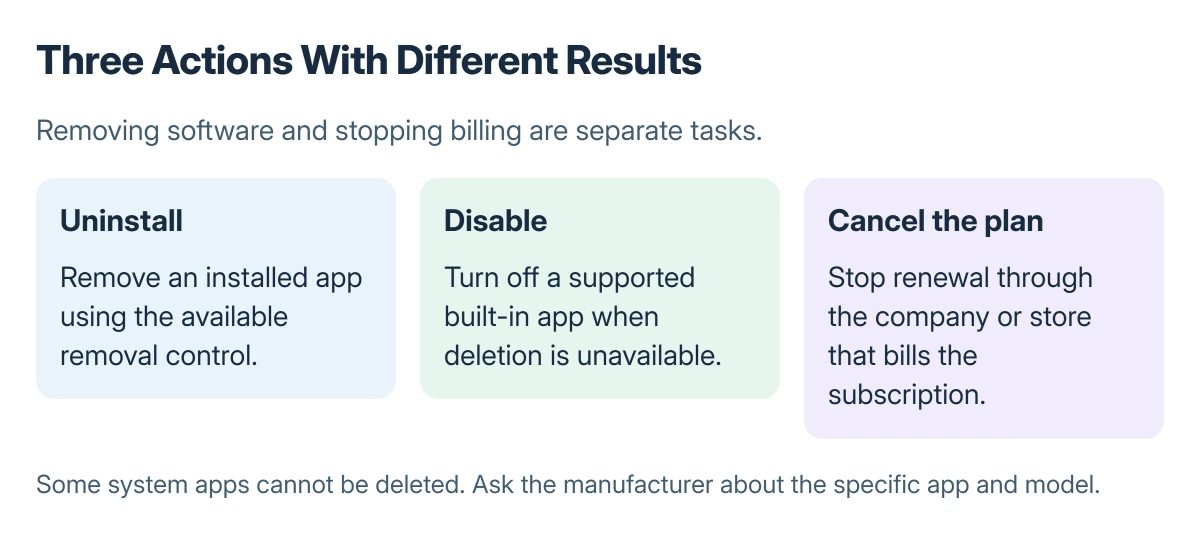
A missing Uninstall command is not a reason to remove system packages with an unfamiliar tool. Check the phone maker's instructions for the named app and model.
For a paid plan, open the Google Play subscription controls or contact the provider that bills it. Cancel the subscription there if it is no longer wanted, and check the cancellation result separately from app removal.
The Short Version
Use Google Play's Manage list to uninstall an app after preserving needed information. Built-in apps may offer Disable instead. Remove a paid subscription through its billing provider as a separate action.
Where to Next
If removal is blocked, give the manufacturer the app name, phone model and exact disabled control. A managed work or school device may require its administrator's help.

Isaac Smith is the founder and editor of PC Glance, a website that covers computers, laptops, and technology. He is a tech enthusiast and a computer geek who loves to share his insights and help his readers make smart choices when buying tech gadgets or laptops. He is always curious and updated about the latest tech trends.