Removing the Gemini app doesn't automatically stop its Android assistant shortcuts. Change Default digital assistant app to None or another available assistant first. Uninstall the app separately if you want it removed too.
There are smaller changes when only the power button, voice activation or lock screen bothers you. Choose the control matching how Gemini opens instead of deleting unrelated Google apps.
In this guide
1. Remove Gemini as the default digital assistant
Open Settings > Apps > Default apps > Digital assistant app. Tap Default digital assistant app, then choose None or another assistant that is available on your device.
Google's Gemini removal instructions explain that Google can be selected when either Gemini or Google Assistant handles assistant requests. The Google entry alone doesn't identify whether Gemini or Google Assistant is handling requests.
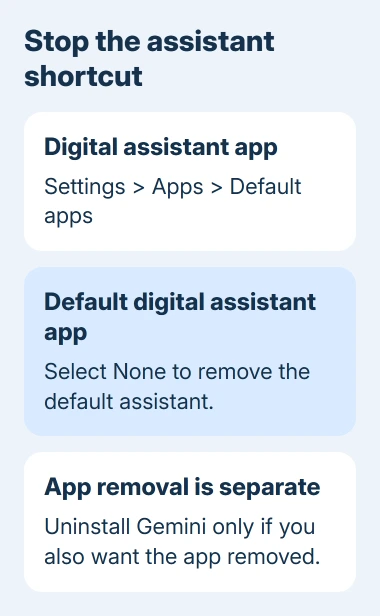
On Galaxy phones, look under Settings > Apps > Choose default apps > Digital assistant app. Labels vary with the Android and One UI version. Search Settings for digital assistant app if the route isn't shown.
Try the gesture that previously opened Gemini. If the assistant overlay no longer appears after choosing None, the default-assistant change has taken effect. The Gemini app can still open when you tap its own icon.
Choosing None also removes the default assistant from those system gestures. If you still want an assistant, select an installed alternative offered in that list rather than expecting None to preserve assistant voice commands.
Don't assume an older Switch to Google Assistant tutorial applies to every current phone. Use a choice only when your account and device actually offer it. Removing Gemini doesn't create an assistant option that isn't available.
2. Uninstall the standalone app if it is removable
Open Google Play, use your profile control, then select Manage apps & devices > Manage. Select Gemini and tap Uninstall, then confirm. Check the exact app name so you don't remove a different Google application.
The phone may also offer Uninstall through Settings > Apps > Gemini, or through the icon's App info screen. Use the normal app-removal control shown by that device instead of commands that remove system packages.
A Home screen icon's Remove action is different from uninstalling the app. It may leave the app in the app drawer and in Settings. If you want it gone from the phone, check its entry in the app list afterward.
Some preinstalled apps cannot be removed in the normal way. A device may offer Disable, removal of updates, or no removal choice. Follow the maker's directions for that specific app and model if Uninstall isn't available.
The Android app removal guide explains the difference between removing an app and disabling a built-in one. The default-assistant control remains the relevant check when Gemini still opens from a system gesture.
Uninstalling the standalone app and selecting None solve two different parts of this task. Stop once the result matches what you wanted: an installed app you can open on purpose, or no standalone app and no default-assistant shortcut.
3. Change the power button instead of removing the app
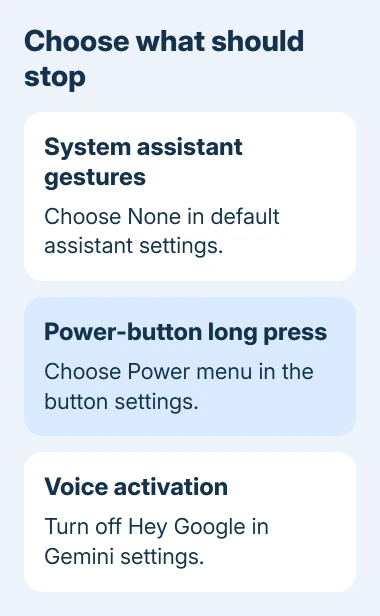
Use this option when Gemini is useful but appears every time you try to switch the phone off. On a supported Pixel, open Settings > System > Gestures > Press & hold power button and select Power menu.
On supported Samsung Galaxy phones, look in Settings > Advanced features > Side button or Side key. Under the long-press setting, choose Power off menu when offered. The available wording varies with the phone and its installed software.
Hold the button once after making the change. A menu with shutdown and restart choices means the long press now handles power controls. For this button check, you can leave that menu without shutting down.
If the setting isn't listed, search Settings for power, side button or gesture. Don't change the double-press action and expect that to repair a long press; phones that offer both let you set each one separately.
The Pixel and Galaxy shutdown guide gives the button combinations for reaching shutdown choices while keeping your assistant. That gives you a way to shut down while you decide whether to keep Gemini for other tasks.
4. Turn off voice and lock-screen activation separately
To stop voice activation while keeping the app, open Gemini. Open Menu, select your profile, then open Settings > Talk to Gemini hands-free. Turn off Hey Google.
Check that the hands-free switch now shows off. Opening the app by tapping its icon should still be possible. Voice activation and opening the app directly are different actions, so this change doesn't uninstall anything.
To change locked-phone access, return to Gemini's settings and open Gemini on lock screen. Turn off Use Gemini without unlocking. This controls access while locked, rather than removing every way to launch Gemini.
Older app layouts can place the profile control in another position. Look for the named settings rather than relying on the corner shown in an old screenshot. Update the app normally if its menus don't match the current help page.
I'd change only the trigger that's getting in your way when you still want to use Gemini. That keeps a useful app available without leaving a power-button or voice shortcut you didn't want.
5. Check other places where Gemini can still appear
Gemini inside another Google product has its own controls. Removing the Android app doesn't remove every Gemini feature from Gmail, Chrome or Google Messages. Identify which app shows the feature before changing another setting.
For example, a Gemini conversation in Google Messages belongs to that messaging app. A browser's Gemini control belongs to its browser settings. Neither one means Android has ignored the default-assistant selection you just made.
Past Gemini chats also aren't automatically deleted by removing the app. If deleting conversation history is part of your goal, open the separate Gemini Apps activity controls while signed into the correct Google Account.
Treat app removal and history deletion as separate decisions. Someone who only wants the power button back doesn't need to erase their past chats. To remove old account activity, confirm the deletion in those activity controls.
When a setting is missing or keeps reverting
Check the phone model, Android version and the app where Gemini actually opens. For an organization-issued phone, check whether IT controls assistant and app-default choices.
For a personal device, use the phone maker's support page for its digital assistant and Side-button controls. Give support the exact missing setting and the gesture that launches Gemini, rather than only saying the app came back.
The Short Version
Choose None under Default digital assistant app to stop system assistant shortcuts. Uninstall Gemini separately if it is removable. Use the power-button, Hey Google and lock-screen controls when you only want to stop one way it opens.
Checked November 13, 2026.