
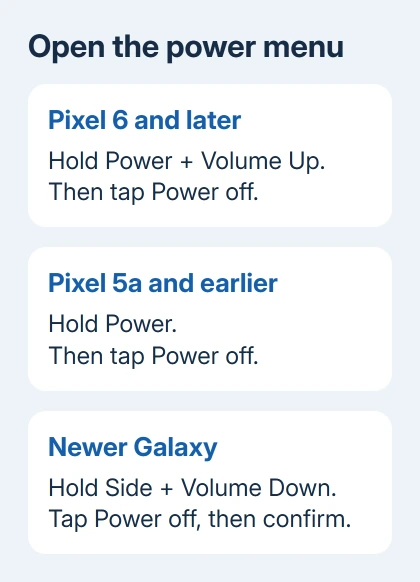
To power off an Android phone, open its power menu and tap Power off. The buttons vary: on Pixel 6 or newer, hold Power + Volume Up. Newer Samsung Galaxy models use Side + Volume Down.
A short button press only sleeps the screen. If holding the button opens an assistant, the phone is using that button for another action. Use its power-menu combination or the Galaxy Quick settings control instead.
In this guide
Choose shutdown rather than screen sleep or restart
Save anything you're editing and let an important file transfer finish before shutting down. Unlock the phone so you can use its menus, then use your model's steps.
Power off shuts down the phone until you turn it on again. Restart shuts it down and starts it again automatically. A quick press that blanks the display leaves the phone running with its screen asleep.
Those differences matter if you're switching it off before putting it away. The phone can still be running with a dark screen. Pressing the button again and seeing the lock screen immediately means it wasn't fully shut down.
I'd use the onscreen Power off option whenever the phone responds. Holding buttons to force a restart is for a phone that won't respond. It doesn't replace a normal shutdown.
Turn off a Pixel using the right generation's buttons
On Pixel 6 and later, press and hold Power and Volume Up together for a few seconds. Let go once the menu opens, then tap Power off.
On Pixel 5a and earlier, press Power continuously for several seconds, then tap Power off on the screen. Those older models use Power alone instead of the newer two-button shortcut.
Google's Pixel power instructions separate those generations. Check your model under Settings > About phone if you're unsure which instructions apply.
Wait for shutdown to finish. To start the Pixel again, keep its Power button pressed for several seconds. On Pixel 6 and later, keep holding until you feel a vibration; in some situations that can take up to seven seconds.
If the button opens an assistant instead of showing shutdown choices, use the button combination for your model. The button can still be working normally; a long press is just set to do something else.
For a Pixel that has already stopped responding, use its frozen-phone checks. Choosing a shutdown menu requires a responsive screen; repeated taps won't help a completely frozen system.
Shut down a Galaxy with its Side button
For a Galaxy with the combined Side button, press Side + Volume Down and keep both pressed for several seconds. When the power menu appears, release the buttons, tap Power off, then tap Power off again to confirm.
A quick press of those two buttons can take a screenshot instead. Hold them long enough to open the menu, then stop holding once the menu is visible. Continuing to hold can force a reboot on supported models.
For older models that have a separate Power button, hold that button until the menu appears. Tap Power off and confirm. Samsung's model-specific guide shows whether the phone has a dedicated Power button or a combined Side button.
On a Galaxy Z Flip, open the phone when using the Side-button shortcuts. The buttons can behave differently while it's closed, so the same presses may not work from the cover screen.
To turn it back on, hold the Side or Power button when the phone is off. A startup logo means the phone is booting, rather than merely waking a sleeping screen.
Use Galaxy Quick settings without holding buttons
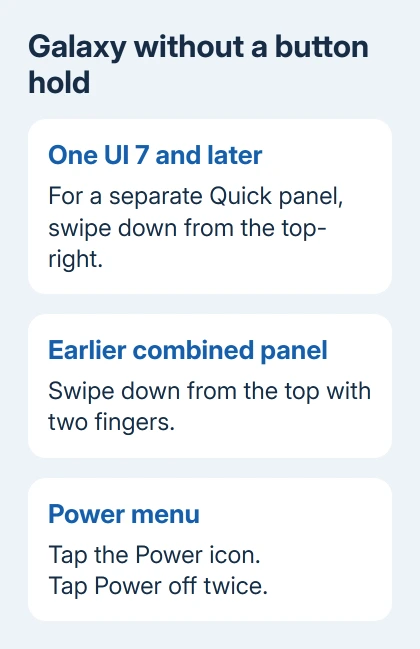
Many newer Galaxy phones have a Power icon in the full Quick settings panel. Open that panel, tap its Power icon, then choose Power off and confirm with Power off again.
On versions with the combined notifications and Quick settings panel, swipe down from the top using two fingers to expand it. The Power icon is near the settings controls in the expanded panel, rather than one of the ordinary network tiles.
On One UI 7 and later, the panel may be separated from notifications. Start a downward swipe in the top-right corner to reach that panel. A swipe elsewhere can open notifications instead, which explains a missing Power icon.
That route helps when a case makes pressing both buttons awkward. The screen needs to respond. If neither the panel nor the power menu responds to touch, you'll need help with the frozen phone, rather than a different shutdown shortcut.
The Galaxy A15 shutdown instructions cover that model separately. They also help when you're comparing its Side-key setup with a different Galaxy rather than looking for a Pixel shortcut.
Make the long press open shutdown choices
On Pixel 6 and later, open Settings > System > Gestures, then Press and hold the power button. Choose the power-menu behavior offered there if you'd prefer a long press to show shutdown choices.
On a supported Galaxy, open Settings > Advanced features > Side button or Side key, depending on its software. Under Press and hold or Long press, choose Power off menu when that option is available.
Some versions change the labels or available assignments. Use the phone's model guide if that power-menu choice isn't listed. A setting for Double press controls a different gesture and won't change what a long press does.
After making the change, hold the button once and check what appears. Stop at the menu if you only wanted to check the change. You don't have to shut down to see that the button now opens it.
When shutdown controls still don't work
Phones from Motorola, OnePlus, Xiaomi, and other makers can use different gestures or button settings. Search the exact model's support guide for power off instead of applying a Pixel shortcut to every Android device.
If a button is damaged but the Galaxy screen works, use its Quick settings option. If the screen is damaged too, ask the manufacturer's service team or a repair center how to shut down or service your model safely.
For a shutdown that repeatedly turns into a restart, note the model, software version, buttons held, and whether you selected Power off. Give those details to support. Don't use a factory reset to solve an uncertain button combination.
The Short Version
For recent Pixels, hold Power with Volume Up. Older Pixels need Power alone. Galaxy's combined Side button pairs with Volume Down; confirm Power off twice. Its Quick panel also offers shutdown. Stop holding once the menu opens.
Checked November 12, 2026.





