Unwanted adverts on Android usually come from a website's notification permission or an app you've installed. Block the site's alerts for notification spam; remove the responsible app for ads over your home screen or other apps.
Ads inside a free game or a website are a different case. Chrome's pop-up switch won't remove every advert, and turning off personalized advertising doesn't make an ad-supported app ad-free.
In this guide
Match the advert to where it appears
Look at the next ad before dismissing it. A notification in the notification shade should show the app that sent it, and a website alert may also name the site. If the advert fills a browser tab, start with that browser's controls.
A full-screen ad appearing while you're using unrelated apps needs a different check. Think about recent downloads, including games, cleaners and wallpaper apps. The timing helps you choose which recent apps to remove first.
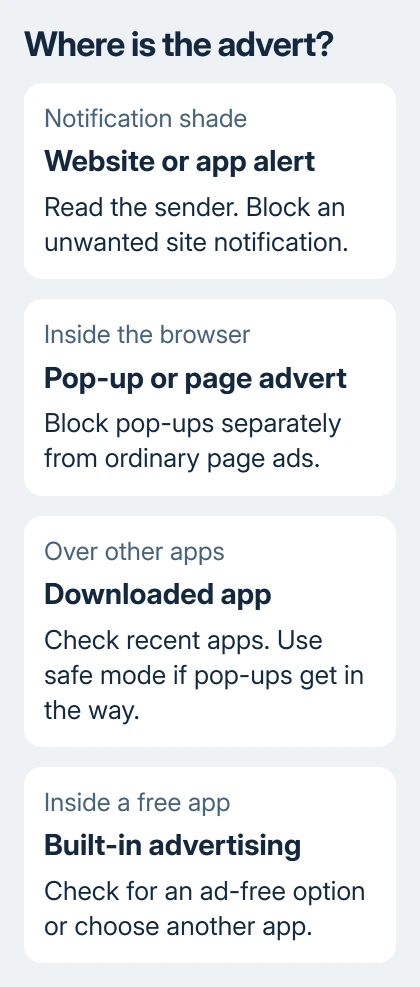
Don't tap a warning's download or payment button to make it go away. Close the tab or dismiss the alert instead. Ignore a page's claim that your phone has a virus, along with its advertised cleaner.
For a Motorola news panel on the lock screen, the Glance and News Roundup controls address that particular service. Use those controls if you're seeing that news feature rather than a random browser alert.
Stop website ads arriving as notifications
Open Chrome > More > Settings > Site settings > Notifications and review sites allowed to notify you. Open the unwanted site's entry and block its notifications. That stops the site from sending new alerts through Chrome.
Or open the known website in Chrome, tap the page-information control beside its address, then choose Permissions > Notifications and turn off Show notifications. Go straight to the site's address to reach these controls.
Google's unwanted-ad instructions describe removing that site permission. If Permissions isn't offered through page information, that site doesn't have notification permission there.
Dismiss alerts already sitting in the notification shade after changing the permission. An old alert can stay on screen even after you've blocked new ones. Watch whether another alert from that site appears during normal use.
Blocking every Chrome notification at Android's app level is broader than blocking one site. It also affects useful browser alerts, so start with the site's own permission when its address identifies the sender.
Block browser pop-ups without changing app permissions
In Chrome, open More > Settings > Site settings > Pop-ups and redirects. Set it to block pop-ups and redirects. The explanatory text on that screen should say they're blocked when the setting is in the right state.
Close the troublesome tab and return to a familiar site. If unwanted new tabs stop opening, that setting has worked. It won't remove advertisements already built into the page you're viewing.
On a Samsung phone using Samsung Internet, open Menu > Settings > Privacy dashboard and enable Block pop-ups. This changes Samsung Internet, so it won't alter Chrome's settings on the same phone.
Samsung Internet also offers Menu > Ad blockers, where compatible blockers can be installed and enabled. Check the description and cost before choosing one. The blocker works in Samsung Internet, not in every app on your phone.
If the ads remain entirely inside a particular free app, check whether it offers an ad-free purchase or subscription, or choose another app. A browser pop-up blocker can't remove the ads built into a separate game.
Remove the app behind ads outside the browser
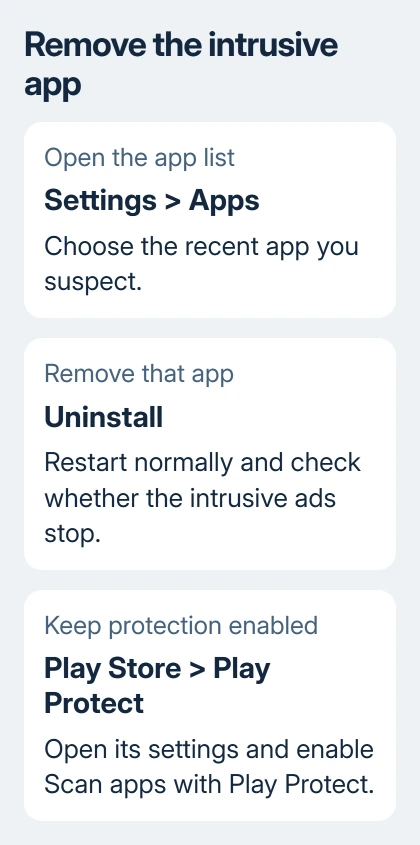
Start with downloads and app updates from just before the adverts began. Open Settings > Apps, choose a suspect app and tap Uninstall. On Samsung phones, the filter beside Your apps can sort the list to help find recent changes.
Restart normally after removing one suspect and use the phone for the activity that used to trigger ads. If they stop, that points to the app you just removed. Keep a short list so you can restore unrelated apps later.
Safe mode helps when pop-ups make normal use difficult. It starts Android with downloaded apps temporarily disabled. If those intrusive ads disappear there, concentrate on downloaded apps rather than changing every browser setting.
Bring up the power menu, then touch and hold Power off until the safe-mode prompt appears. Confirm it. The phone should restart with Safe mode shown on screen. The way to open the power menu varies by phone model.
On recent Pixels, press Power and Volume Up together to show that menu. On many Galaxy phones, hold Side and Volume Down, then use the onscreen Power off control. Follow the maker's safe-mode steps if your controls differ.
In safe mode, remove a recent suspect through Settings > Apps. A normal restart leaves safe mode; then check whether adverts return. Remove suspects separately so you'll know which uninstall made the ads stop.
If Uninstall is unavailable, check whether it's a managed work app or a preinstalled feature. For a school or work phone, ask the administrator about that app before changing its permissions.
Run Play Protect after removing the suspect
Open Google Play Store, open the profile menu and select Play Protect. Run a scan if offered, then open its settings and turn on Scan apps with Play Protect. Follow any warning that identifies a harmful app.
Play Protect is useful alongside the app-removal check. It doesn't turn an ordinary ad-supported app into an ad-free version, so a clean scan doesn't replace identifying where the ads appear.
If you're still deciding which app to remove, watch whether its ads stay inside that app or interrupt something else you're doing. An app that interrupts another task with ads is the one to remove.
The Android app removal guide explains Uninstall and Disable when those buttons differ. Avoid adding several cleaner apps while trying to identify one intrusive app.
Get help with ads that survive the app checks
Record the phone model, Android version and the app or site name shown on the alert. A screenshot of the advert and sender helps support tell a preinstalled service from a website alert or downloaded app.
Ask the device maker about ads that remain after removing the relevant app. For a Chrome site still sending new alerts, review its entry under Site settings instead of repeatedly clearing browsing history.
The Short Version
Block notification permission for an unwanted website, block browser pop-ups separately and remove apps that show ads outside their own screens. Use safe mode for intrusive downloaded apps, then keep Play Protect scanning enabled.
Checked November 10, 2026.