
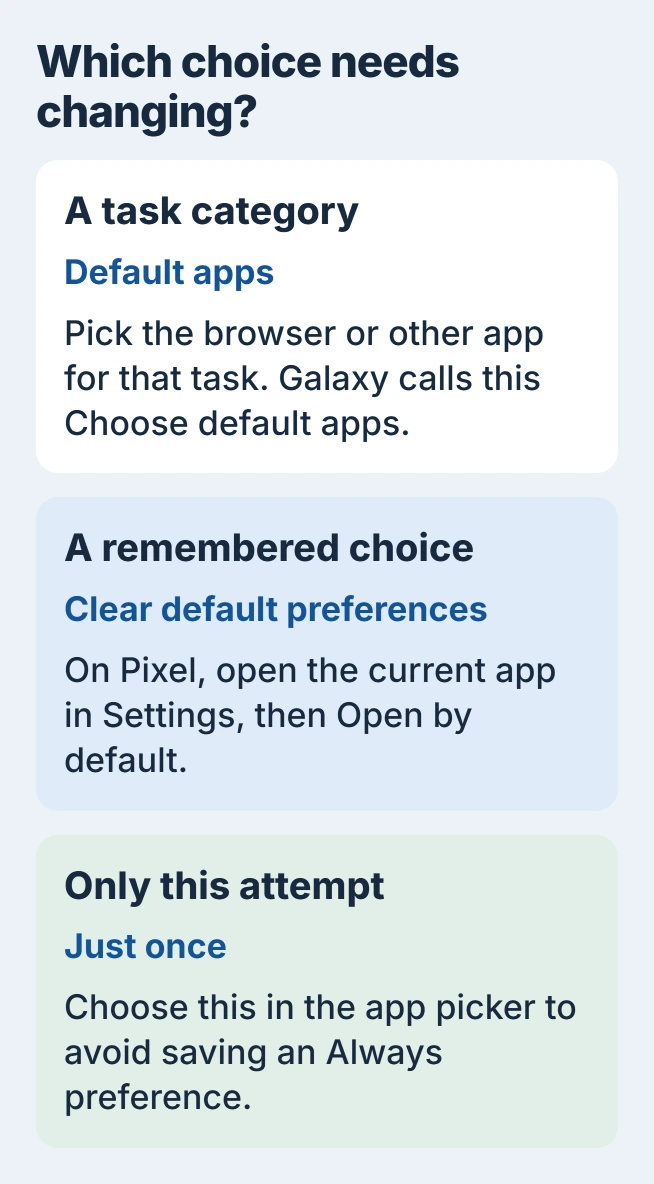
Changing default apps on Android tells the phone which app should handle a task, such as opening web pages. On a Pixel, start in Settings > Apps > Default apps. On Samsung Galaxy, the equivalent menu is Choose default apps.
Choose a category, then select the installed app wanted for that job. If the problem is an earlier Always choice for a file, clear that app's saved preference instead.
Choose a default for the task
Google says to use Settings > Apps > Default apps. Its Pixel default-app instructions then direct you to select the category and replacement app.
For Samsung, open Settings > Apps > Choose default apps. Choose Browser app, for example, and select the browser to use. Samsung says to select the category first in its Galaxy app settings guide.
Status: Google Pixel and Samsung Galaxy default-app instructions checked November 1, 2026. Names vary by manufacturer; Google's guide marks some steps Android 14 or later.
Return to the category and confirm the chosen name. Then try the relevant task. Our recommendation for a browser change is to follow a normal website link received in another app, rather than tapping the new browser's icon.
The replacement must be installed and able to handle that task. Reopening the category cannot add an unsupported app to its choices. Check its developer's support information for the function wanted.
Make Android ask again after choosing Always
On Pixel, open Settings > Apps and select the app that currently opens. Use See all apps if necessary, then choose Open by default > Clear default preferences.
Try the same action again. When Android offers an app chooser, select the intended app and choose Just once for that attempt or Always to remember the choice.
Google states that Always remembers the choice and Just once applies to that attempt. Clearing a default is different from clearing app data. Choosing another handler does not require erasing the old app's files or sign-in.
Samsung and other manufacturers can name this app-specific control differently. Search the phone's Settings for the app, then look for its default-opening options. Use the manufacturer's instructions when the Pixel labels are absent.
Understand why a link can still open its own app
Android supports verified website links that open a corresponding installed app. Google's Android App Links documentation describes that relationship; selecting a default browser does not replace every app-specific link choice.
Check the destination app's default-opening settings when only one website behaves differently. The browser choice alone does not explain that separate behavior.
If the selected app opens but fails, use the Android app-crash checks. That is a problem with running the app, after the phone has already chosen it.
Keep the old app until the new choice works
Changing the default does not require removing the previous app. Test the new choice with the files or links that matter before deciding whether the old app is still useful.
If removal is wanted later, follow the Android uninstall procedure after exporting any local files that still need to be kept. Uninstalling and changing a default have different consequences.
For a choice that repeatedly changes back, report the phone model, Android version, category and affected app to the manufacturer. Include whether the name changes in Settings or only one particular link opens elsewhere.
The Short Version
Choose the task category in Default apps, or Choose default apps on Galaxy. Clear a saved opening preference when Android should ask again. Verify the result with the actual file or link that caused the problem.

Isaac Smith is the founder and editor of PC Glance, a website that covers computers, laptops, and technology. He is a tech enthusiast and a computer geek who loves to share his insights and help his readers make smart choices when buying tech gadgets or laptops. He is always curious and updated about the latest tech trends.