

OneDrive's link settings can make Android open OneNote web links in an app instead of your browser. Change those defaults first: one owner with a Galaxy S9 stopped the redirect by setting its app links to Always Ask.
Newer phones use different labels, often Open supported links. If the notebook stays in the browser but refuses to load or edit, check browser access next. App selection is no longer the problem.
In this guide
1. Change OneDrive's link setting on a Galaxy
Open Settings > Apps > OneDrive on your phone. Look for Set as default, which controls whether the app takes over links to supported addresses. This is separate from selecting Chrome or Samsung Internet as your usual browser.
On the older Galaxy S9 used in the report, the owner opened App Links and selected Always Ask. That brought back the choice between the browser and the installed apps when opening the notebook.
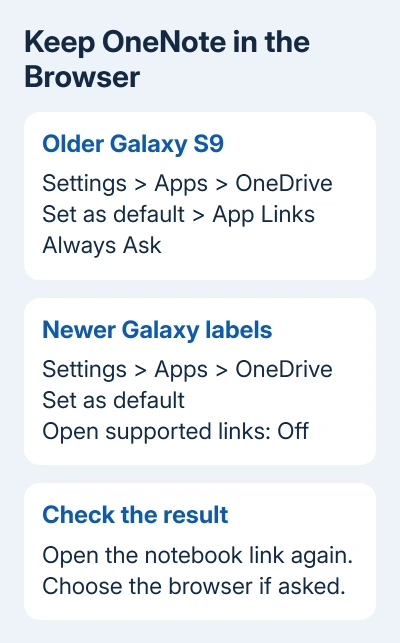
On a newer Galaxy, look in Set as default for Open supported links. Turn it off for OneDrive to leave those addresses with the browser. Labels vary with the phone's Android and One UI versions.
Retry the link in your browser. If Android asks which app should open it, pick the browser and choose Just once for the check. Success means the web page stays visible instead of opening OneDrive.
One owner shared this fix in the OneNote Android discussion, and another affected owner confirmed it worked. Changing browsers alone had already failed with both Chrome and Samsung Internet.
2. Check OneNote if the second app still takes over
In the reported problem, the link passed through two installed apps. A link opened OneDrive first, then OneNote. If changing OneDrive stops that first jump but OneNote still opens, check the same kind of default-opening control for OneNote.
On Galaxy, return to Settings > Apps, select OneNote, and inspect Set as default. If Open supported links is enabled, turn it off and retry the browser link. Change the setting only for the app taking over that notebook link.
This checks whether OneNote is taking over after you've changed OneDrive's setting. The confirmed report specifically changed OneDrive, so start there instead of changing defaults for every app on your phone.
Don't use Clear data or Clear storage for this job. Those commands reset app data and aren't the setting that chooses where a link opens. Your goal is to change link handling while leaving saved notes and account information alone.
If tapping a link now keeps Chrome or Samsung Internet visible, Android has stopped sending the link to an app. Now open the intended notebook. Your account still needs access to that notebook, even with the browser selected.
3. Use the Pixel default-opening controls
On a Pixel, open Settings > Apps > See all apps > OneDrive > Open by default. For a remembered app choice, use Clear default preferences. If the screen also offers Open supported links, review that switch for this app.
Google's default-app instructions explain clearing an app's saved preference and choosing Just once or Always the next time Android asks. Some of its instructions require Android 14 or later.
Repeat the notebook attempt after clearing the choice. If a chooser appears, pick the browser for that attempt. If OneNote becomes the app that opens instead, inspect its Open by default screen as well.
To check the general browser choice, use Settings > Apps > Default apps > Browser app on Pixel. On Galaxy the category is under Settings > Apps > Choose default apps > Browser app.
Choosing your usual browser and deciding which links an app can open are separate settings. The Android default-app guide explains the difference if ordinary websites open in the wrong browser too.
On another phone brand, search Settings for Opening links or open the affected app's information page. Follow the labels your phone actually shows; the Galaxy S9's Always Ask wording isn't present on every Android release.
4. Open the notebook in the browser again
Launch the browser itself and enter onenote.com in its address bar. Sign in as the notebook owner or with the account invited to edit it. Open the notebook from there rather than tapping the OneNote app icon.
The web notebook needs a sign-in, so account selection matters. Personal and organizational Microsoft accounts hold separate collections of notebooks. Read the full email address, even when the display name looks familiar.
If a page offers Open in app, leave that choice alone while checking browser access. Choosing it intentionally asks the phone to leave the web page, which can look like the old automatic redirect returning.
Watch what fails next. A permission message inside the browser means the link has stayed in the browser, but the account still needs notebook access. The OneNote permissions guide covers that next check.
The original owners wanted the browser to resolve page conflicts that the mobile app couldn't handle as they expected. Stopping a redirect lets you reach the web service; it doesn't add every desktop editing feature to a phone browser.
If the page remains unusable on the phone, make that edit in a supported desktop browser. Keep the notebook in its existing cloud location rather than making a second notebook just to get around an app-opening choice.
When the phone still redirects
Write down which app appears first and which action triggers it: tapping a shared link, choosing a notebook on the website, or pressing an app-opening button. That detail tells support which handoff still needs attention.
For a work phone whose link choices are locked, ask IT to check the rules controlling how OneDrive and OneNote open links. Avoid removing the work account or management profile just to expose a setting.
If a saved choice won't stick, send the phone manufacturer your Android version and a picture of that setting. Once links stay in the browser, report any remaining notebook error to OneNote support using its exact message.
The Short Version
Check OneDrive's link defaults first. Use Always Ask on the older Galaxy screen, or review Open supported links on newer phones. Open the web notebook afterward; an access error then needs an account check.
Checked November 22, 2026.
 If you have any business, I can build it online






