
The Galaxy S10 can hide app icons through its Home screen settings without uninstalling the apps. Hold an empty area of the Home screen, choose Settings, open Hide apps, select the apps and confirm with Done or Apply.
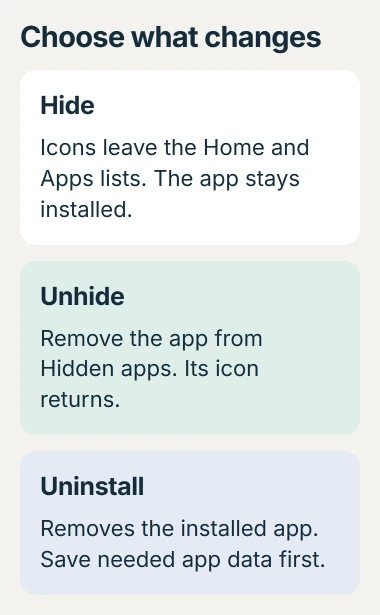
This cleans up the Home and Apps screens. It does not password-protect the selected apps, and their presence can still be discovered through search or the phone's settings.
Select the icons in Home screen settings
Touch and hold unused space on the Home screen, rather than holding an individual app. Tap Settings to open the screen-layout controls.
The S10 hiding controls are documented by Samsung in its model-specific instructions. The choice is Hide apps; newer software can label it Hide apps on Home and Apps screens.
Status: Samsung's Galaxy S10 instructions and current Galaxy app controls checked October 30, 2026. Labels vary with software. Hiding changes icon visibility; no phone settings were changed.
Select each app that should disappear from the launcher. Its entry moves into the Hidden apps group. Tap the confirmation shown on the phone, Done or Apply, to save the selection.
Return Home, then swipe up to inspect the Apps screen. The selected icons should no longer appear in those normal lists. Existing app data remains on the phone.
Open a hidden app without restoring its icon
Search for the installed app in Play Store or Galaxy Store and use its Open button. Samsung's S10 guide lists store search as an access route for hidden apps.
The Apps screen's search can also locate a hidden app. Samsung says in its Galaxy app-management guide that the name can appear in search and lead to a page with Open.
Hiding therefore provides no security lock. A person using an unlocked phone can still reach the app. Use the app's own authentication controls when access itself needs protection.
Put the app back on the Apps screen
Return to Home screen settings > Hide apps, using the longer label if that is what the phone shows. Under Hidden apps, tap the red minus on the app to remove it from that selection, then confirm.
The icon should return to the Apps screen. If a Home screen shortcut is also needed, hold the restored icon and choose Add to Home when offered. Restoring visibility does not require reinstalling the app.
If Chrome is still missing after unhiding, check whether Android disabled the app. Restoring launcher visibility does not turn a disabled app back on.
Choose removal only when the app should leave
A hidden app still occupies its storage space because it remains installed. For an unwanted downloaded app, use the Android uninstall procedure instead.
Google says some preinstalled apps can be disabled instead of deleted. Read the action before confirming; it changes more than the icon layout.
If Hide apps is absent, check whether a different launcher is providing the Home screen. Its settings can differ from Samsung's. Ask Samsung support about the model and software version if its own Home screen lacks the documented control.
The Short Version
Select apps in the Galaxy S10's Home screen hiding menu and save the choice. Open them through search when needed, or remove them from Hidden apps to restore their icons. Hiding keeps the apps installed and does not secure access.

Isaac Smith is the founder and editor of PC Glance, a website that covers computers, laptops, and technology. He is a tech enthusiast and a computer geek who loves to share his insights and help his readers make smart choices when buying tech gadgets or laptops. He is always curious and updated about the latest tech trends.