
An iPhone connects to a TV wirelessly through AirPlay or through a supported video adapter and HDMI cable. Start by checking whether the TV supports AirPlay; a TV being smart does not confirm AirPlay support.
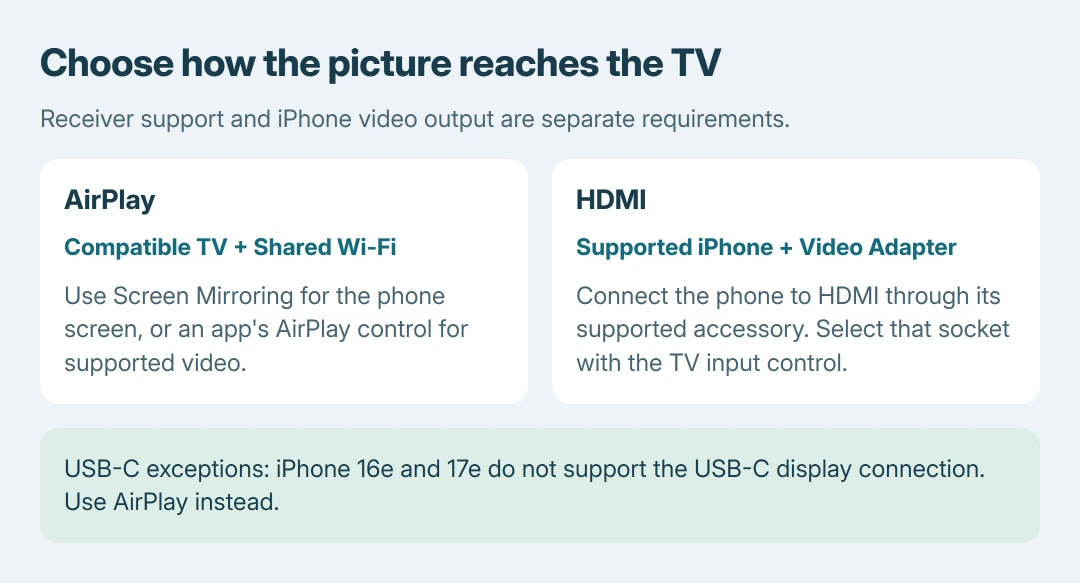
For a wired connection, identify the iPhone model before choosing an adapter. A USB-C port does not guarantee video output: Apple excludes iPhone 16e and iPhone 17e from its USB-C display-support list.
Check the TV and choose a connection
For wireless viewing, use an Apple TV connected to the TV or an AirPlay-compatible smart TV. Put the TV and iPhone on the same Wi-Fi network and enable AirPlay in the TV's settings if required.
Apple documents the receiver and network requirements in its iPhone AirPlay guide. A TV's ordinary Bluetooth pairing screen is a different connection.
Status: iPhone-to-TV methods checked October 26, 2026. Apple's current USB-C list excludes 16e and 17e. No TV, adapter or streaming app was tested.
Choose Screen Mirroring to display the phone's screen. Choose an app's AirPlay control to send its supported video. Both use AirPlay, but the starting control and the content sent are different.
Mirror the iPhone screen over AirPlay
Open Control Center. For Face ID models, swipe diagonally inward from the upper-right corner. On a Home-button iPhone, swipe upward from the screen's bottom edge.
Tap Screen Mirroring, then choose the TV or Apple TV. If the TV displays a passcode, enter that code on the iPhone. The TV should begin showing the phone's screen.
Apple says to end this connection through Control Center > Screen Mirroring > Stop Mirroring in its streaming and mirroring instructions.
Open the intended photo, presentation or app after connecting. Remember that mirroring can also show unrelated material opened on the phone, so close private content before a group demonstration.
Send a supported video without mirroring everything
Open the video in its app and find AirPlay in the playback or sharing controls. Select the TV. Apple notes that some apps place this control behind another button, so its location depends on the app.
Use the phone's playback controls during streaming. To return playback to the phone, reopen the AirPlay destination list and select the iPhone, or use Turn Off AirPlay where the app offers it.
Some video apps do not support AirPlay. Screen mirroring is also subject to an app's playback restrictions, so a successful connection does not guarantee that every service permits its video on the TV.
Connect through HDMI on a supported iPhone
For a Lightning-equipped iPhone, use a Lightning Digital AV Adapter and an HDMI cable. Connect the adapter to the phone, run HDMI to the TV, then select that HDMI socket with the TV remote's input control.
Apple's cabled-display instructions describe the adapter, cable and source-selection order. Adapter models with a charging port can also accept the phone's charger.
For supported USB-C iPhones, use a video-capable USB-C-to-HDMI cable or adapter. Apple's USB-C connection page lists iPhone 15 models, 16 models except 16e, and 17 models except 17e.
Its current list also includes iPhone Duo and iPhone 18 Pro models. Match the phone's precise model to that list. A working charging cable does not confirm video-output support.
Apple states that HDMI 2.0-capable accessories can support output reaching 4K at 60 Hz on the supported USB-C models. The accessory, TV and content still determine the actual picture available.
An ordinary USB charging connection to a TV is not this HDMI procedure. If the TV only charges the phone, check the supported output route and selected TV input before replacing anything.
When the TV stays missing or the video is rejected
A TV absent from Screen Mirroring needs the AirPlay discovery checks. A TV that appears but rejects a particular file needs the AirPlay format-error steps.
For HDMI, note the iPhone model, adapter model, TV input and whether any phone image appears. Give those details to Apple or the accessory maker if the supported setup remains blank; contact the app provider for app-only playback failures.
The Short Version
Use AirPlay on a compatible TV sharing the iPhone's Wi-Fi, then choose mirroring or an app's video control. For HDMI, match the adapter to a supported iPhone and select the correct TV input. USB-C alone does not establish compatibility.

Isaac Smith is the founder and editor of PC Glance, a website that covers computers, laptops, and technology. He is a tech enthusiast and a computer geek who loves to share his insights and help his readers make smart choices when buying tech gadgets or laptops. He is always curious and updated about the latest tech trends.