

You press AirPlay on a video and your TV answers with "This video is in a format that can't be streamed to this TV". YouTube and photos work, and only your own videos fail.
That is maddening on a TV sold with AirPlay built in. I would restart the TV before you convert a single file.
Owners on MacRumors have traded fixes for this message since 2020, with LG, Samsung and Roku sets. The thread has passed 33,000 views.
In this guide
When the message appears
It comes up when you send a video file to a smart TV with AirPlay 2. The opening owner found everything else fine: "Works - Youtube, screen mirroring, items downloaded from Apple."
The same file can play everywhere else. One owner wrote: "It plays just fine on my Apple TV 4K and my iPhone but there is just this Airplay enabled LG TV that I have." Even "iMovie videos" failed for them.
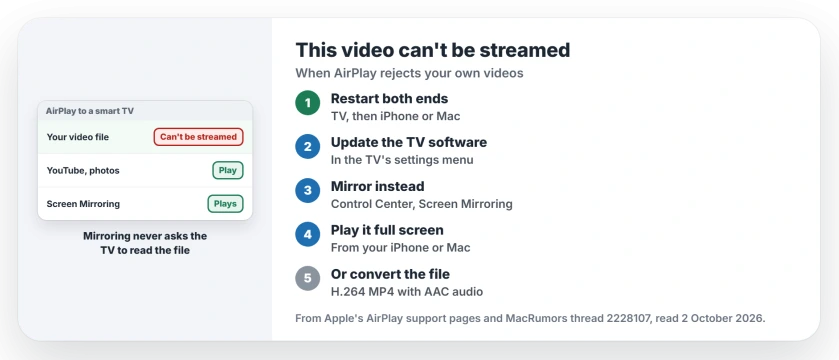
Status: checked 2 October 2026. Restarting the receiving Apple TV cleared the message for one Mac owner, and screen mirroring played the same videos on LG and Roku sets.
1. Restart the TV, then your iPhone or Mac
Apple's AirPlay troubleshooting page starts here. Restart both ends, the TV and your iPhone or Mac.
One owner saw it on a MacBook Air running Sonoma, streaming to an Apple TV. It had worked before. A quick restart of the Apple TV fixed it. Unplug a smart TV for a minute if its power button only puts it to sleep.
2. Update the TV's software
Apple also asks you to "Check that the devices are updated to the latest software and are on the same Wi-Fi network."
Ours: that includes the TV, whose AirPlay support comes from its maker. Look in its settings menu for a software update.
3. Mirror the screen instead of streaming
This is the route owners could rely on. One owner wrote that "you can do the playback on the Mac as full screen and airplay that as a mirrored display to the TV", adding: "The playback is fine."
On an iPhone, Apple's guide starts with: "Open Control Center on your iPhone." Tap Screen Mirroring and pick the TV. Then play your video full screen. That owner said "This system can also work with Roku devices."
For the Mac controls and Roku receiver settings, follow the desktop mirroring procedure before retrying playback.
A MacBook can also mirror, extend or share a supported window; choose the display behavior that suits what you're showing.
4. Convert the file to H.264 MP4
When you want AirPlay streaming itself, the file has to suit the TV. Another member summed up what Apple devices handle: "Apple supports natively only H.264 (AVC) and since 2017 also H.265 (HEVC) video codecs."
They added: "Only supported audio formats are AAC, Dolby Digital, Dolby Digital Plus and MP3." So re-save your video as an MP4 with H.264 video and AAC audio.
That is user-reported. The opening owner's own HandBrake files still failed, so check every setting.
If that recording also opens as a black picture on ChromeOS, check its Chromebook playback format before blaming the TV.
5. Check it is a TV that streams from AirPlay
Apple says: "To use AirPlay to stream content to a TV, make sure you're using Apple TV 4K or an AirPlay 2-enabled smart TV." One owner's files played fine on an Apple TV 4K.
A new setup also needs the correct wireless or HDMI connection; some USB-C iPhones cannot output wired video.
If your iPhone cannot see the TV at all, the AirPlay devices page starts there. And for a whole library of your own videos, the Home Sharing page shows how a Mac serves them to an Apple TV.
What does this video is in a format that can't be streamed mean?
Your TV cannot play that file the way AirPlay sends it. One owner's file played on an iPhone, an Apple TV and the TV's own USB port.
How do I fix AirPlay format errors on an LG or Samsung TV?
Restart the TV and your device first. If it persists, mirror your screen from Control Center, or convert the file to an H.264 MP4 with AAC audio.
Why does screen mirroring work when AirPlay does not?
Mirroring sends a picture of your screen, so the TV never has to read the video file. That is why owners could play the same videos that way.
The Short Version
- The message points at the video's format.
- YouTube and Apple's own videos still play.
- Restart the TV, then your iPhone or Mac.
- Update the TV's software.
- Mirror your screen from Control Center instead.
- Or convert the video to H.264 MP4 with AAC.
- One owner's files played on an Apple TV 4K.
Where to Next
Unplug your TV for a minute, plug it back in and try the same video. If the message returns, open Control Center and mirror instead.
If a converted file still will not stream, share your TV model with me. I will collect the sets that refuse.
 If you have any business, I can build it online






