
An MP4 that plays sound but no picture on a Chromebook may use video encoding the laptop can't play. Try a complete local copy first, then ask for an H.264 version if other videos play normally.
MP4 is a container: it holds video that can use different codecs. A codec is the method used to compress the picture and decode it for playback. That's why your Chromebook may play one MP4 and reject another.
1. Play a complete copy from the Files app
Open Files from the Launcher and locate the video. If it's on an SD card or USB drive, copy it to My files > Downloads, wait for the copy to finish, then open that copy.
For an email attachment, finish downloading it before testing playback. If the email preview fails, try the complete copy in the local player. Keep the original until you have a working replacement.
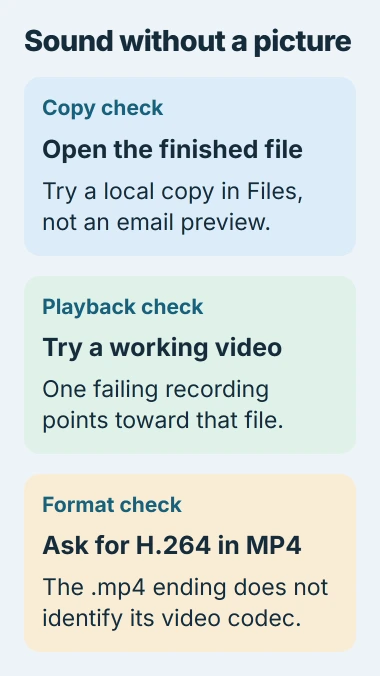
Try another video that has played correctly on this Chromebook. If that file works while the new one has audio only, concentrate on the new recording. Repeatedly restarting the laptop is less useful than comparing the two files.
If every local video now fails, move to the update check in the next section. If only a streamed preview fails, try the downloaded copy before changing its encoding or the Chromebook's settings.
Once playback works, embed the finished video in PowerPoint for your presentation. Use the finished file rather than a preview or a link to a file still on another device.
2. Update ChromeOS and repeat the same playback test
Select the time, open Settings, then choose About ChromeOS > Check for updates. Install an offered update and choose Restart when requested. A school or employer can manage the Chromebook's update schedule.
The ChromeOS update instructions explain that process. Afterward, reopen the same local file and check whether both the picture and sound play.
Updates can include playback fixes, but they don't make every encoding compatible. If other files still work and this one doesn't, check that file before resetting the whole Chromebook.
If someone sent you the video, ask whether it plays on their device and request a fresh export. If it also fails on the recording device, it may need to be recovered or exported again before conversion can help.
3. Ask for the encoding the Chromebook supports
Google's Chromebook format table lists support for H.264 video inside MP4. It lists the container and codec separately, which explains why the extension alone isn't enough.
Ask the sender or video editor for an MP4 using H.264 video, with a normal audio track such as AAC. For a troublesome high-resolution recording, a 1080p copy is a useful first comparison.
Don't rename a MOV, MKV or another file to end in .mp4. That changes the filename, not how the picture is encoded. Exporting or converting makes a new video that a different player can decode.
The same issue can affect a TV. The AirPlay format checks explain what to check when a TV rejects a clip, including cases where screen mirroring works but streaming the file doesn't.
I'd ask for a compatible export before using an online converter for a private recording. The sender may already have the original project and can make the required copy without uploading it to another service.
4. Convert your own recording with a known preset
If HandBrake is already installed on your Mac or Windows computer, use it to make a separate compatible copy. These steps apply to ordinary personal videos, not protected movies downloaded inside a streaming app.
Open HandBrake, choose Open Source, and select the original video. Wait for the scan to finish. Under Presets > General, choose Fast 1080p30.
That official preset saves an MP4 with H.264 video and AAC stereo audio. Use it to check compatibility; the converted copy won't necessarily keep every detail of your original.
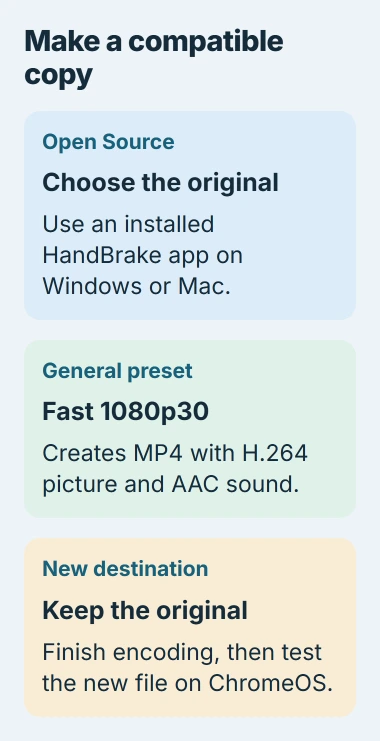
Give the output a different filename so you keep the original. Start encoding with the toolbar's Start or Start Encode control, depending on the version, and wait until the job finishes.
Copy the finished output to the Chromebook's Downloads folder. Open it and check the beginning, a point in the middle and the end. Check that sound stays in time with the picture, as well as whether the picture appears.
The 30 in the preset limits the output's frame rate. A high-frame-rate original can look less smooth after this conversion. Once playback works, keep the original for editing or a later export with settings better suited to it.
5. Treat files that won't convert as a different problem
If HandBrake can't open the source, check that the transfer finished and try another copy from the camera or sender. Trying more converters won't repair a file that hasn't finished copying.
Its source-opening guide also explains that protected video isn't supported. For downloads from a subscription service, use that service's supported app and playback rules.
If the original plays on another device but won't convert, save the converter's error and the file's details. Ask the sender for a new H.264 export, or send the activity log to the converter's support team.
6. Escalate a Chromebook-wide playback failure
If several local files you know are compatible still fail after updating, contact the Chromebook maker or school administrator. Give them the model, ChromeOS version, player used and whether the files play on another computer.
Say whether the problem happens with internal storage as well as the SD card. That helps separate a playback problem from trouble reading one external device. Send a nonprivate sample only when support requests one.
The Short Version
Test a complete local copy and another working video. Update ChromeOS, then request or create an H.264 MP4 when only one recording fails. Keep the original and test the converted output before sharing it.
Checked November 5, 2026.

Isaac Smith is the founder and editor of PC Glance, a website that covers computers, laptops, and technology. He is a tech enthusiast and a computer geek who loves to share his insights and help his readers make smart choices when buying tech gadgets or laptops. He is always curious and updated about the latest tech trends.