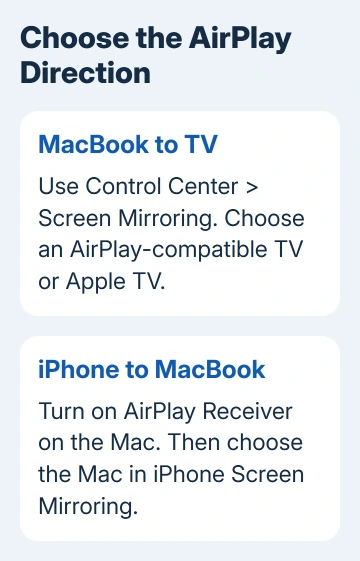
To show a MacBook on a TV, open Control Center, choose Screen Mirroring and select an AirPlay-compatible TV or Apple TV. Join the Mac and receiver to your home Wi-Fi, then enter any connection code shown by the TV.
A compatible MacBook can also receive an iPhone's screen or audio. Sending a Mac picture and receiving an iPhone use different controls, so start with the instructions for whichever device is sending.
In this guide
Put the MacBook and TV on the same network
On a current Apple TV, open Settings > AirPlay and Apple Home and enable AirPlay. Smart TVs have their own menus, often Apple AirPlay or AirPlay and HomeKit.
On your MacBook, open the Wi-Fi menu and check the network name. Connect the TV to that same home network. Guest Wi-Fi may block communication between the devices while still giving each one internet access.
Apple's AirPlay instructions for Mac describe both streaming and screen sharing. A normal HDMI monitor doesn't become an AirPlay receiver simply because it's attached to power.
If the TV has no AirPlay support, connect an Apple TV to it, or use a suitable display cable from the Mac. Check the TV's actual features before installing an app that promises a different casting method.
Keep both devices awake while making the connection. For a presentation, open the material you want to share before connecting to make the window easy to select if macOS offers window sharing.
Show the MacBook screen on the TV
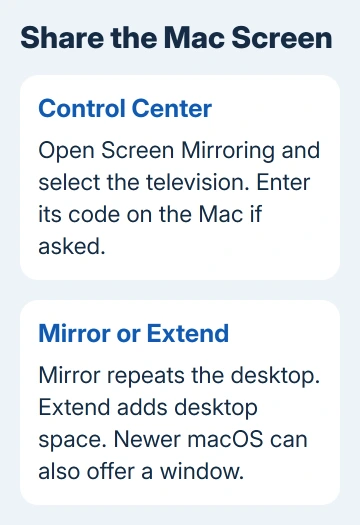
Click Control Center in the Mac's menu bar, then click Screen Mirroring. Find your TV's or Apple TV's name in the list and select it. If several appear, match the name shown in the receiver's settings.
If the TV displays a four-digit code, enter it on the Mac. Type the number shown on the TV, rather than your login or Wi-Fi password, to approve the connection.
Current macOS can ask whether to share a window, mirror the screen or extend it. Choose the option for what you want the audience to see. Your version of macOS controls which choices appear.
Mirroring shows the same desktop on the MacBook and TV. Extending gives you extra desktop space, for keeping one window on the TV and another on the laptop.
I'd choose a single window when that option is offered for a presentation. It keeps the shared material easier to manage than showing the whole desktop while switching between apps.
If you extend the desktop and the TV looks empty, move a window onto that screen. Open System Settings > Displays to check the arrangement and available display options. An empty second desktop isn't a failed connection.
When finished, reopen Control Center > Screen Mirroring and deselect the TV. Wait until the shared Mac picture disappears from the TV before returning to private work.
Send just a video or the Mac's audio
For a video with an AirPlay button in its playback controls, click that button and choose the Apple TV or compatible smart TV. This sends that video without sharing your whole desktop.
Use the playback controls in the app on your Mac. To stop streaming, click its AirPlay control again and select the Mac for playback. Check that selection instead of relying on closing the browser tab to end the stream.
Not every video app supports the same streaming features. If a particular movie refuses to stream while screen sharing works, follow the app's supported playback options. Repeatedly reconnecting Wi-Fi won't add an app feature.
For the specific message about an unsupported video format, the AirPlay format-error guide explains that separate problem. Don't change the whole Mac setup for an error limited to one video.
For audio, use the AirPlay destination control in a supported audio app and choose the receiver. If the picture is correct but sound comes from the Mac, check where the app is sending sound before increasing both devices' volumes.
Returning the app's output to the Mac stops that stream. Screen mirroring and an app's own AirPlay playback are separate choices, so use the control that started your session.
Receive an iPhone or iPad on the MacBook
AirPlay to Mac normally needs macOS Monterey 12 or later and a MacBook introduced in 2018 or later. That includes supported Intel models as well as Apple silicon MacBooks; it isn't limited to Macs with an M-series chip.
The supported sending devices include iPhone 7 or later with iOS 14 or later, and compatible iPads with iPadOS 14 or later. Check the AirPlay to Mac requirements if either device is older.
In Ventura (macOS 13) and its successors, open System Settings > General > AirDrop & Continuity and enable AirPlay Receiver. Some releases call this section AirDrop & Handoff instead.
On macOS Monterey 12, open System Preferences > Sharing and select AirPlay Receiver. Use this older Sharing location when newer instructions don't match your Mac.
Set Allow AirPlay for to Current User when the sending device uses your Apple Account. For another person's device, use Anyone on the Same Network if appropriate. You can require a password for access.
Some older sending devices can stream at lower resolutions with Anyone on the Same Network enabled on the receiver. That exception doesn't make every old MacBook a supported receiver.
On the iPhone, open Control Center, tap Screen Mirroring and select your MacBook. For a Face ID iPhone, drag downward from its upper-right screen corner. With a Home-button iPhone, drag upward from the bottom edge instead.
On an iPad, open Control Center by dragging downward from the screen's upper-right corner. Choose Screen Mirroring, select the Mac and enter any requested code. Your mobile screen should appear on the Mac.
To end that mirrored session, return to the iPhone or iPad's Screen Mirroring control and choose Stop Mirroring. For an app-only video or music stream, stop AirPlay from that app's playback controls instead.
Get a missing AirPlay receiver to appear
Check the receiver's AirPlay setting, both network names and whether the devices are awake. Restart the sending device and receiver normally, then try once more. Install available software updates if the connection still fails.
If your iPhone can't find any receiver, the missing AirPlay devices guide follows that discovery problem. If only the MacBook is absent, check whether it supports AirPlay Receiver and allows the connection first.
On a school, office or hotel network, ask the network administrator whether device-to-device discovery is allowed. Give them the two device names and explain that AirPlay receivers aren't appearing even though internet access works.
If compatible home devices still won't connect, give Apple support both models, your macOS version and whether Screen Mirroring lists the receiver. Ask for help with the missing receiver or the connection error on screen.
The Short Version
Use Control Center's Screen Mirroring to send your MacBook to a compatible TV. Use an app's AirPlay button for a supported video. To receive an iPhone on the Mac, enable AirPlay Receiver first, then select the Mac from the phone.
Checked November 15, 2026.
 If you have any business, I can build it online