Change your Apple Account payment method to change how iCloud+ is billed. Using your iPhone or iPad, select your name in Settings, then Payment & Shipping. Add the new method, check its details and move it ahead of an old card if needed.
iCloud+ uses the account's billing methods, rather than a separate card kept only for cloud storage. Updating Wallet or Apple Pay alone isn't the same change.
In this guide
Start with the Apple Account that pays for iCloud+
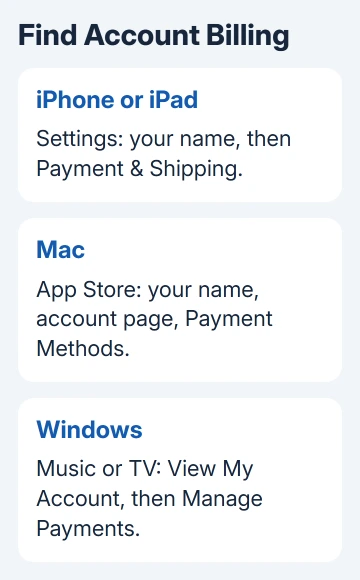
Open Settings > your name > Payment & Shipping on the iPhone or iPad. Sign in if asked. Check the account before editing, especially if the device uses different accounts for iCloud and media purchases.
The list shows payment methods used for Apple purchases and subscriptions. A change here can affect more than iCloud+, so review the existing methods and their order before removing anything.
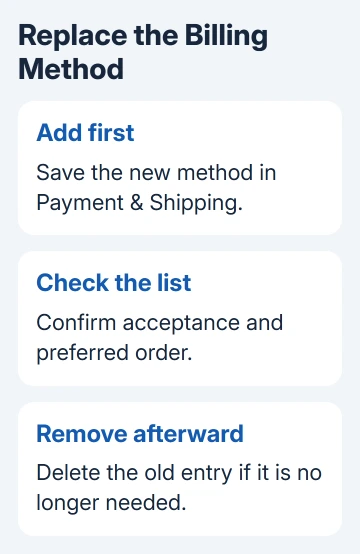
Apple describes editing a saved method or adding its replacement as separate choices. Use whichever option fits your bank's change.
If you only need to correct billing details, open the existing payment method and tap Edit. Enter the updated information and tap Done. Check that the saved details match the bank's records.
Some banks update card information automatically. Read what's already saved before re-entering it. A card that still appears in the list isn't necessarily using the expired details printed on your old physical card.
Add a replacement card before removing the old one
For a different card or a method that won't update correctly, tap Add Payment Method. Enter the requested details and confirm that your name and billing address match your bank's records.
Tap Done to save. Complete any verification the screen requests, then return to the payment list and confirm the new method appears. The replacement isn't saved just because you've started filling in the form.
After the replacement is accepted, tap Edit and remove an old method you no longer want to use. Confirm Remove when prompted. That keeps a payment method on file while your subscription is active.
I'd add and check the replacement first, even when the old card has expired. Trying to leave the account with no method can run into subscription restrictions without solving the renewal problem.
Payment types differ by account country or region. Use a supported method for that account rather than changing the region simply to make a card fit. Region changes have their own subscription and balance requirements.
Put the preferred method first
On the iPhone's Payment & Shipping screen, tap Edit. Touch and hold a payment method and drag it higher or lower in the list, then tap Done to save the order.
The payment-method instructions explain that billing attempts follow the listed order. Moving the replacement ahead of the old card is useful when you intend to keep both methods saved.
An available Apple Account balance can be used before the listed methods, subject to the purchase and local rules. Reordering cards doesn't mean an account balance is ignored or that one card is reserved exclusively for iCloud+.
Return to the list after editing and check that the methods stayed in your chosen order. If the card is accepted but a payment still fails, keep the exact error. Repeating the same entry with different guesses at the address rarely helps.
Change billing details on a Mac
Open the App Store, then click your name near the bottom of its sidebar. Sign in if necessary. On the account page that appears, click your name again, then choose Payment Methods.
Choose the saved payment method and Edit to correct its billing information. Save with Done. For a replacement, choose Add Payment Method, enter its details and save before removing the old one.
Mac App Store layouts can differ on older macOS releases. If your version uses account-information wording instead, look for the option to manage payments on that account page rather than changing the iCloud storage-plan controls.
Adding the same card to Wallet on the Mac changes Apple Pay availability. You still need to change the account's billing method in the App Store. Return to Payment Methods to confirm the method used for subscriptions.
Use Apple Music or Apple TV on Windows
Open the Apple Music or Apple TV app. Click your name in the sidebar, then View My Account. When prompted, sign in to the account paying for your subscription.
Find Payment Information > Manage Payments. Click Edit beside the existing method to update it, or use Add Payment to save a replacement. Click Done after entering the details.
Once the replacement is saved, use Edit > Remove Payment Method for the old entry if needed. In older iTunes for Windows, begin with Account > View My Account, then reach Manage Payments from there.
These are account changes, so installing iCloud for Windows isn't necessary for updating the billing card. Use one of these account-management apps, then check that its payment list shows your saved change.
Handle a blocked removal or declined payment
An active iCloud+ subscription can require at least one payment method to stay on file. An unpaid balance or Family Sharing purchase-sharing role can also prevent removal. Adding a valid replacement is different from deleting every method.
For an existing unpaid purchase, use the previous-purchase billing checks. Updating a card doesn't remove the need to settle an outstanding charge.
When Purchase Sharing is involved, check who is paying. Changing your own card may not affect a purchase billed to the family organizer. Confirm the billing account before editing several family members' settings.
For a decline, check the details against the bank's records and ask about the attempted charge. Give Apple Support the account region and exact message if the bank reports no block or the method won't update.
Changing a card doesn't cancel iCloud+ or reduce storage. To stop paying, choose the appropriate iCloud change before altering billing. Syncing and subscription controls do different jobs.
Ask Apple Support for account billing help if the list stays locked or a valid replacement won't save. Say whether the failure happens while adding, reordering, removing or paying. That tells support which part needs checking.
The Short Version
Use Apple Account payment settings, save a valid replacement and confirm the billing order before removing the old method. iCloud+ uses the account's billing system, so a Wallet change alone doesn't update its subscription payment.
Checked November 12, 2026.