
To add a sticker to an iPhone photo, open it in Photos and use Edit > Markup. The plus menu contains Add Sticker; once the sticker is on the picture, select it to change its size or angle.
Open the picture's Markup controls
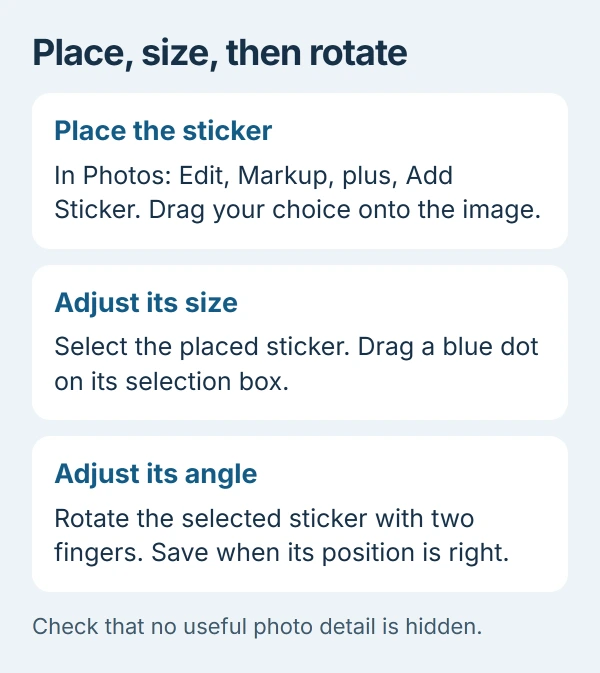
In Photos, open the destination picture full screen. Tap the edit control, then the Markup button, shown as a pen tip. Choose the plus button in that toolbar and tap Add Sticker.
Apple documents photo annotations in its photo-editing guide. Opening the sticker collection from the keyboard alone does not select a photograph to edit.
Status: Photos and Markup sticker placement checked in Apple's iPhone guide on October 29, 2026. No image or sticker collection was edited.
If the desired cutout is not yet in the collection, make the iPhone sticker first. Return to the picture being decorated after that step.
Place it, then adjust the selected sticker
Touch the wanted sticker in the picker and drag it onto the photograph. Tap the placed sticker so its selection box appears before changing its size or angle.
Apple says to drag a blue dot on the selection box to resize a sticker. Use two fingers to rotate it. These controls are described in the Markup sticker instructions.
Position the sticker where it belongs and check the photograph at a comfortable viewing size. Our check is to inspect faces, dates and other details that the sticker could accidentally cover before saving.
Changing the sticker collection's visual effect is different from changing this placed sticker's dimensions. Work with the selected object on the photo when its position or size needs adjusting.
Save the photo and check the resulting image
Tap Done to finish the edit, then inspect the picture in Photos. Confirm that the sticker is part of the displayed image and sits where intended before sending it.
Apple states that iCloud Photos carries image edits across devices signed into that library. Treat the edited picture as a change to the shared photo library, rather than assuming it exists only on this phone.
To discard saved edits in the current Photos app, open the picture, tap More, then choose Revert to Original. This restores the original photograph, so it also removes other edits that were part of that version.
For delivery trouble after saving, follow the Messages photo-attachment checks. A successful photo edit does not establish that the messaging connection has sent it.
When Add Sticker is missing
Confirm that the destination is an open photograph and that the Markup toolbar is active. The normal adjustment sliders and the sticker-making menu reached by holding a photo subject are different controls.
Try another ordinary photo to check whether the same option is missing there too. If the documented picker still does not appear, ask Apple Support to check your model, installed iOS version and visible toolbar.
The Short Version
Enter Markup from the destination photo, choose Add Sticker and drag the sticker into place. Resize its selection box or rotate with two fingers, then save and inspect the finished image before sharing.

Isaac Smith is the founder and editor of PC Glance, a website that covers computers, laptops, and technology. He is a tech enthusiast and a computer geek who loves to share his insights and help his readers make smart choices when buying tech gadgets or laptops. He is always curious and updated about the latest tech trends.