
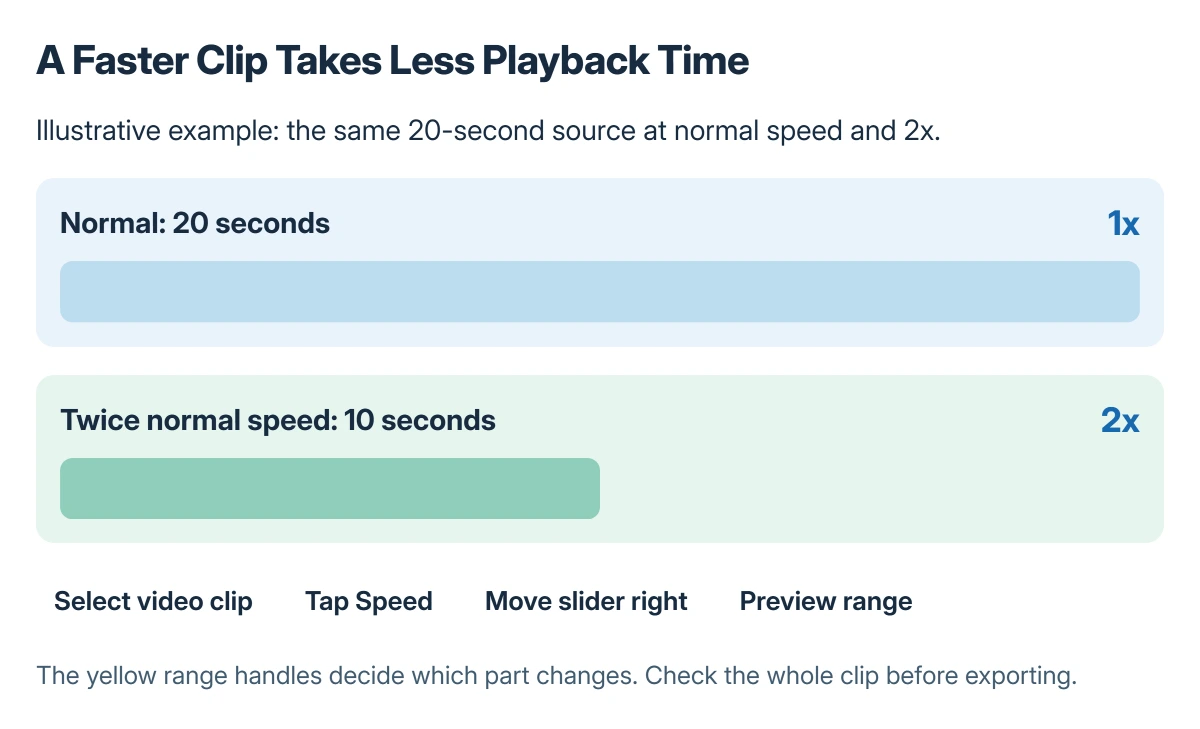
A regular iPhone video can be sped up in an iMovie movie project: select the clip, tap Speed and move the slider right. Check the displayed multiplier, then export a video file when the result looks right.
For a clip recorded in Slo-mo, Photos can change which portion stays slow. Those controls serve a different purpose from making an ordinary clip play faster than its original pace.
Open the clip in an iMovie movie project
In iMovie, start a Movie project, select the video and create the movie. Open an existing movie project instead when the clip is already in its timeline.
Tap the clip in the timeline, then tap Speed in the inspector. Apple documents these controls in its iMovie speed guide.
Status: iMovie clip-speed, range, pitch and export instructions checked against Apple's guides on 22 October 2026. Photos' slow-motion controls were reviewed separately; no video was edited.
Keep the source clip available. Working on a movie project gives a place to adjust the edit before exporting the copy that will actually be shared.
Increase the speed and inspect the selected range
Move the speed slider to the right and watch its multiplier. Apple says 2x means twice the normal speed; moving left slows the selected range instead.
The yellow handles mark the part affected by that setting. Keep the intended range selected, or use Add and adjust the handles when only part of the clip should change.
Play through the range boundary as well as the middle. A clip that looks correct in a still preview can jump abruptly when its pace changes during playback.
For the entire clip to return to normal speed, use Reset in the speed inspector. Avoid changing a second range when the first one is the part that needs correction.
Check the voice and special video effects
Apple states that iMovie preserves audio pitch by default when changing speed. The project setting Speed changes pitch allows pitch to rise or fall with the speed instead.
Listen to speech before exporting. Faster playback can make words difficult to follow even when the pitch sounds natural, so choose the pace for the intended audience.
Apple also warns that changing a Cinematic clip's speed removes the ability to edit its Cinematic effects. Keep the original and decide whether that tradeoff is acceptable before building the rest of the edit around it.
For Slo-mo, adjust the slow section in Photos
Open the Slo-mo video in Photos, tap Edit and move the vertical slow-motion boundaries beneath the frame viewer. Apple's Photos editing reference separates those boundaries from trimming.
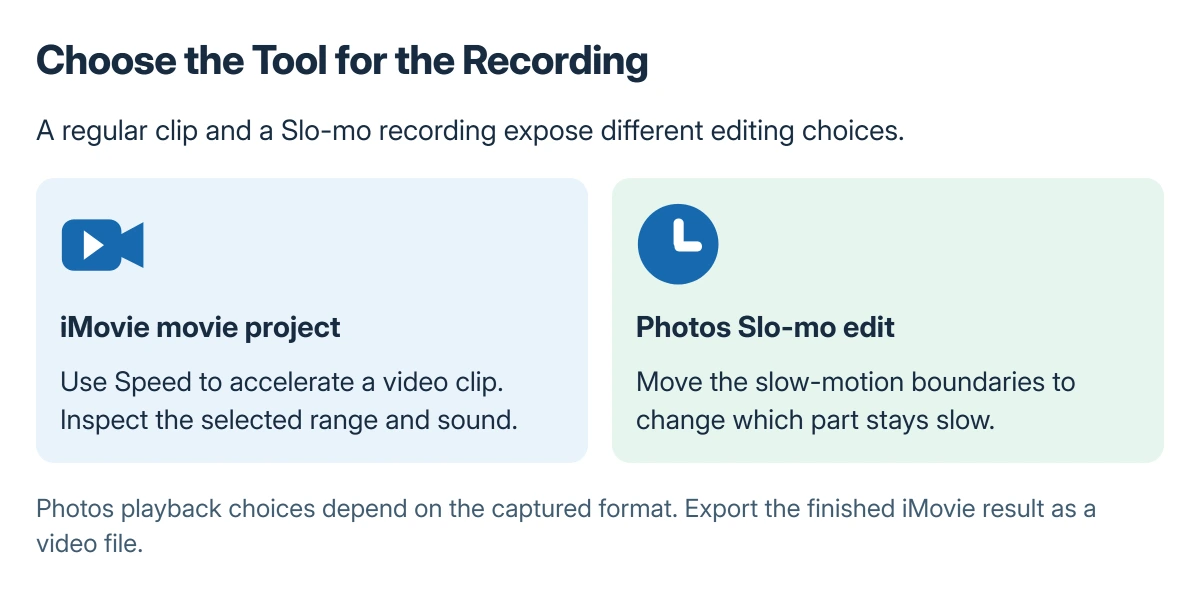
Do not assume every video exposes the same Photos playback-speed choices. The available options depend on its captured format; the documented high-frame-rate controls can slow that material.
For a moving photo subject rather than an edited movie, use the iPhone Live Photo sticker controls. A sticker effect does not create a faster exported video.
Export and check the resulting file
Finish editing and open the project's sharing controls. Choose Share Video, then save or send the video file through the offered destination rather than exporting an editable project by mistake.
Play the saved copy to check pace, sound and the first and last frames. If it cannot be sent, the Messages media-delivery checks address the transfer after the export is complete.
For a missing Speed control, confirm that an actual video clip is selected in a movie timeline. If it is still unavailable, give Apple Support the iMovie version, project type and clip format.
The Short Version
Select the movie clip in iMovie, open Speed, move right and preview the selected range. A 2x setting plays that range at twice its normal speed.
Use Photos for a Slo-mo recording's slow section. Check pitch and Cinematic limitations, then review the exported video rather than judging the project preview alone.
Where to Next
Watch the final copy once without touching the controls. That catches a speed change applied to only part of the clip or audio that becomes too rushed for the finished video.

Isaac Smith is the founder and editor of PC Glance, a website that covers computers, laptops, and technology. He is a tech enthusiast and a computer geek who loves to share his insights and help his readers make smart choices when buying tech gadgets or laptops. He is always curious and updated about the latest tech trends.