
Editing videos on iPhone starts in Photos for trimming, cropping and color changes. Open the clip and tap the Edit button. For joining several clips into one movie, use iMovie and export the finished result.
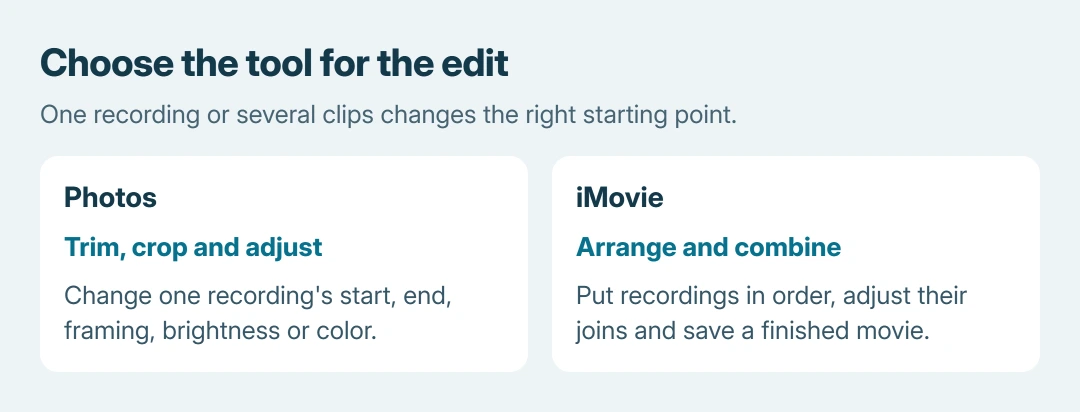
Choose the tool for the change needed. Photos adjusts an individual recording; an iMovie project arranges clips and transitions before producing a separate video.
Trim the beginning and end in Photos
Open Photos, select the recording and tap Edit, which can appear as a sliders icon. Move either end of the frame viewer inward to choose the first and last frames. Preview the selection before tapping Done.
Apple documents two saving choices in its video trimming instructions. Save Video keeps the edited version in that item. Save Video as New Clip creates another library item while retaining the source.
Status: Apple's Photos and iMovie controls checked October 26, 2026. These are documented procedures; no recording was edited or exported during research.
Apple says the new trimmed clip cannot be reverted to recover the cut footage. Keep the source if those discarded moments might matter later. Reverting later color changes on the new item does not recreate its missing frames.
Trimming changes the duration, rather than guaranteeing a particular file size. If the result still will not send, use the large iPhone video sharing options.
Crop the picture or correct its orientation
Inside the editor, tap Crop. Drag the crop corners to keep the intended area. For a fixed shape, open the aspect-ratio control and choose the required ratio, such as 9:16 for a vertical frame.
The Rotate control turns the picture in 90-degree increments. Flip mirrors it horizontally. Watch text and signs in the preview: mirroring reverses them too. Tap Done only after checking the frame throughout the recording.
Apple states that Photos edits synchronize to other devices when iCloud Photos is enabled. Treat this as an edit to the library item, rather than assuming another synced device holds an untouched version.
Adjust brightness, color and filters
Tap Adjust, choose a setting such as Exposure or Highlights, and move its slider. Exposure affects overall brightness; check bright areas as well as a dark face before saving.
For a preset treatment, open Filters, select an effect and adjust its strength. Review moving footage, not just the paused frame. Tap Cancel > Discard Changes if the adjustment is unsuitable, or Done to retain it.
For playback changes, follow the iPhone video speed controls. Photos' available playback choices depend on the recorded format, so a missing speed choice does not mean the ordinary crop or trim tools are broken.
Combine recordings in an iMovie movie project
Apple's iMovie combination procedure starts with Start New Project > Movie. If that first control is absent, return to Projects. Install Apple's iMovie from the App Store if needed.
- Open Media > Video > All in the media browser.
- Select each wanted recording using its check mark, then tap Create Movie. Selection order determines their initial sequence.
- Hold a clip in the timeline and drag it to change that sequence. Pinch the timeline to zoom out if its full contents are difficult to see.
- Select a clip and drag an end to adjust its length. To change a join, tap the transition between two clips and choose an option such as None or Dissolve.
- Preview the movie, including its joins and sound, then tap Done.
The project is still editable. Use its sharing control and choose Save Video to put the finished movie into Photos. Play that saved result before sending it or removing any source recordings.
If a required control remains missing, tell Apple Support the iOS version, app version and whether the work is a Photos item or an iMovie movie project. Those use different editing controls.
The Short Version
Use Photos for one recording's trim, crop and appearance. Keep the source when saving a shortened copy. Use iMovie to assemble several recordings, then save the exported movie and check its playback.

Isaac Smith is the founder and editor of PC Glance, a website that covers computers, laptops, and technology. He is a tech enthusiast and a computer geek who loves to share his insights and help his readers make smart choices when buying tech gadgets or laptops. He is always curious and updated about the latest tech trends.