
Your video is forty seconds. Forty seconds, and your iPhone has just told you it is too long to send, which is one of those moments where the phone appears to be arguing with arithmetic. I get why that is maddening.
The message is misleading you, and once you know how, the whole thing makes sense.
Nothing is measuring the seconds. What refused your video was its file size. Work down these seven and the first one usually settles it.
Why forty seconds can be too big and five minutes can be fine
A video's size comes from resolution, frame rate and length together. Length is the least important of the three.
A clip shot in 4K at 60 frames a second stores far more per second than the same scene at 1080p. Change that setting and the same forty seconds becomes a fraction of the file.
That is why trimming a few seconds so often fails. You are shaving the smallest part of the problem.
Apple gives the game away in its own first sentence.
Apple, on sharing long videos, writes: "Some long video files are too large to send in a standard text message." Too large, on a page titled about long videos.
The alert says one thing and Apple's explanation says the other, which is the whole confusion in a nutshell.
Fix 1: Send an iCloud link, which has no practical limit
This is the route that just works, and it is rarely the first thing anybody reaches for.
Apple: "An iCloud Link is a URL that you can use to send a large video with Messages or Mail."
In Photos, select the video and tap the share button. Choose Copy iCloud Link, then paste that into the message.
They tap it and download your full quality original. Nothing compressed, nothing trimmed, and the message itself stays tiny.
One thing to tell them: the link does not last forever. Recipients have thirty days to download it, so ask them to save it rather than leaving it in the thread.
Fix 2: AirDrop it, if they are in the room
Apple names this first among the three ways out, and for somebody nearby it is faster than anything else.
Apple: "The simplest way to send a large video to a nearby iPhone, iPad, Mac, or Apple Vision Pro is with AirDrop." It uses Wi-Fi and Bluetooth, so both of you need those on.
And there is an option almost nobody notices. Apple: "If you want to send the video in its original format, including metadata, location, and any associated edit history or captions, tap Options, then turn on All Photos Data."
If they are not in your contacts, Apple's instruction is for them to go to Settings, General, AirDrop, and tap Everyone for 10 Minutes.
If AirDrop itself misbehaves, our page on AirDrop between iPhone and Mac sorts that out separately.
AirDrop to a Mac also works as a test. If a clip shows a faint grid in Photos on iOS 27, playing it somewhere else tells you whether the video is fine.
Fix 3: Trim it in Photos, and keep the original
The obvious one, and it works when you are only slightly over.
Open the clip in Photos and tap Edit. Drag the ends of the filmstrip in. Then tap Done and choose Save Video as New Clip, so the original survives.
Expect this to fail if you are well over. Cutting five seconds off a 4K clip barely dents the file, which is fix 1's whole reason for existing.
Fix 4: Look at the bubble color, because green has a smaller ceiling
If it sends to one friend and refuses for another, you are not imagining a pattern.
Blue means the message goes through Apple. Green means MMS, and MMS is not Apple's system at all. Your carrier is carrying that one.
Apple describes RCS and SMS as carrier services, and says of RCS that it "is a carrier-provided service". What size a carrier accepts is theirs to decide, and it is usually far smaller than Apple's.
Our page on why Messages will not send photos covers the blue and green split properly, including the MMS switch that has to be on at all.
Apple does not publish a size limit for an iMessage attachment. I read its messaging pages end to end looking for one. Several competing pages print a specific megabyte figure with no source, and I would not rely on any of them.
Fix 5: For email, let Mail Drop take it
Mail has its own answer built in, and here Apple does publish the numbers.
Apple, on Mail Drop limits: "If a message, including its attachments, is larger than your Internet Service Provider (ISP) limit, Mail will ask you to send the attachments using Mail Drop."
The ceiling is generous. Apple says an attachment fails only if "the message, including its attachments, is larger than 5 GB". That is a lot of video.
Two details to know before you rely on it. Apple: "attachments don't count against your iCloud storage", and "after you send an email, the recipients have 30 days to download the Mail Drop attachments".
So it is not eating your storage. It is also not a permanent archive, so tell the person to save it.
Fix 6: Re-export it at a smaller resolution
For when the video genuinely has to sit in the conversation rather than behind a link.
Trimming is the blunt way. Re-exporting the clip at a lower resolution is the effective one, and any free video app will do it.
I would avoid anything promising to compress "without quality loss". Making a file smaller means throwing information away. A tool claiming otherwise is telling you what you want to hear.
Fix 7: Change what your camera records, so this stops happening
The last rung, and the only one that fixes the next clip rather than this one.
Open Settings, tap Camera, then Record Video. Apple lists the size per minute beside each option, which makes the comparison obvious.
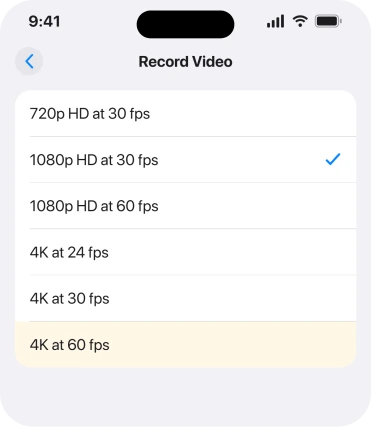
Ours: for anything you intend to send rather than keep, 1080p at 30 frames a second is plenty, and it is a fraction of the file 4K at 60 produces. Nothing there changes the clip you have already shot. It changes every clip afterwards.
What does not work
- Trimming a couple of seconds. Length is the smallest of the three things driving the file size.
- Turning Wi-Fi off and using cellular. The ceiling is not about the connection you are on.
- Sending it again. A file over the limit is over the limit every time.
- Turning Low Quality Image Mode on. That setting governs photos in Messages, not video.
- Blaming the other person's phone. A green thread refuses at your carrier's end, before it ever reaches them.
Status: iOS 26.6, checked 17 August 2026. Apple names AirDrop, iCloud and Mail Drop as the three routes for a video too large to text, publishes a 5 GB Mail Drop ceiling, and gives no size limit for iMessage attachments.
Why does my iPhone say my video is too long when it is short?
Because the limit is file size rather than duration, and the message uses the wrong word for it.
Apple's own page on the subject says "too large" in its first sentence. A short clip at 4K and 60 frames a second can be bigger than a much longer clip at 1080p.
How do I send a long video from my iPhone?
Share it as an iCloud link from Photos rather than as an attachment. Select the video, tap share, choose Copy iCloud Link, then paste that into the message.
The recipient downloads the full original and has thirty days to do it. AirDrop works too for anyone nearby.
Why does the same video send to one person and not another?
Because one conversation is iMessage and the other is not. A blue bubble goes through Apple.
A green bubble goes through your carrier as MMS, and carriers accept much smaller files. Look at the bubble color before assuming the video is at fault.
The Short Version
- The limit is file size, not seconds, and Apple's own page says "too large" while the alert says too long.
- Copy iCloud Link from Photos sends the full original, and the link lasts thirty days.
- AirDrop is Apple's first suggestion for anyone nearby, and All Photos Data keeps the original format.
- Trimming only helps if you are slightly over. On a 4K clip it barely dents the file.
- Blue bubble means Apple's ceiling. Green means your carrier's, and theirs is smaller.
- Mail Drop covers email up to 5 GB and does not touch your iCloud storage.
- Set the camera to 1080p at 30 for anything you plan to send, and this stops recurring.
Where to Next
One badly chosen word on that alert sends people trimming clips for twenty minutes. The fix takes ten seconds and loses nothing.
Copy the iCloud link. Send that. Then, when you have a minute, go and look at what your camera is set to record at, because that is where the next one gets decided.
If the iCloud link route fails as well, tell me what happens when the other person taps it and I will help you work out where it is breaking.

Isaac Smith is the founder and editor of PC Glance, a website that covers computers, laptops, and technology. He is a tech enthusiast and a computer geek who loves to share his insights and help his readers make smart choices when buying tech gadgets or laptops. He is always curious and updated about the latest tech trends.