
Late at night, scheduling a text on your iPhone beats waking someone or having to remember to send it tomorrow.
I'll show you how Send Later works in Messages, including changing your mind before delivery. You'll need iMessage and iOS 18 or later to use these steps on your iPhone.
Choose the conversation and delivery time
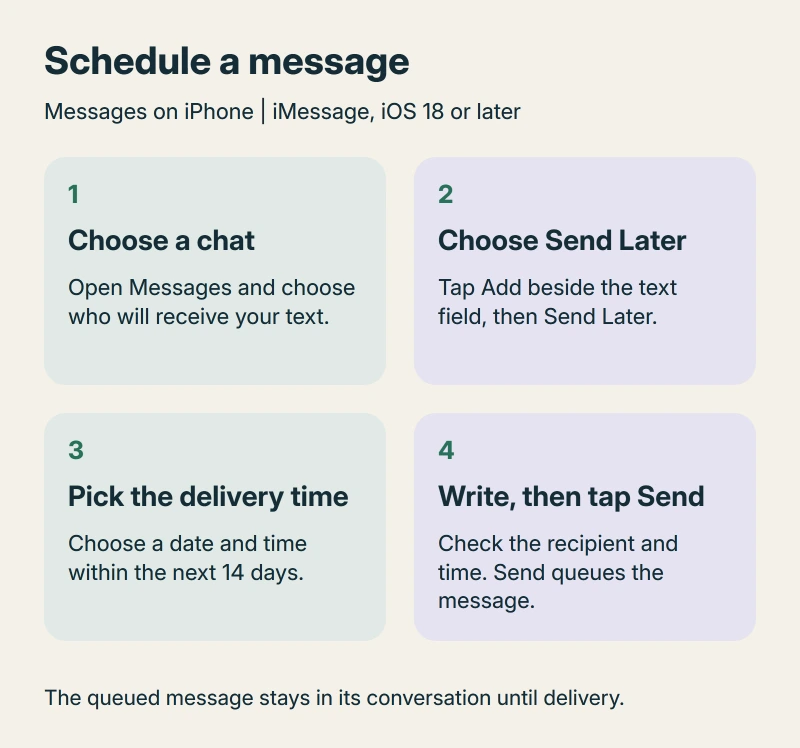
Open Messages and choose the conversation you want, or start a new one. Tap the Add button beside the text field, then choose Send Later.
Tap the time that appears and select your delivery date and time, perhaps tomorrow morning before the workday begins. Apple's Send Later instructions allow scheduling up to 14 days ahead.
Write your message, check the recipient and chosen time, then tap Send. That queues it for the time you selected. It doesn't send immediately.
Status: Apple's current and iOS 18 Send Later guides checked 17 October 2026. Native scheduling requires iMessage; no message was sent or scheduled here.
The pending message has a dashed outline and its delivery time shown in the conversation, helping you distinguish it from one already sent.
I would reread your message at this point. A birthday greeting and a work reminder can both wait, but you still want the right words going to the right person.
What happens if your phone is offline?
You don't have to leave the iPhone awake. Apple says the queued message is delivered even when all your devices are offline.
Apple stores scheduled messages encrypted on its servers until they're sent, then removes them from those servers. Once sent, the message bubble becomes solid and loses its dashed outline.
Your recipient won't be told it was scheduled. To them, it arrives as a message at the chosen time.
Changing the plan is different. You need an internet connection to edit, cancel or reschedule a pending message, so reconnect before trying any of those actions.
Change the time or send it now
Return to the same conversation. If you can't find your pending message, scroll down to the conversation's end; scheduled messages can appear after messages already sent.
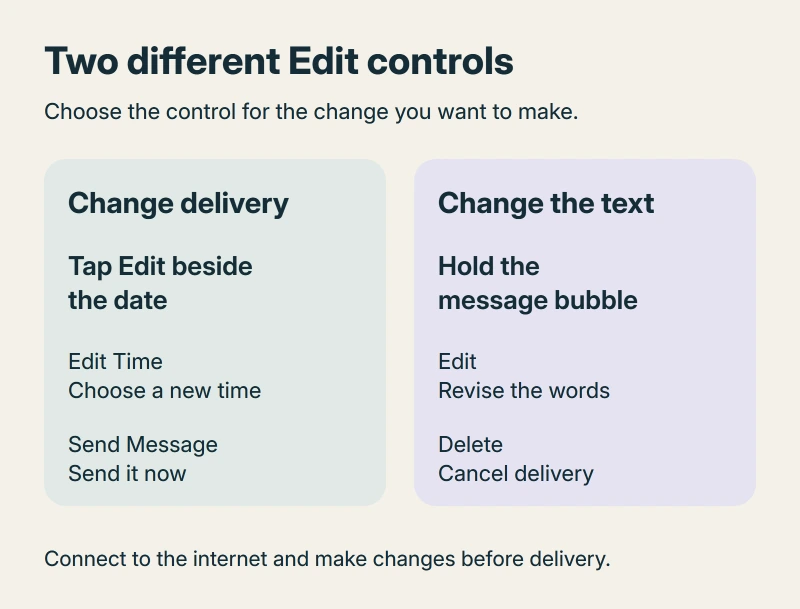
Tap Edit beside the scheduled date. This is the control for delivery timing, rather than the message's wording.
To move it, choose Edit Time and select the new time. Tap outside the scheduler to save your choice. Check that the date shown beside your message now matches what you intended.
Need it to go immediately? Choose Send Message from that same date's Edit menu; Apple documents this as sending the pending message now, without creating another copy yourself.
Edit the words or cancel the message
For the wording, touch and hold the scheduled message bubble, then tap Edit. Make your correction and tap Send Edit to keep it. Cancel Edit leaves the original wording in place.
To stop delivery altogether, touch and hold the bubble and choose Delete. Apple states that deleting it before its scheduled time cancels delivery to the recipient.
I would use Delete when the whole reminder is no longer needed, or edit the words when your plan still stands but a detail has changed.
These choices apply before the delivery time. Once the message has gone, you are dealing with a sent message instead of the pending item described here.
For an iMessage already delivered, check its Undo Send eligibility promptly; canceling a scheduled text is a different action.
To share an existing sent text with someone else, forward the selected message from its conversation.
If Send Later isn't available
Check that you're using an iMessage conversation and iOS 18 or later. Apple's version-specific guide names those requirements; the current guide still says you must use iMessage.
If iMessage itself is waiting for activation, our iMessage activation guide covers that separate problem. Scheduling cannot replace a working iMessage connection.
Looking for a scheduled email instead? Mail uses its own Send Later mailbox, covered in our iPhone Outbox and scheduled-mail guide. Messages keeps the pending text in its conversation.
The Short Version
Choose Send Later from the conversation's Add menu, pick a time and send your draft into the queue. Use the date's Edit menu for timing changes, or hold the bubble to change its words or cancel it.
Where to Next
Are you trying to schedule an iMessage, or does the conversation use your carrier's texting service? Tell me which one you see and your iOS version if Send Later is missing. That decides which scheduling choices you get.

Isaac Smith is the founder and editor of PC Glance, a website that covers computers, laptops, and technology. He is a tech enthusiast and a computer geek who loves to share his insights and help his readers make smart choices when buying tech gadgets or laptops. He is always curious and updated about the latest tech trends.