
Forwarding a text message on iPhone starts inside the conversation: hold the message bubble, tap More, select the messages and tap Share. Enter the new recipient and send. Apple's current iOS 27 guide uses that Share label.
This sends a copy to another person. Keeping the same conversations on a Mac or iPad uses a separate feature called Text Message Forwarding.
Select the message inside its conversation
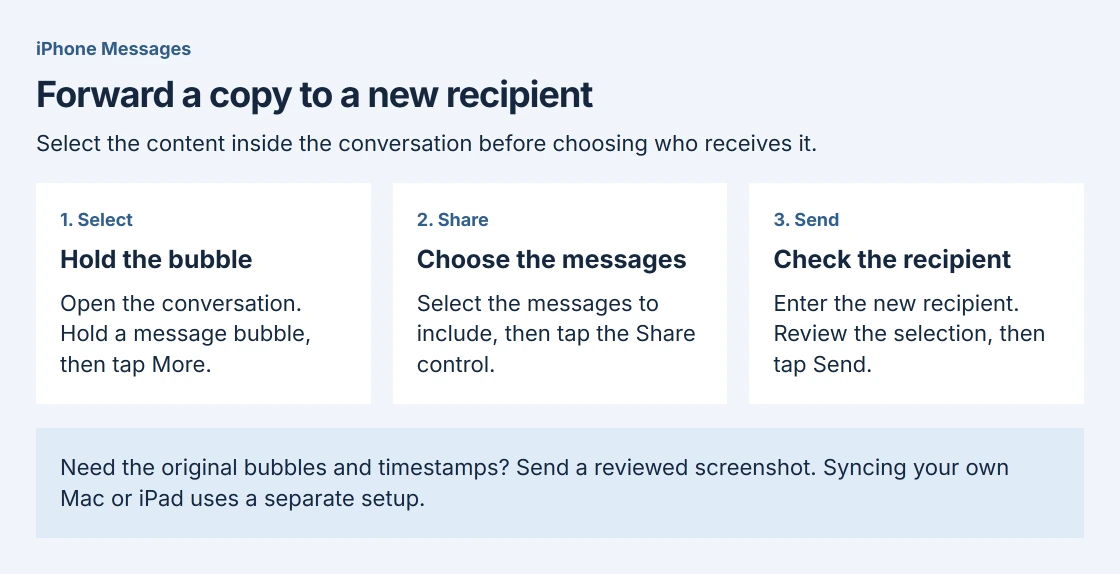
Open Messages and enter the conversation containing the text. Touch and hold the particular message bubble, then tap More. Select each message that should be included before continuing.
Apple documents manual sharing in its forwarding and sharing instructions. The current guide labels the next control Share, so look for the sharing symbol after making the selection.
Status: Apple's iOS 27 forwarding instructions and current delivery guidance checked October 28, 2026. The sharing control was verified from Apple's image label. No message was sent.
The More step applies to a message bubble inside the conversation. Open the conversation first when that control does not appear where expected.
Choose the new recipient before sending
Tap Share after selecting the messages. Enter the intended recipient, check the address or phone number, then tap Send. Multiple recipients share the content with more people, so review that list before sending anything private.
Check the resulting outgoing message in the destination conversation. A failed send can show a red exclamation point and Not Delivered; the forwarding selection alone does not establish that delivery succeeded.
Keep timestamps visible when the conversation matters
Forwarding selected messages and showing the original conversation are different tasks. Apple recommends sending a screenshot when the message bubbles and timestamps need to appear as they did in the conversation.
Review the screenshot before attaching it. Crop unrelated messages or personal details that the recipient does not need. This privacy check is our recommendation, rather than an additional forwarding requirement.
A new copy also has its own send time. Do not rely on that new message to document when the original exchange happened.
Use Text Message Forwarding for your own Mac or iPad
For conversations that should appear across your own devices, Apple's Text Message Forwarding guide describes the separate relay feature. It is not needed to forward a selected message to another person.
Apple says Messages in iCloud already includes that forwarding functionality. Without it, the iPhone's separate setting is Settings > Apps > Messages > Text Message Forwarding. The devices must use the same Apple Account.
When messages already send from the iPhone but fail from the Mac, the Mac message-delivery checks address that relay problem. Repeatedly selecting and forwarding the original bubble cannot repair a missing device connection.
Follow the delivery error if the copy will not send
For Not Delivered, Apple states that checking the network connection comes first. Tap the red exclamation point and choose Try Again. Its message delivery help separates iMessage, SMS, MMS and RCS failures.
An iMessage needs Wi-Fi or cellular data. Carrier texting also depends on the line and messaging service. An attachment can therefore fail for a reason unrelated to selecting the message correctly.
For the specific Message Blocking Is Active alert, use the carrier messaging checks. If delivery continues failing, contact the carrier for SMS, MMS or RCS, or Apple Support for iMessage, with the exact alert and affected recipient type.
The Short Version
Hold the message bubble, tap More, select the messages, then tap Share and choose the recipient. Use a screenshot when the original bubbles and timestamps matter. Text Message Forwarding to your own devices is a different setup.

Isaac Smith is the founder and editor of PC Glance, a website that covers computers, laptops, and technology. He is a tech enthusiast and a computer geek who loves to share his insights and help his readers make smart choices when buying tech gadgets or laptops. He is always curious and updated about the latest tech trends.