
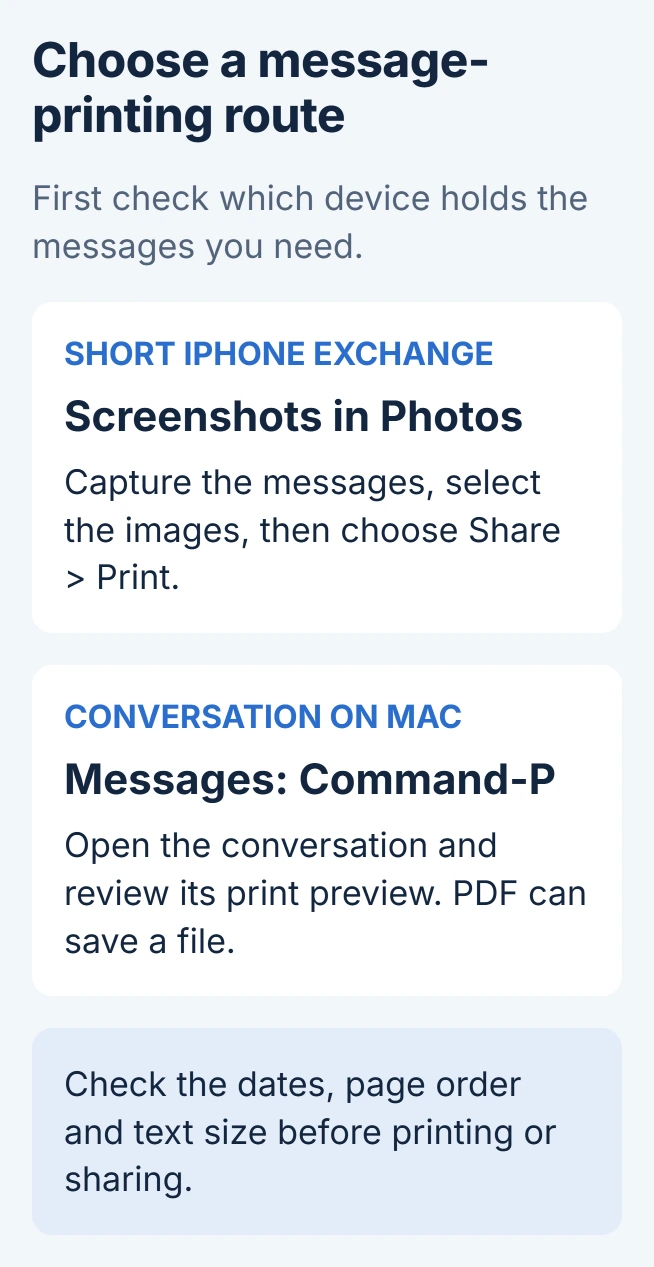
A short iPhone text conversation can be printed by taking screenshots and printing those images from Photos. Select the screenshots, choose Share > Print and send them to an AirPrint printer.
A conversation already in Messages on a Mac can also be printed with Command+P. Inspect its preview for the messages and dates needed, rather than assuming every part of the conversation is included.
Choose the copy that contains the messages needed
Open the original conversation and identify the portion to print. Include the sender information and dates needed to understand it, while keeping unrelated private messages out of the print job.
Apple recommends a screenshot when sharing original message bubbles and timestamps matters. A screenshot records the visible screen; it does not automatically capture the entire conversation history.
Status: iPhone screenshot printing and Mac Messages' print shortcut verified with Apple documentation on October 29, 2026. No private conversation was accessed or printed.
If the aim is simply to send the words to another person, forward selected message bubbles instead. Printing and forwarding create different kinds of copies.
Capture the exchange on the iPhone
On a Face ID iPhone, briefly press Side + Volume Up together. On an iPhone SE with a side button, use Home + Side. Release both promptly; holding them is not the screenshot action.
For the current iOS 27 full-screen preview, Apple says swiping up saves the screenshot to the photo library. A screenshot shown as a temporary thumbnail saves automatically. Confirm the image appears in Photos before continuing.
Repeat for the next portion of the exchange when necessary. Keep a little overlapping conversation between images so their order is understandable, then check that no message falls into a gap between captures.
That overlap check is ours. Apple's screenshot guide documents capture and saving, but does not promise a Full Page capture of a Messages conversation.
Print the saved images through Photos
Open Photos and select the screenshot. Tap Share, then Print. To print several, open the relevant collection, tap Select, choose the screenshots, then use Share > Print.
Apple documents both single-image and multiple-image printing. Review the selected images and their order before submitting the job.
Tap No Printer Selected and select the destination printer. Check the copy count and page options, then tap Print when the preview shows the intended material at a readable size.
Apple says the phone and printer must use the same Wi-Fi network for its AirPrint procedure. For a missing printer, check its AirPrint compatibility.
Use Mac Messages for a conversation already there
On the Mac, open Messages and select the conversation. Check that the dates and messages needed are present, then press Command+P. Apple lists that command as printing the conversation.
Inspect the preview's first and last pages before printing. A conversation on the iPhone does not establish that the Mac has every earlier message, and the print command cannot include content that is missing there.
For a file instead of immediate paper output, open the print dialog's PDF menu and choose Save as PDF. Apple describes this in its Mac PDF-saving instructions.
Give the PDF a distinct name and location, then open it and check the dates, readable text and page sequence. Keep the original conversation while checking the saved copy.
Before clearing any source messages afterward, review the effects of deleting iPhone messages. A synced Mac conversation can also be affected by deletion.
Resolve the missing printer or incomplete output
If Photos displays the screenshots correctly but no compatible printer appears, contact the printer maker with its model and network connection. A failed printer discovery does not mean the messages need recapturing.
If the Mac preview omits history that Messages displays, keep the original conversation. Report the affected dates and installed macOS release to Apple Support. A partial printout is not a complete archive.
The Short Version
Print screenshots from Photos for a short iPhone exchange. For an existing Mac conversation, use Command+P and optionally Save as PDF. Review dates, page order and legibility before deleting or sharing anything.

Isaac Smith is the founder and editor of PC Glance, a website that covers computers, laptops, and technology. He is a tech enthusiast and a computer geek who loves to share his insights and help his readers make smart choices when buying tech gadgets or laptops. He is always curious and updated about the latest tech trends.