
For readable iPhone text messages on a computer, save a conversation from Messages on a Mac or transfer screenshots to Windows. A computer backup is for restoring phone data. It doesn't give you a conversation file to open and read.
A Mac can save a conversation through its print dialog once the messages are present there. Windows' Apple Devices app creates a device backup, but it doesn't turn that backup into a readable message document.
Pick the kind of copy you need
Choose a readable copy when you want to open the conversation later without restoring a phone. Choose a device backup when you're preparing for a replacement, repair or reset. Some people need both.
Apple says in its backup comparison that computer backups exclude data already synced and stored in iCloud, including messages. Don't assume a finished backup contains a separate archive of your Messages in iCloud library.
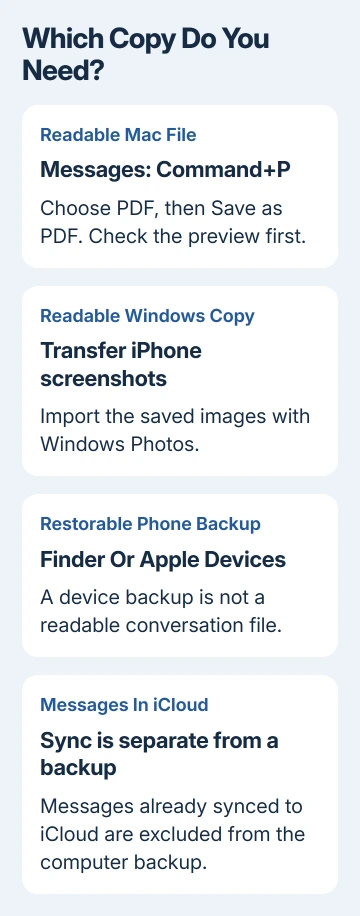
Messages in iCloud keeps the conversation current across devices. It's useful for getting the conversation onto a Mac, but changes and deletions sync too. A file saved outside Messages gives you a separate copy to open later.
I'd open the finished file and check its earliest and latest messages before relying on it. A file that opens successfully can still contain only part of the exchange you intended to keep.
Bring the messages into Messages on your Mac
Sign in to Messages on the Mac with the Apple Account used on your iPhone. In the Mac app, choose Messages > Settings > iMessage. Older macOS versions call that menu Preferences.
To bring over existing messages, turn on iCloud message syncing on both devices. For iOS 17.2 and newer, start in Settings > your name > iCloud. Tap See All (or Show All), then Messages in iCloud, and enable Use on this iPhone.
For iOS 16 through 17.1, use Settings > your name > iCloud > Show All > Messages instead. Enable Sync this iPhone. The wording differs, but both versions connect the phone's message library to iCloud.
In the Mac's Messages > Settings > iMessage, select Enable Messages in iCloud. Allow syncing to finish and open the conversation. Check that the dates and older parts you need have reached this Mac.
SMS, MMS and RCS messages can also reach a Mac through Text Message Forwarding. On current iOS, its route is Settings > Apps > Messages > Text Message Forwarding. On older iOS, Messages is directly in Settings.
Turn on forwarding for your Mac in that list and follow any verification prompt. Keep the iPhone on and connected to Wi-Fi or cellular service. Messages in iCloud already includes forwarding, so you don't need to set it up twice.
Forwarding new texts doesn't mean your entire older history has arrived too. Use the conversation on the Mac to check what actually arrived. If it is incomplete, our iMessage sync checks address that problem.
Save the Mac conversation as a readable file
- Select the conversation you want in Messages on your Mac.
- Scroll through the period you want to save. Let older messages load and confirm the people, dates and text are present.
- Press Command+P, the Messages shortcut for printing a conversation.
- Review the print preview, including its first and last pages. Check long messages and attachment areas for missing content.
- In the print dialog, expand PDF and select Save as PDF.
- Choose a filename and folder, then save. Open that file in Preview to check it separately from Messages.
Give the file a recognizable conversation name and date range, keeping private details out of its filename. Saving to a normal folder makes the copy easier to locate than leaving it inside an application backup folder.
If the preview doesn't show the exchange you need, stop there and return to Messages. The PDF saves what you see in the preview; it can't retrieve messages that never appeared in the app.
To print that same conversation on paper, our iPhone message printing guide covers the printing route. Keep the saved file as well if you need to read it without a printer.
Save a short exchange from iPhone to Windows
For a short conversation, you can use screenshots to save the message bubbles on screen. Before capturing it, bring the relevant contact details and dates into view.
On a Face ID iPhone, briefly press Side + Volume Up together. For a Home button model, use Home + Side. With a top-mounted power button, use Home + Top instead. Release the buttons promptly.
Check that each screenshot is saved in Photos. On iOS versions with the full-screen editing preview, finish the save through the displayed controls. A temporary thumbnail on older versions saves to Photos automatically.
Capture the remaining conversation a screen at a time, keeping some overlap between images. That makes the sequence clear and avoids gaps between captures. A normal screenshot records the visible screen, not the whole thread.
On Windows, connect the iPhone with a data-capable cable, unlock it and accept Trust or Allow if prompted. Use the Windows Photos app's import command to import the screenshots, then open the copied images on the PC.
The Apple Devices app may be needed for the connection setup. Importing photos is separate from backing up the phone. Keep the message screenshots in a named folder so they don't disappear among unrelated camera imports.
Create a device backup for restoring later
For macOS Catalina 10.15 or later, attach the iPhone by cable. Select its entry from the Finder sidebar. Open General, choose the setting that stores the iPhone backup on this Mac, then choose Back Up Now.
On Windows, open Apple Devices, select the iPhone, and use General to choose a computer backup and Back Up Now. An older setup without Apple Devices uses iTunes > device > Summary > Back Up Now.
macOS Mojave or earlier also uses iTunes. Accept the trust prompt and enter the iPhone passcode when asked. Wait until the app shows a timestamp for the finished backup before disconnecting.
If you choose Encrypt local backup, store its password safely. That password is needed to recover the encrypted backup. Encryption adds protected categories of data, but doesn't change the exclusion for messages already synced to iCloud.
Don't erase the iPhone merely because the backup timestamp updated. First confirm that you have the kind of message copy you wanted: readable files, a restoration backup, or both. They're useful for different reasons.
When the computer copy is incomplete
For missing Mac history, compare the Apple Account and Messages in iCloud settings on both devices. For a failed photo import, check whether Windows Photos sees the unlocked iPhone before taking more screenshots.
Ask Apple Support about the step that failed: iCloud message syncing, detecting the iPhone, or completing its backup.
Tell them your computer's operating system, your iOS version, the app you used and the error's exact wording, rather than asking about a general message export button.
The Short Version
Save a Mac Messages conversation through Command+P and Save as PDF, or transfer iPhone screenshots to Windows. Use a computer backup for restoration, while remembering that messages already synced to iCloud aren't included in that backup.
Checked November 10, 2026.

Isaac Smith is the founder and editor of PC Glance, a website that covers computers, laptops, and technology. He is a tech enthusiast and a computer geek who loves to share his insights and help his readers make smart choices when buying tech gadgets or laptops. He is always curious and updated about the latest tech trends.