
A person filter lets you search messages on iPhone within a particular conversation instead of every thread. Start in Messages' search field, choose the person, then add a word or attachment filter to narrow the results.
For a search across all conversations, enter the word or phrase without a person filter. Photos and links can also be found without remembering the surrounding message text.
Start from the conversation list
Open Messages and return to its conversation list. In iOS 26 or 27, tap the search box at the bottom. On iOS 18 or earlier, pull the list down; the search field appears at its top.
Enter a distinctive word or phrase, tap Search, then open a matching result. Read the surrounding exchange to check that it is the message you meant, especially when the same phrase appears in several threads.
Status: Apple's Messages search instructions checked November 1, 2026, including the current iOS 27 guide. No personal messages were accessed during this research.
Apple documents the current controls in its Messages search guide. Opening a result takes you to the conversation, where the sender and nearby replies supply context.
Add a person or attachment filter
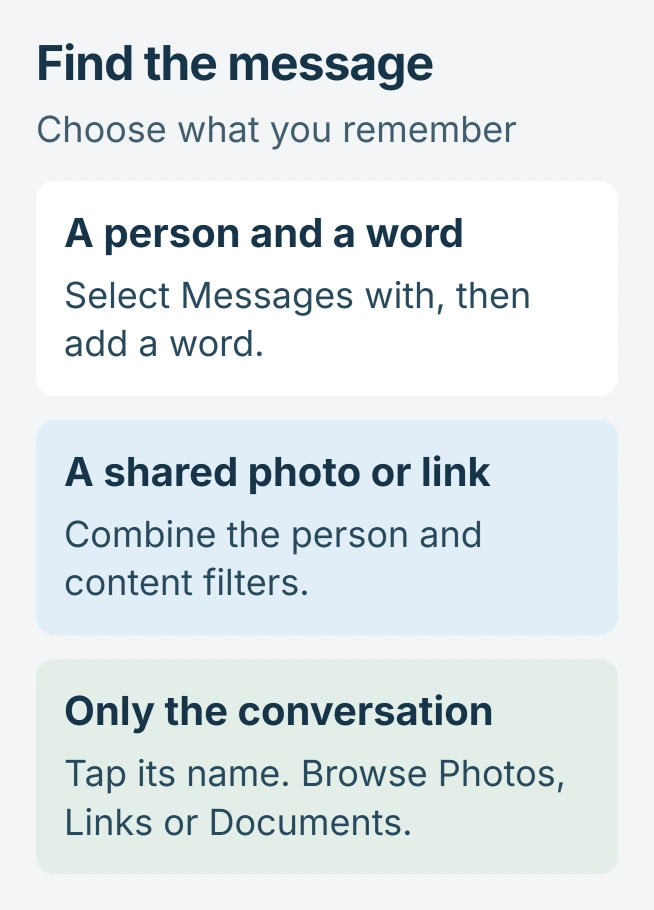
Type the person's name and select Messages with or Messages in from the suggestions. Add a word from the exchange to limit that person's results further.
For shared content, start with a term such as Photo, Link or Wallet, then tap its suggested filter. Combine that with a person when the sender is known. Tap Search to display the matches.
For example, a person's filter plus Link searches their shared links. Typing their name as ordinary text is a different request, so check that the intended filter was selected.
When a combined search returns nothing, try the word alone. A mistaken person or attachment filter can exclude the message being sought; a simpler search helps check that possibility.
Browse shared items when the wording is forgotten
Open the conversation and tap the contact or group name at the top. Swipe through the categories and choose Photos, Links or Documents to inspect that type of attachment.
Apple says this is another route in its text-message search instructions. It is useful for a document whose filename or accompanying message is unclear.
The same instructions describe searching photos by pictured objects or text. Try a recognizable subject from the image when neither the sender nor the message wording is remembered.
After locating an exchange, the iPhone message-printing guide explains how to make a readable copy. Check the dates and participants before capturing it.
Separate a missing result from a deleted conversation
Apple states that recently deleted conversations are excluded from search results. Searching again with different words cannot bring those conversations into the results.
If the thread itself is gone, use the missing iPhone messages checks to examine recovery, filtering and syncing separately from search terms.
If a simple search misses a message still visible in its thread, report the iOS release and failed query to Apple Support. Keep the original conversation while they check the problem.
The Short Version
Search from the conversation list, then combine a person with a word or attachment filter. Browse the conversation's shared items when the wording is unknown. Deleted threads need recovery, not another search term.

Isaac Smith is the founder and editor of PC Glance, a website that covers computers, laptops, and technology. He is a tech enthusiast and a computer geek who loves to share his insights and help his readers make smart choices when buying tech gadgets or laptops. He is always curious and updated about the latest tech trends.