
Unsending a message on iPhone requires Undo Send in Messages: touch and hold the sent bubble, then choose that command. It works with iMessage for up to two minutes after sending. Deleting the bubble does not recall it.
Use Undo Send while the message is still eligible
Open Messages, enter the conversation and find the message just sent. Apple documents Undo Send for iMessage on iOS 16 or later; the receiving device also needs compatible software.
Act on the individual bubble. Holding the conversation in the main list opens controls for the thread, which are different from the sent-message menu.
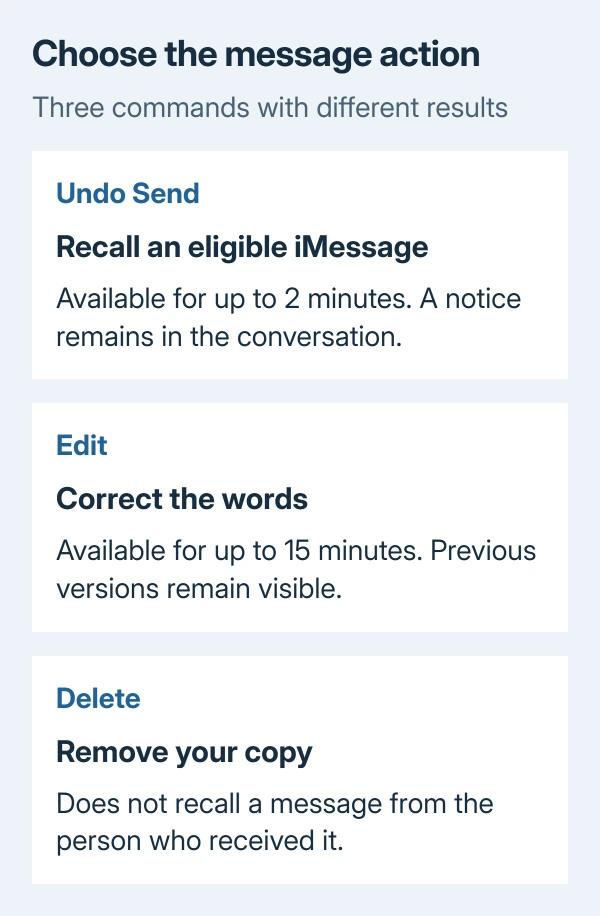
Status: Apple's message recall and editing guidance checked October 29, 2026. Undo Send has a two-minute limit. No conversation was accessed or tested.
- Touch and hold the sent message bubble.
- Tap Undo Send.
- Check that the bubble disappears and a notice confirms the message was unsent.
The conversation retains that notice for both people. Successful recall does not make the exchange look as though nothing happened. Do not assume it prevents someone remembering or saving text they already saw.
Check the message type when the command is missing
Apple's iPhone message guide excludes SMS, MMS and RCS from Undo Send. A conversation with another iPhone is not enough by itself; the message must have used iMessage.
The sending deadline also matters. An unread message does not remain eligible indefinitely. Once the recall window has passed, deleting your copy cannot reopen it.
Use the message deletion procedure only when the intention is to clean up your own history. The recipient's copy remains separate from that deletion.
Understand the warning about older devices
Apple says recall needs compatible software: iOS 16, iPadOS 16.1, macOS Ventura or later. Its current iPhone guide also lists visionOS 1 or later.
An older receiving device can retain the original message, and Messages warns that the recipient may still see it. Read that warning even when the bubble has disappeared from the sending iPhone.
For a message sent to the wrong person, send a direct correction when recall is unavailable or uncertain. That recommendation is ours; deleting the thread or changing a setting cannot guarantee removal from their device.
Correct a typo with Edit instead
For an eligible iMessage that needs a correction, hold the bubble and choose Edit. Change the text, then tap Send Edit to submit it. Apple allows up to five edits within 15 minutes of sending.
The revised bubble is marked Edited. Both people can tap that label to read earlier versions, so editing is unsuitable for concealing the original wording. Older software can receive the correction as a follow-up message instead.
For future messages that should wait, schedule the text before sending. Scheduling and recalling an already sent message are separate controls.
If a fresh iMessage still lacks the documented command on compatible software, ask Apple Support about the missing menu item. Include the installed iOS version without exposing the private message.
The Short Version
Hold the sent iMessage bubble and select Undo Send promptly. Check the confirmation and any older-device warning. Edit keeps a visible revision history, while Delete does not remove the recipient's copy.

Isaac Smith is the founder and editor of PC Glance, a website that covers computers, laptops, and technology. He is a tech enthusiast and a computer geek who loves to share his insights and help his readers make smart choices when buying tech gadgets or laptops. He is always curious and updated about the latest tech trends.