A FaceTime notification that won't go away can be a saved alert, an unread video message, or a stuck red badge. Clear the alert in Notification Center first, then check FaceTime's missed calls and message filters.
Clearing the alert doesn't also mark the app's items as read.
If every list is empty but the number stays, turning off Badges hides the number while keeping other call alerts available. It doesn't repair the underlying unread count.
In this guide
1. Clear a saved alert from Notification Center
Look at where the notification appears. An alert card in Notification Center is different from the red number on FaceTime's Home Screen icon. Lock Screen alerts are cards too.
From the Lock Screen, swipe up from the middle to see older notifications. From another screen, swipe down from the upper left. Swipe left over the FaceTime alert and choose Clear.
Expand grouped alerts to inspect their individual entries.
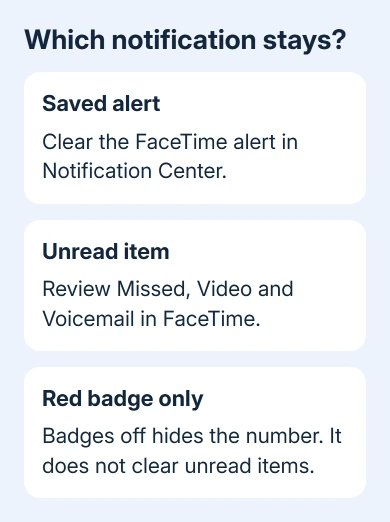
Apple's notification controls let you remove saved alerts without disabling the app's notifications. Clear just the FaceTime alert to keep notifications from your other apps.
Return to the Home Screen. If the alert has disappeared but FaceTime still has a red number, continue inside FaceTime. Clearing Notification Center again might not change what FaceTime still counts as unread.
If a fresh alert appears with a new time, check whether another call or message arrived. A new missed call isn't the same failure as an old notification refusing to clear, even when it comes from the same contact.
2. Open the missed-call and message lists in FaceTime
Open FaceTime, rather than only Phone. In the current interface, tap Filter in the upper right. Check Missed, then Video and Voicemail for items you haven't reviewed.
The Calls view shows recent FaceTime audio and video calls. Video contains recorded video messages. A missed call can be easy to spot while a message remains in a different filter, so checking only Calls can leave part of the app unread.
Open the entry and play any message you want to review. Use the entry's information control to check its details. A calling control can start a return call. Then leave FaceTime and check its badge again.
On an older iOS interface without Filter, use the call list and any video-message entries shown in FaceTime. Don't search for the newer menu on a version that doesn't have it. Check Settings > General > About for the installed iOS version.
If the missing item is ordinary carrier voicemail in Phone, the voicemail filter guide explains that separate list. A Phone notification doesn't automatically mean a FaceTime video message is waiting.
3. Check filtered callers before deleting anything
Return to FaceTime's Filter menu and check Unknown Callers and Spam, when those options appear. Filtered calls are placed away from the ordinary call list. Review the date and caller so you know which item you're dealing with.
Keep any message you need before deleting it. Removing call history or messages simply to chase a badge can leave you without information you meant to save, and an empty history isn't a guaranteed repair for a stuck count.
Apple's FaceTime call and message instructions list these filters. An empty Calls view can still leave items in those other lists.
An old badge number can survive an iPhone restore even when every list looks empty. The count could be stuck, so don't assume a message is still waiting.
If the number stayed after a transfer, write that down for support.
I'd review the filters before changing notification settings. It takes a moment and helps you tell an unread item from a display problem while keeping your call history.
4. Restart the iPhone and install available iOS fixes
On Face ID models starting with iPhone X, press Side and either volume key at the same time, keeping them pressed until the power sliders appear. Slide the power control to shut down. After 30 seconds, hold Side to start the iPhone.
For an iPhone 6, 7, 8 or an SE with a side button, hold that button to show the slider. The original SE, iPhone 5 and earlier models use a power button on top. Power it off, wait, and use the same button to restart.
Use a force restart when the ordinary power controls won't respond.
For iPhone 8 and later, including the second-generation SE and later SE models: press Volume Up briefly, then Volume Down briefly. Next keep Side pressed until an Apple logo is visible, then release it.
On the 7 and 7 Plus, hold Volume Down together with Side. Release both when the Apple logo is visible.
For the 6s, original SE and earlier models, press the power button (Side or Top) together with Home and keep them pressed. Let go when you see the logo.
After startup, open FaceTime and recheck the number. Then check Settings > General > Software Update. Save an iPhone backup before you install an available update.
5. Hide only the badge if the count stays wrong
Open Settings > Notifications > FaceTime. Leave Allow Notifications on if you still want call and message notifications, then turn Badges off. Check the FaceTime icon afterward: its red number should be gone.
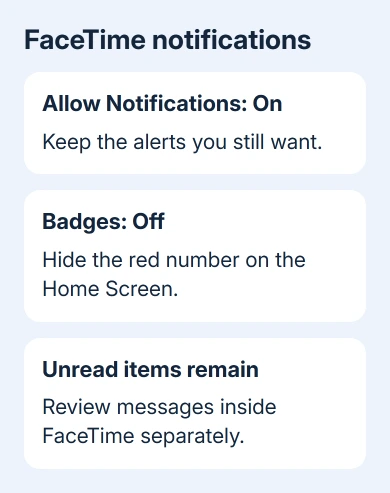
This changes how FaceTime displays notifications. It doesn't mark a hidden message as read or fix the stored count. Turning Badges on again can bring the number back if FaceTime still counts something as unread.
Keep the alert styles and sound settings that suit how you receive calls. Turning off all notifications is a broader change than hiding a badge and can make it easier to miss an alert you still want.
If a particular person's calls or messages are silent as well, use the single-contact notification checks. A count that stays visible and an alert that never arrives need different settings.
Report an empty list with a persistent count
Choose iPhone when opening a support request with Apple. Say that the FaceTime badge remains after checking Missed, Video, Voicemail and filtered callers, and report whether clearing Notification Center or restarting changed it.
Give the iPhone model, iOS version, badge number and when the problem began, including any recent iOS update or backup transfer. Ask for help with a persistent FaceTime unread count.
Discuss those details with support before you sign out or reset all settings.
The Short Version
Clear the saved alert, check FaceTime's separate call and message filters, then restart and update the iPhone.
If the lists are empty and the number remains, hide Badges while keeping notifications enabled and report the stuck count to support.
Checked November 13, 2026.