
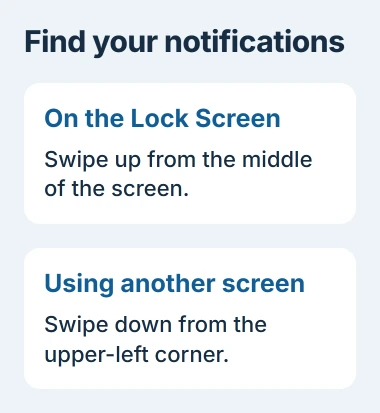
Seeing iPhone notifications takes a different gesture depending on the screen. From the Lock Screen, swipe up from its middle. While using an app or the Home Screen, pull downward from the upper-left corner to open Notification Center.
That list can contain earlier alerts as well as recent ones. An alert hidden inside a stack, a preview concealed until unlocking, and a message that never arrived need different checks.
Open the list from the screen already showing
Wake the iPhone first. On its Lock Screen, start the upward swipe near the middle of the display. Starting at the bottom edge instead can take you toward unlocking the phone.
From another screen, use the upper-left corner for the downward gesture. Apple documents both routes in its notification viewing instructions. Scroll through the resulting list for earlier items.
Status: Apple's Notification Center instructions were reviewed November 3, 2026, covering gestures, grouped alerts and preview privacy.
The upper-right corner opens Control Center on Face ID models. Seeing brightness and volume controls means the swipe began on that side; close that panel and try the left corner.
Close Notification Center with an upward swipe beginning at the bottom. Pressing Home also closes it on models equipped with that button.
Expand a stack or switch to List
Apple says tapping a group reveals the individual notifications. Tap an entry to open its app, or hold it for any quick actions that app provides. Show Less collapses the group again.
For a different Lock Screen arrangement, open Settings > Notifications. Choose List to display alerts in a list, Stack to group them, or Count to show their number. These choices change the presentation, not the messages inside an app.
If flashes announce incoming alerts but their content is hard to find, the flash-notification controls manage the light separately from this list.
Choose when previews become readable
An app name without message text can be a privacy setting. Unlock the iPhone first, then inspect the same notification before changing anything.
In Settings > Notifications > Show Previews, When Unlocked hides the contents until authentication. Always can expose them while locked; choose that only when the extra visibility is intentional.
Apple states that preview settings can differ by app in its notification settings reference. Check the affected app's entry if other previews work normally.
For access to the list itself while locked, open Settings > Face ID & Passcode or Touch ID & Passcode. After entering the passcode, review Notification Center in Allow Access When Locked.
When the notification is absent
Open the originating app and look for the message, missed call or event there. Clearing a notification is different from deleting the underlying conversation. Apple's viewing guide provides no restore command for cleared alerts.
When only one contact stays silent, use the conversation-specific alert checks. Repeating the gesture cannot correct a muted conversation or a message that was never delivered.
For one missing app, inspect Settings > Notifications > that app and its Notification Center alert option. If enabled alerts still fail to appear, give Apple Support the app name and whether its messages remain visible inside the app.
The Short Version
Use the Lock Screen's middle for the upward swipe, or another screen's upper-left corner for the downward swipe. Expand grouped alerts, check preview privacy separately, and open the source app when an old notification is gone.

Isaac Smith is the founder and editor of PC Glance, a website that covers computers, laptops, and technology. He is a tech enthusiast and a computer geek who loves to share his insights and help his readers make smart choices when buying tech gadgets or laptops. He is always curious and updated about the latest tech trends.