
Flash notifications on iPhone can blink the rear LED, flash the screen, or do both. In the current iPhone guide, Settings > Accessibility > Audio & Visual > Flash for Alerts contains the switch and the choice of light.
Choose the rear LED when the phone usually lies face down, or the screen when its display faces you. The Silent mode and unlocked-phone switches determine additional situations in which the LED can flash.
Turn on Flash for Alerts and choose what lights up
Open Settings, select Accessibility, then Audio & Visual. Tap Flash for Alerts and enable the main Flash for Alerts switch.
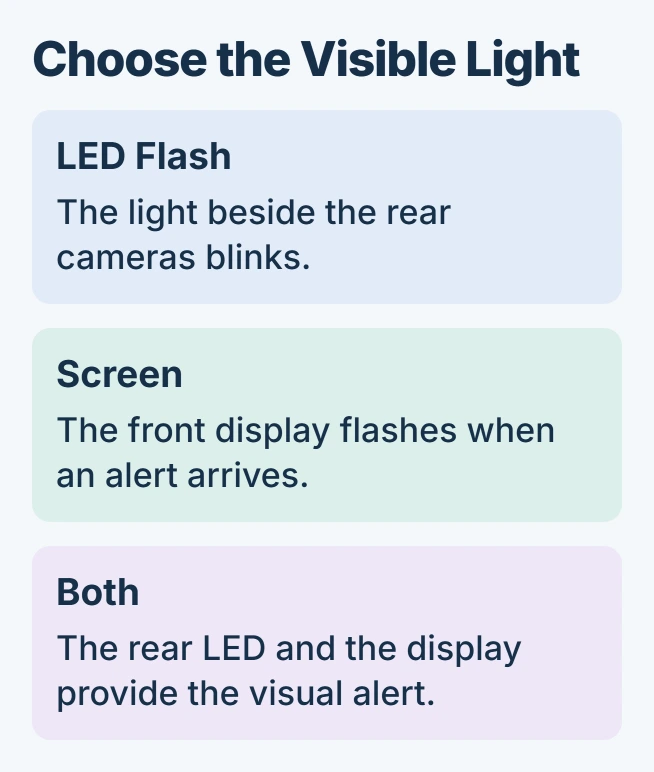
Apple documents three choices in its iPhone flash-alert instructions. LED Flash uses the light beside the rear cameras; Screen flashes the display; Both enables both outputs.
Status: iOS 27 Flash for Alerts controls checked November 1, 2026. Apple's older LED-only article has different labels and limits; the two interfaces are kept separate.
Select the option that will be visible where the phone normally sits. A rear LED cannot provide a useful visual signal when a surface or case covers it.
These are notification controls. The separate Camera flash settings decide whether a photograph uses flash; changing Camera to Flash On does not enable notification flashes.
Review Silent mode and unlocked-phone behavior
In the same settings, review Flash While Unlocked and Flash in Silent Mode. Apple says the first permits LED alerts on an unlocked iPhone; the second permits them during Silent mode.
Enable the conditions that match how the phone is used. For example, an LED alert intended for a silenced phone needs its Silent-mode option enabled.
Ask someone to send a message while the iPhone is in the chosen state. Confirm that the notification arrives, then check the selected light. Repeat with the screen unlocked only if that behavior was enabled.
Keeping the incoming message the same makes this comparison useful. It separates an alert that never arrived from a light that did not operate under the selected conditions.
Follow the LED-only controls on an older layout
Some iPhones show LED Flash for Alerts under Accessibility > Audio/Visual, with Flash on Silent as the additional control. Apple's older LED instructions describe that layout and locked-device operation.
Apple states that the older workflow requires the device to be locked. That limit should not be applied to the current screen with Flash While Unlocked, which explicitly offers different behavior.
If Screen and Both are absent, check Settings > General > About for the installed iOS version and use the controls actually available. A missing newer choice is not proof that the rear light is broken.
Check the type of light when the result is wrong
A constant rear light is the flashlight. Use the flashlight off controls if it remains steadily lit; Flash for Alerts is intended to blink when a notification arrives.
If the message never appears, review that app's notification permission and any active Focus first. Flash settings cannot establish why an app failed to deliver its notification.
If notifications arrive but the selected light never responds, ask Apple Support to check the behavior. Include the installed iOS version, flash option, and whether the phone was locked or silenced when the notification arrived.
The Short Version
Enable Flash for Alerts, select the visible output, then check its behavior in the phone state you actually use. Older LED-only controls differ from the current screen and its unlocked-phone option.

Isaac Smith is the founder and editor of PC Glance, a website that covers computers, laptops, and technology. He is a tech enthusiast and a computer geek who loves to share his insights and help his readers make smart choices when buying tech gadgets or laptops. He is always curious and updated about the latest tech trends.