

iMessage notifications can disappear even while new messages arrive because Messages alerts are switched off, a Focus is silencing them, or the alert goes to your Apple Watch.
Start with Settings > Notifications > Messages, turn on Allow Notifications, and check where alerts appear and which sound they use.
A silent inbox and a single muted chat call for different fixes. Open Messages first: a new message sitting in the conversation means delivery worked, so changing your iMessage account isn't the first fix.
In this guide
1. Restore Messages alerts and their sound
Open Settings > Notifications > Messages. Turn on Allow Notifications, then select the places where you want alerts: Lock Screen, Notification Center, and Banners. Allowing notifications doesn't turn on every type of alert.
Tap Sounds and choose an alert tone rather than None. Check the haptic choice there too if vibration is how you notice incoming texts. If a banner appears without a sound, check the sound settings: the message itself has arrived.
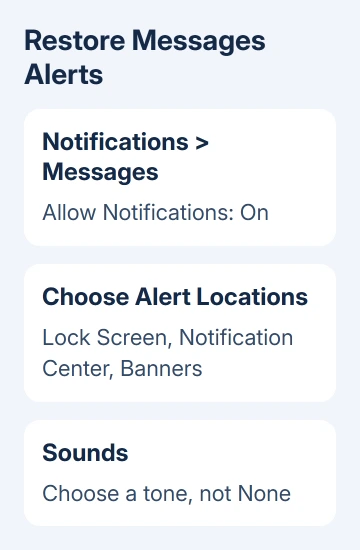
Apple says you can change Messages notifications, their sounds, and individual conversation alerts separately. Work through those controls before signing out of your account or deleting a conversation.
Leave the chat, lock the iPhone, and have a contact send a new text. An old message won't recreate its original arrival alert just because you changed a switch. Leaving the chat also lets you check alerts without the conversation open.
If the banner appears but the phone stays quiet, open Settings > Sounds & Haptics and raise the ringtone and alert volume. The volume used for a video isn't the setting you need here.
Check Silent mode as well. Orange showing on the Ring/Silent switch means Silent mode is active. For an Action button model, check Silent mode directly. The button may be assigned to a different task.
2. Check the active Focus and its exceptions
Open Control Center, tap Focus, and turn off the active Focus for a fresh message check. For Face ID models, pull down at the upper-right edge. For Home button models, pull up from the lower edge.
If alerts return, keep your Messages settings as they are. Open Settings > Focus, select the Focus you normally use, and review People and Apps. Decide which contacts and apps should be allowed to interrupt it.
Check whether the list allows or silences notifications before changing it. A list of people allowed through behaves differently from a list of people being silenced.
Adding a contact without checking that choice can produce the opposite result from what you wanted.
If the Focus keeps turning itself back on, check its schedule. Review its time, location, or app triggers, and check whether a linked Lock Screen activates it. Share Across Devices can also bring a Focus change from another Apple device.
I'd change the Focus rule that caused the silence rather than abandon a useful Work or Sleep schedule. For a phone that delivers several apps' alerts much later, the separate delayed iPhone notifications guide covers the wider pattern.
3. Unmute a conversation when only one chat is quiet
Open the silent conversation in Messages, tap the person's name or the group picture, and turn off Hide Alerts. That switch silences the conversation while leaving its messages available to read.
A muted conversation can explain why other contacts' messages make a sound. It can't explain an entire inbox going silent, so skip this section if fresh messages from several people all stay silent.
For a contact whose banner appears without the expected sound, open their contact card, tap Edit, and review Text Tone. A contact-specific tone can differ from the Messages app's general sound.
Keep a group chat and a direct conversation separate when checking this. Changing the group control doesn't change your one-to-one conversation with each member. Send the test message into the same chat that was missing alerts.
The one-person notification guide goes further into that narrower case, including conversations diverted into filtered folders.
4. Check whether the alert went to Apple Watch
An Apple Watch changes where notifications appear. With an unlocked iPhone, alerts normally go to the phone. When the iPhone is locked or asleep, notifications normally go to your unlocked Watch, unless the Watch is locked.
That's why a silent locked iPhone can still be behaving normally. Check the Watch for the same message before changing more phone settings. The normal arrangement sends the notification to one device rather than sounding on both.
On iPhone, open Watch > My Watch > Notifications > Messages and review its notification choices. If you use custom settings, check whether they allow an alert or only place it quietly in Notification Center.
Test once with your iPhone unlocked, then once with it locked while wearing the unlocked Watch. Alerts going to different devices in those two checks are normal. Missing alerts on both devices need the next check.
5. Check filtering, then separate delivery from alerts
For missing alerts from new numbers, open Messages' filtering menu in the conversation list and check Unknown Senders. If the conversation is there, the message arrived but was filtered.
On the current layout, tap Manage Filtering in that menu. With Screen Unknown Senders enabled, open Allow Notifications and choose the categories you need. Available categories depend on your country or region.
For a legitimate sender, mark them as known or add them to Contacts. Their future messages can then reach the main conversation list. Keep screening enabled for other unknown senders if you still want that protection.
If a fresh message isn't anywhere in Messages, this has become a delivery problem. Check whether the sender addressed your current number rather than a previous email address, and whether other people can reach the same address.
For messages that arrive but still never alert after these changes, restart, then look for an iOS update under Settings > General > Software Update. Note the iOS version, plus whether alerts fail with the phone locked, unlocked, or both.
Take that information to Apple Support under iPhone > Messages. Explain that delivery succeeds but notifications fail, name the settings already checked, and mention any paired Watch. That gives support a specific fault to work on.
The Short Version
Allow Messages notifications, select their alert locations, and choose a sound. Then check Focus, Hide Alerts for a silent chat, and Apple Watch routing. A message absent from the app needs delivery checks rather than more alert changes.
Checked November 12, 2026.
 If you have any business, I can build it online






