

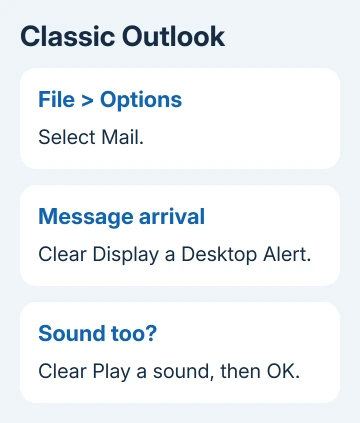
To turn off Outlook notifications, open General > Notifications in new Outlook and switch Mail off. In classic Outlook, clear Display a Desktop Alert in Mail options. Sounds and calendar reminders have separate controls.
Changing one computer won't silence your phone. If alerts keep appearing, check which device and Outlook version is sending them before changing another setting.
Silence mail in new Outlook for Windows
Select View, open View Settings, and choose General > Notifications. Under Notify me about, switch Mail off to stop its mail notifications.
Leave Calendar on if you still want meeting alerts. Turn it off too if your aim is complete quiet from Outlook. The Documents switch is another separate choice where available.
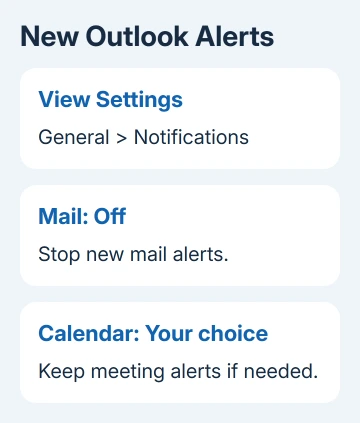
Microsoft documents different alert controls for new and classic Outlook. If you see File > Options, use the classic procedure instead.
To change the sound while keeping pop-ups, expand the category you want and check its sound controls. New Outlook separates New Email and Reactions under Mail from Event reminders under Calendar.
Check what happens when another message arrives. Old alerts can stay in Windows Notification Center after you turn notifications off. Dismiss them separately.
Remove classic Outlook's desktop pop-up
In classic Outlook for Windows, open File > Options > Mail. Find Message arrival, clear Display a Desktop Alert, then select OK.
That checkbox controls the desktop pop-up. To stop the new-message sound as well, clear Play a sound in the same area. Check the other arrival options if the envelope or pointer change also distracts you.
I'd turn off the pop-up first and keep the calendar settings you rely on. Silencing new mail doesn't mean you also want to miss a meeting reminder.
If a notification still appears, read its heading to check whether it's a calendar reminder. A second installed copy of Outlook can also have its own notification settings.
If your inbox has stopped receiving messages, use the Outlook email update checks. Notification preferences and mail delivery need different fixes.
Stop Outlook alerts at the Windows level
Windows can also turn off notifications for a single app. On Windows 11, open Start > Settings > System > Notifications and find the Outlook entry in the app list.
Switch that app off to stop its Windows notifications. If both Outlook versions are installed, check the entries for each version rather than assuming one switch covers both.
On Windows 10, open Settings > System > Notifications & actions, find Outlook under the sender list, and switch it off. The page name differs from Windows 11.
For banners without sound, open the app's notification options and adjust those individual controls instead of disabling the whole sender. The Windows notification settings cover these choices.
Do Not Disturb is better for a temporary quiet period across apps. If the problem is mail every day, Outlook's own mail switch avoids changing alerts from unrelated apps.
Change Outlook.com notifications in your browser
While signed into Outlook.com, open Settings > General > Notifications. In Notify me about, open the Mail section and turn its toggle off.
Use the separate Calendar section to turn off its notifications too. The Outlook.com controls also let you choose reminder behavior and sound when a category remains on.
These settings control alerts from the mail website. If your desktop app or phone keeps sounding, change its settings too.
Quiet Outlook on a phone or Mac
In Outlook for iPhone or Android, open the left navigation menu, tap Settings, then Notifications. Select Mail and choose None to stop mail alerts for the account you're adjusting.
Choose Focused instead if you want fewer alerts while keeping notifications for the Focused Inbox. Check each account you use; a second mailbox can still be the source of the sound.
On iPhone, disabling push notifications also stops background mail fetching and real-time badge updates.
Calendar notifications have their own section. For temporary quiet, use Do Not Disturb or Quiet Time where offered in the app's notification settings.
On a current Mac, open System Settings > Notifications, select Microsoft Outlook and switch Allow notifications off.
For reminder sounds inside Outlook, open Outlook > Settings > Notifications & Sounds and clear Reminder.
If alerts continue after those changes, give support the app version, device and notification heading. Say whether it's mail or a calendar reminder.
If you can't open the app to change its settings, use the Outlook startup checks.
The Short Version
Use the notification controls for your Outlook version, then adjust sounds and calendar reminders separately. Check your other devices and accounts if an alert continues.
Checked November 7, 2026.

Isaac Smith is the founder and editor of PC Glance, a website that covers computers, laptops, and technology. He is a tech enthusiast and a computer geek who loves to share his insights and help his readers make smart choices when buying tech gadgets or laptops. He is always curious and updated about the latest tech trends.