

FaceTime can fail on iPad because the internet connection is down or the caller uses an address that isn't enabled. Check both. For a sign-in error, check the account. If FaceTime settings are missing, check the app and any restrictions.
A Wi-Fi-only iPad can make FaceTime calls without a cellular plan. Sign into FaceTime with your Apple Account and keep the tablet online. Calls from iPhone handles regular phone calls through an iPhone.
In this guide
1. Check the connection and the address being called
Use Safari to check that an ordinary webpage loads on this connection. Then open Settings > Apps > FaceTime and make sure FaceTime is on. On iPadOS 17 or earlier, open Settings > FaceTime directly.
Sign in if asked, then review which receiving numbers and emails are selected. Give the other person that exact address and ask them to call it. A contact card can contain an old address that no longer reaches this iPad.
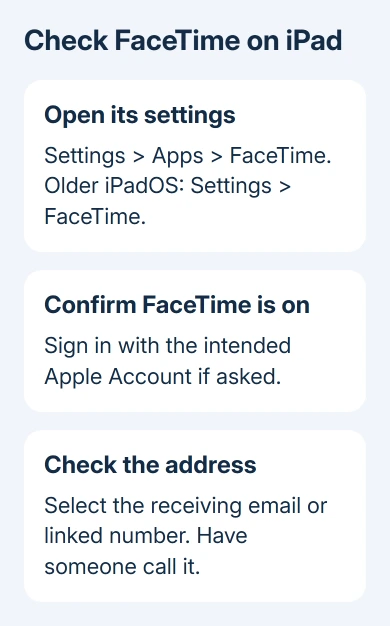
To check outgoing calls, start a new call inside the FaceTime app and enter an address the other person confirms is enabled. Use the iPad FaceTime calling steps if you need the video and audio controls.
If one person answers and another can't, compare the failing person's address and connection. If you can't reach any contacts, continue with the iPad and network checks. This avoids changing the whole account over one outdated contact.
Check Apple's System Status page for a FaceTime outage as well. If a service problem is listed, wait for it to be resolved before repeatedly changing the device's settings.
When the same failure affects an iPhone too, the iPhone FaceTime checks include its separate SIM and phone-number activation steps. Those aren't the starting point for a Wi-Fi iPad calling by email.
2. Try another working connection for failed or broken calls
Connect the iPad to another trusted Wi-Fi network and retry the same person. A call that connects there points toward the original connection, including router restrictions or security software that interferes with calling.
On a Wi-Fi + Cellular iPad with an active plan, check Settings > Cellular and make sure FaceTime is allowed to use cellular data before testing away from Wi-Fi. Cellular video uses your plan's data allowance.
A Wi-Fi-only iPad won't have that cellular option. Use another Wi-Fi connection or a phone hotspot instead. Turning on Calls from iPhone doesn't supply internet service to an otherwise offline iPad.
For a call that starts but becomes choppy, freezes or drops, check the internet service at each end of the call. Pause large downloads on the shared network and move within reliable Wi-Fi coverage, then retry.
Apple says slow connections can cause connection alerts, black screens and dropped calls. Those symptoms alone don't identify a failed camera.
If the problem occurs only on an organization's network, ask its administrator whether FaceTime traffic is restricted. Give them the result from the working second network so they can check the network rather than the iPad account.
3. Restart FaceTime when sign-in or activation fails
If the message says you can't sign in or contact the FaceTime server, start with the date and time settings. Open Settings > General > Date & Time and check the date, time and time zone. Use Set Automatically where available.
Check Settings > General > Software Update to install any offered iPadOS update. Then return to Settings > Apps > FaceTime, turn FaceTime off, restart the iPad and turn FaceTime back on.
On models without a Home button, hold top + either volume button to display the power-off slider. Drag it and allow the iPad to shut down. Turn it back on by holding the top button.
For an iPad that has a Home button, hold top to display the slider. Drag it, wait for it to shut down, then hold top again to start the tablet. These restart steps apply when your iPad still responds.
Retry FaceTime using the intended Apple Account. For an unverified-email message, finish that account's email verification before calling again. Camera settings won't resolve an address that still needs verification.
I'd keep the error message visible long enough to copy its wording. Waiting for activation, an incorrect password and a failed call are different problems, despite all three sometimes appearing after a restart.
4. Check the Apple Account if the server error remains
Use the iPad sign-in troubleshooting page to open the official account and online activation routes. Sign into the account page with the same Apple Account used for FaceTime and resolve any password or verification problem it shows.
When ordinary sign-in still fails
The page also provides online activation through Enable Apple Account > Get Started. Follow its prompts if ordinary sign-in still fails. This requires authentication with the account you want FaceTime to use.
If you installed VPN or security software, compare another connection and check whether that software blocks FaceTime access. On a managed iPad, ask its administrator to review the restriction rather than removing its management profile.
If sign-in works but calls still fail, return to the receiving-address comparison. Signing in successfully doesn't tell you whether the other person is calling the correct address.
5. Restore missing FaceTime controls or get device help
Search the iPad for FaceTime. If the app was deleted, reinstall it through its App Store listing. If it's installed but restricted, open Settings > Screen Time > Content & Privacy Restrictions > Allowed Apps & Features.
Allow FaceTime and Camera there. Older releases can label the list Allowed Apps. If a parent or administrator controls Screen Time, have them enter the proper passcode and adjust the permission.
The FaceTime features available depend on your country, region and carrier. A regional availability limit isn't repaired by resetting the iPad, so report the model and region when asking about a missing feature.
If FaceTime still fails on working connections, contact Apple Support through its FaceTime call or activation page. Give the iPad model, iPadOS version, exact error and whether incoming, outgoing or both kinds of calls fail.
Also state whether FaceTime signs in and whether the same person can call the selected address on another Apple device. Those details help support see which part isn't working without starting with a factory reset.
The Short Version
Confirm the receiving address and internet service, then compare another network. Sign-in errors need time, update and account checks. Use Screen Time or the App Store for missing controls; report continuing failures to Apple Support.
Checked November 12, 2026.
 If you have any business, I can build it online






