
The other person's FaceTime video can lose its edges when a wide picture fills a differently shaped view. Rotate your iPad to landscape first. If the picture follows their face, ask them to check Center Stage on their device.
Those are different problems. Your display controls affect how you see incoming video; their camera controls affect what they send. Turning off Center Stage on your iPad changes your own camera, not theirs.
In this guide
1. Check whether the crop affects the video or everything
Look at FaceTime's buttons and the edges of the iPad display. If the controls and other apps look normal but part of the caller is missing, start with the video-view checks. Leave the iPad's display settings alone for now.
If the whole interface is enlarged and you can't see its edges, check Settings > Accessibility > Zoom. That feature magnifies the screen itself. It can make a call look cropped even though the camera image isn't the cause.
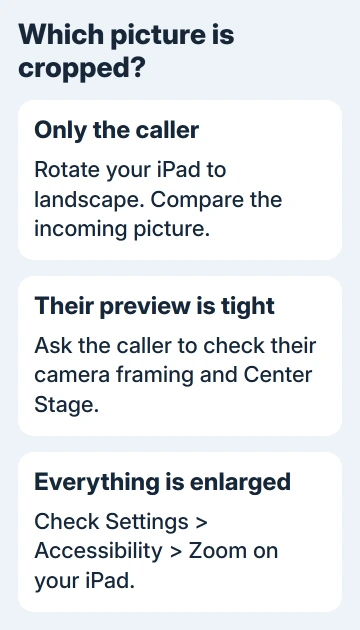
With Accessibility Zoom active, double-tapping with three fingers toggles the magnification. Use that gesture when reaching Settings is difficult, or turn Zoom off in Settings if you don't need it.
If the buttons and menus return to their usual size but the caller's video still looks tight, the remaining crop isn't caused by screen magnification. Next, check your iPad's orientation and their camera.
Don't use a two-finger pinch as a universal FaceTime repair. Gestures that magnify a photo or webpage don't necessarily control the incoming picture in a video call.
2. Rotate the iPad for a wider view
Turn the iPad horizontally while the call is open. Apple's FaceTime calling guide recommends landscape orientation to see more during a video call. Check whether the missing part becomes visible.
Ask the other person to keep their device and position still for this comparison. If both people move at once, it's difficult to tell whether the extra view came from your display orientation or their camera movement.
If the iPad won't rotate, open Control Center by dragging downward from the iPad's upper-right corner. Turn Rotation Lock off, close Control Center, then turn the iPad sideways again.
Some older iPads have a physical side switch that can be assigned to rotation lock. On those models, check Settings > General > Use Side Switch To when the Control Center rotation control isn't available.
Try rotating Safari or Messages if the display still stays upright. If those apps rotate and FaceTime doesn't, the problem is with the call or how FaceTime displays it. If neither rotates, fix rotation before changing camera settings.
A wider view can improve what fits, but it can't recreate anything that the other person's camera never sent. If their entire face is already too close in their own preview, move to the camera-framing check.
3. Have the caller check the video they are sending
Ask the other person to look at their own camera thumbnail. Is the face tightly framed there too? Does the picture pan when they move? That suggests their camera is cutting the picture tight, rather than a setting on your iPad.
On a supported iPad, have them open Control Center during the call, tap FaceTime Controls, then tap Center Stage to turn it off. In iPadOS 17 or earlier, that entry is Video Effects instead.
During FaceTime, supported versions also offer the control through the caller's own video thumbnail, then Camera Effects > Center Stage. The menus can look different, so use Control Center if you don't see that shortcut.
Center Stage keeps people in view by automatically adjusting the camera framing. Switch it off to stop the automatic movement or framing. It doesn't control the size of the video you receive.
On a supported Mac running macOS Sonoma 14 and newer, ask the caller to open the menu bar's Video control and turn Center Stage off. A Mac without a supported camera won't necessarily have that control.
For an iPhone 17 model or iPhone Air using its Center Stage front camera, the caller can tap their own thumbnail, then Camera Effects > Center Stage. Don't send someone with an older unsupported iPhone searching for that feature.
The FaceTime tracking guide also separates supported iPhone framing from the Mac's Continuity Camera controls.
The iPad camera-following guide explains those tracking controls in more detail. The person sending that picture needs to change their own camera setting.
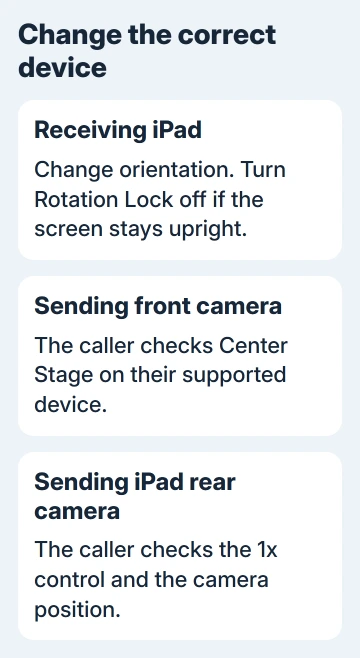
If Center Stage is absent, ask the caller to move the device farther back or change its angle. That changes what their camera sends, so you aren't trying to reveal edges your iPad never received.
4. Check rear-camera zoom separately
A caller showing a document or room may be using the rear camera. On an iPad, they can tap their own tile and select Flip to switch cameras. That switches which camera sends the picture.
With the rear camera active, the iPad's FaceTime controls include 1x to enlarge the image. Tap it again for normal size. Ask the caller to compare the two views if a document looks unexpectedly close.
This is a separate control from Center Stage's front-camera framing. Turning Center Stage off won't undo rear-camera enlargement, and changing your own camera won't change the document they are showing.
I'd check the caller's preview before changing the iPad's general settings. When they can already see that the page's edges are cut off, repositioning or changing their camera view gives both people a clear result to compare.
5. Report a persistent crop with the right details
If the caller's preview looks correct but the same picture stays cropped on your iPad in both orientations, note when it happens. Note each device model, software version, front or rear camera, plus which callers are affected.
Compare a call with a second person if possible. A fault affecting just one caller needs both devices' details; if it happens with every caller, support will need to focus on your iPad.
For a call that also won't connect or show video, use the iPad FaceTime setup checks. An account or connection failure is separate from a working call whose picture is badly framed.
Contact Apple Support and describe incoming FaceTime video being cropped, including whether orientation changes it and whether the sender's preview has the same crop. Ask them to check the behavior for those exact software versions.
Don't erase the iPad or reset every setting just to try another picture shape. If the remaining crop is a FaceTime display limitation or software fault, you could end up setting everything up again without fixing the crop.
The Short Version
Rotate the receiving iPad first. For a tight or moving sender preview, check their Center Stage or rear-camera view. Check Accessibility Zoom if all the controls look enlarged. Give support both devices' details if cropping persists.
Checked November 12, 2026.






