
You shift in your chair and the iPad camera follows you. Somebody walks past behind you and it zooms out to fit them in. It feels as though the iPad has a mind of its own.
That is Center Stage, and it is on by default, so nothing you did switched it on.
Let me show you where the control lives, because it is nowhere near where you would think to look.
Where the control actually is
Apple's documented steps begin with a precondition rather than a tap.
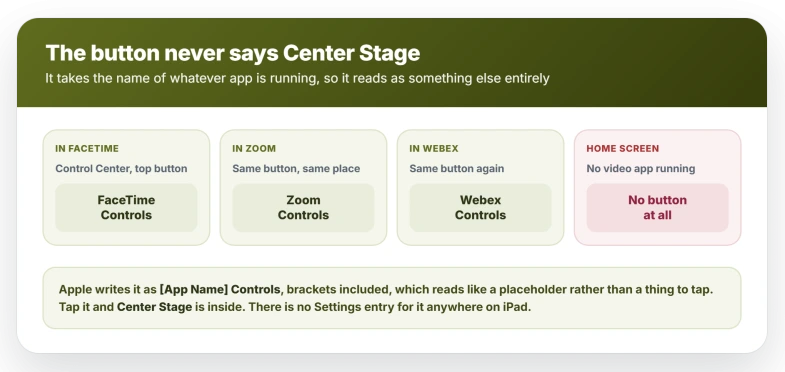
- Open your video app first. FaceTime, Zoom, whatever it is. The control does not exist in Control Center until a camera is in use.
- Open Control Center by swiping down from the top-right corner of the screen.
- Tap the [App Name] Controls button at the top. Apple's own example: in FaceTime, that button reads FaceTime Controls.
- Tap Center Stage in the extra controls that appear.
The check that it took is behavioral, not visual. Slide sideways in your seat toward the edge of the shot. With Center Stage off the frame stays put and you drift out of the middle of it.
With it on, the frame comes with you.
Open Control Center from the Home Screen with nothing running and there is no app button at all.
The mislabeled button and the missing button are two separate failures, and the empty Control Center is the one that looks like a removed feature.
The Video Effects button belongs to iPadOS 17
The old route ended at a Control Center button called Video Effects. That button belongs to iPadOS 17 and earlier.
Apple dates the change on its own page, in a parenthesis attached to the same instruction: "In iPadOS 17 or earlier, tap the Video Effects button instead."
That parenthesis makes them the same step under two button names, not two different places. Whatever you reached through Video Effects, you now reach through the button carrying the app's name.
There is no Center Stage switch in Settings either. Apple documents no Settings path for it on iPad at all, which is why searching there returns nothing.
The shortcut during a FaceTime call
Already on a call? There is a route that skips Control Center.
Tap the video thumbnail of yourself, tap Camera Effects, then tap Center Stage.
Apple's two pages differ here. Doc 111102 puts Camera Effects in the middle; the iPadOS 26 User Guide has you tap your tile then Center Stage directly.
If your build shows no Camera Effects button, look for Center Stage straight after tapping your tile.
One note on instructions that mention a menu bar or a Video menu: those are Mac steps.
Apple routes the Mac through the Video menu instead of Control Center, and if you are using an iPhone as the camera there, Continuity Camera has its own connection problems.
What it is doing, and what it is not
Center Stage moves nothing physical. The front camera has a much wider field of view than it shows you, and the feature slides a smaller crop around inside that larger image.
Apple described it this way at launch in 2021: the camera "automatically pans to keep them in the shot", and "when others join in, the camera detects them too, and smoothly zooms out to fit everyone into the view."
That second half matters for diagnosis. Apple's framing is that it keeps you "and anyone else with you" in shot, so a second person walking through the room is a reason for the picture to move.
If your hand movements are setting something off, that is not Center Stage. iPad has a separate feature called Reactions that fires effects from hand gestures.
Turning Center Stage off leaves it running. To reach it, open Control Center with the app in the foreground, tap [App Name] Controls, and tap Gestures.
The test is a thumbs-up to the camera with nothing happening on screen.
Zoom, Teams and Webex do not have a rival version
This runs the opposite way to how it looks, and it narrows the search.
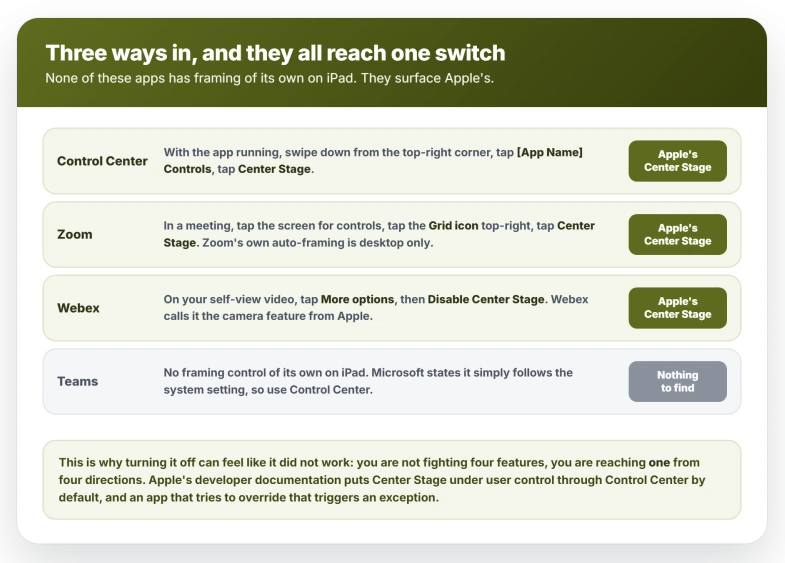
These apps ship no framing of their own on iPad. They use Apple's, which means Apple's Control Center switch reaches them.
Apple's developer documentation defines a user-control mode in which "the user has exclusive control of Center Stage through Control Center", and an app that then tries to override it programmatically triggers an exception.
Each vendor also surfaces the same Apple switch inside its own interface, which is why it looks like two separate features:
- Zoom documents it as "Apple's Center Stage feature". In a meeting, tap the screen for the controls, tap the Grid icon top-right, then tap Center Stage. Zoom's own auto-framing exists only in the desktop app.
- Webex calls it "the camera feature from Apple" and notes "This feature is for iPad only". On your self-view video, tap More options, then Disable Center Stage.
- Microsoft states that Teams applies no auto-framing of its own on iPad and follows the system setting. Framing you have seen in a Teams meeting room is IntelliFrame on conference hardware, nothing to do with your iPad.
None of these three shows a clear on or off label, so confirm with the same slide-sideways test.
If one of these apps shows no Center Stage control anywhere, that is the app-support question and not a hidden setting. It is covered further down under "If there is no Center Stage button anywhere".
Does it stay off?
Apple's developer documentation describes Center Stage as enabled on a device, which is the closest thing to an answer anyone has. It points away from the popular idea that each app keeps its own copy of the setting.
What Apple's support pages document is the tap and nothing else. There is no published statement about whether the switch survives the end of a call, quitting the app, or a restart.
Anyone telling you confidently that it is remembered per app is guessing.
No Apple page documents a permanent off, and the standing community answer is that none exists on iPad. Long-running threads have asked for one for years without getting it.
Switch it off in the app you are in, then if it returns after a restart or an update, check the same place instead of assuming it stuck.
If there is no Center Stage button anywhere
Apple sets two conditions and documents both.
The hardware condition covers iPad Pro 11-inch 3rd generation or later, iPad Pro 12.9-inch 5th generation or later, iPad Air 5th generation or later, iPad 9th generation or later, and iPad mini 6th generation or later.
Every one of those entries is qualified in Apple's list as "using its front-facing camera". Check yours at Settings, General, About, in the Model Name row.
The second is the app.
Apple's wording is "when using these devices with a compatible app that supports this feature", so support is per app, and hardware that qualifies still shows nothing inside an app that has not taken the feature up.
Two things the front-camera wording rules out. Apple documents no Center Stage on the iPad rear camera, and none in the Camera app for stills.
The automatic framing built into the Camera app is an iPhone 17 feature, not an iPad one.
If FaceTime freezes and the call drops
One iPadOS 26 report belongs here, and the reason to give you the numbers is that they are small.
In January 2026 an iPad 10th generation owner on iPadOS 26.2 described FaceTime freezing ten to fifteen minutes into a call, the call then ending by itself, and the front camera being unavailable in every app for about two minutes afterward.
Switching Center Stage off was the only thing that helped him. Two Level 10 volunteers replied with general troubleshooting, neither confirmed it, and Apple never responded.
That is one person on this version. Seven named owners described a freeze the same way on iPadOS 18 in late 2024, and three of them confirmed the same workaround.
So if your calls freeze and drop instead of merely following you around, try the toggle before you start resetting things. It is not a diagnosis.
Apple has never acknowledged any such fault on either version, and iPadOS 26.6 shipped on 27 July 2026 with no camera or FaceTime fix named in its notes.
Your confirmation is a call that runs well past the twenty-minute mark without dropping.
If FaceTime never connects the call in the first place, the causes sit somewhere else entirely.
What does not help
- Cleaning or covering the lens. The movement is software cropping inside a fixed wide image, so nothing on the glass is causing it.
- Rotating the iPad or propping it differently. Center Stage tracks within its field of view in any orientation.
- Restarting the iPad. No report shows a restart stopping it, and it comes back switched on.
- Reinstalling FaceTime or resetting all settings. Neither creates a control that is gated by hardware or by app support.
- Asking the person on the other end to change something. The framing is generated by your camera and your iPad.
Status: as of iPadOS 26.6 there is no Settings entry for Center Stage on iPad and no documented permanent off. The FaceTime freeze linked to it is unacknowledged and unfixed in the 26.6 notes.
How do I turn off Center Stage on my iPad?
Open your video app first, then swipe down from the top-right corner for Control Center, tap the button named after that app such as FaceTime Controls, and tap Center Stage.
There is no Settings path for it, and the control does not appear at all unless a video app is running.
Does turning off Center Stage in FaceTime turn it off in Zoom?
Apple does not document the scope, so treat it as unsettled.
Apple's developer documentation describes Center Stage as enabled on a device, which suggests one setting rather than one per app, but no support page confirms that.
Zoom and Webex both expose the same Apple switch inside their own interface, so the reliable move is to check it while the app that bothers you is running.
Why does my camera still follow me after I turned Center Stage off?
Check that you turned it off with the right app in the foreground, since the control is reached through a button named after whatever app is running.
If your hands are triggering effects and the frame is holding still, that is Reactions, which carries a Gestures switch of its own.
The Short Version
- Center Stage is on by default, so nothing you did switched it on.
- It has no Settings entry. The control is in Control Center and only while a video app is running.
- The button does not say Center Stage. It says FaceTime Controls, Zoom Controls, or whatever app you are in.
- Video Effects was the old name for that same button, and Apple dates it to iPadOS 17 or earlier.
- Mid-call shortcut: tap your own video thumbnail, then Camera Effects, then Center Stage.
- Zoom, Webex and Teams use Apple's Center Stage, not a rival feature, so Apple's switch reaches them.
- Apple publishes nothing about whether the switch persists, and no permanent off exists.
- Hand gestures triggering effects is Reactions, which has a switch of its own called Gestures.
- One iPadOS 26 owner links Center Stage to FaceTime freezing and dropping calls. The same symptom is far better attested on iPadOS 18.
Where to Next
Center Stage is on out of the box, so nothing you did caused this and nothing is broken.
The control is in a place almost nobody thinks to look, and once you know it is there it takes two taps.
For the other half of using an iPad as a second screen, Sidecar that only works with a cable explains why the wireless side drops out.
If you turn it off and it comes back on by itself for a particular app, tell me which app in the comments, because some of them set it themselves.

Isaac Smith is the founder and editor of PC Glance, a website that covers computers, laptops, and technology. He is a tech enthusiast and a computer geek who loves to share his insights and help his readers make smart choices when buying tech gadgets or laptops. He is always curious and updated about the latest tech trends.