
You open Wallet, tap Add, and there is no Digital ID to choose. No message, no explanation, just nothing there.
Every unmet requirement produces that identical blank, which is exactly why this is so hard to look up.
So this is a sorting job rather than a fix, and I will take you down the list until we find which one is yours.
First, is this feature available where you are?
Digital ID is United States only. It is built from a US passport, it is checked against a US device region, and the alternative route is a US state driver's license or ID.
If you are outside the United States, no setting on this page turns it on and Apple has announced no expansion.
If an App Store check sent you here, that check has its own separate list of accepted documents.
And you need an unexpired US passport, not a passport card, not a birth certificate, not a license photo. A passport that lapsed last month will not build an ID.
Those two conditions end the search for a large share of readers who cannot get the option to appear. Everything after this assumes you are in the US with a valid passport in hand.
The conditions, and how to check each one
Apple's requirements list is short and every item is checkable in a minute or two. Work down it in order.
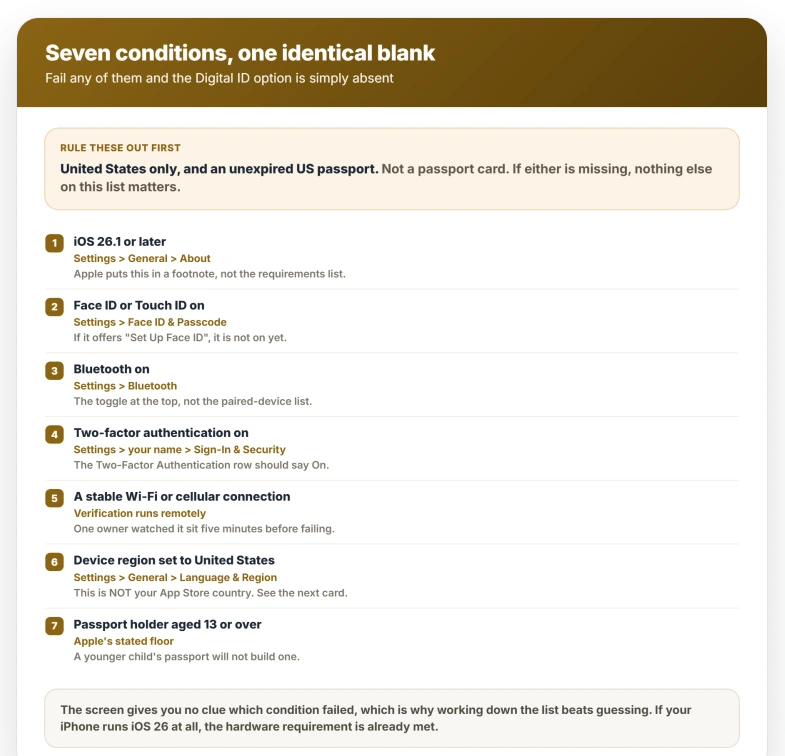
- iOS 26.1 or later. Settings, General, About, and read the iOS Version row. This one is easy to miss because Apple states it twice on the same page in two different ways, covered in the next section.
- Face ID or Touch ID turned on. Settings, then Face ID & Passcode or Touch ID & Passcode. If the screen offers Set Up Face ID, it is not on yet.
- Bluetooth turned on. Settings, Bluetooth, and check the toggle at the top of that screen rather than the paired-device list.
- An Apple Account with two-factor authentication turned on. Settings, your name, Sign-In & Security. The Two-Factor Authentication row should say On.
- A stable Wi-Fi or cellular connection. Verification runs remotely rather than on the phone, and one owner watched it sit in validation for about five minutes before failing.
- Device region set to United States. Settings, General, Language & Region, and read the Region row.
- The passport holder aged 13 or over. Apple states that a Digital ID "can only be created when the passport holder is 13 years of age or older", so a younger child's passport will not build one.
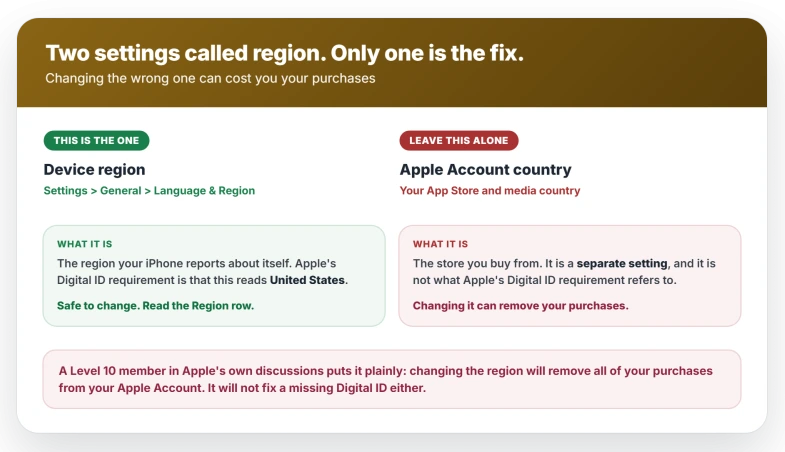
Device region is not your App Store country. They are separate settings. Apple's requirement is the Language & Region one in that list.
Do not go changing your Apple Account country to fix this: in Apple's own discussions a Level 10 member warns that "changing the region will remove all of your purchases from your Apple Account", which can cost you store credit and subscriptions for a problem it will not solve.
There is one documented exception to the biometric requirement.
Apple says that if you use Voice Control (Settings, Accessibility, Voice Control), Switch Control (Settings, Accessibility, Switch Control) or AssistiveTouch (Settings, Accessibility, Touch, AssistiveTouch), you can use your passcode to set up and use the ID instead of having Face ID or Touch ID turned on.
If your trouble is a payment card rather than an ID, none of this applies.
That flow runs through your bank rather than through Apple's eligibility checks, and a card that will not add to Apple Wallet has its own causes.
Where Apple hides the version requirement
The requirements list at the top of Apple's Digital ID page says you need an iPhone 11 or later "with the latest version of iOS or watchOS".
That sentence carries an asterisk, and the footnote sits at the very bottom of the page, after every instruction for presenting the ID at a checkpoint:
> "To create a Digital ID in Wallet you must have an authentic and unexpired U.S. passport and an iPhone 11 or later with iOS 26.1 or later…"
iOS 26.1 is the real floor. Owners report the Digital ID entry is simply absent on an older release rather than erroring, which is why the feature can look like a fault.
This is not hypothetical.
In Apple's discussions an owner on iOS 18.7.2 quoted the "latest version of iOS" line to explain why the feature should be working, and a community member had to point him to the bottom of the page.
Apple's iPhone User Guide states the same floor plainly in its body text rather than in a footnote, so it is the cleaner page to check against.
That requirement also settles the hardware question. If your iPhone runs iOS 26 at all it already clears Apple's device bar, because iOS 26 itself needs an iPhone 11 or later.
No US passport? Add a state driver's license or ID instead
Apple names an alternative: if you do not have a US passport to build a Digital ID from, you can add an eligible driver's license or state ID to Wallet.
Eligibility there is not Apple's call.
Apple states it outright: "the issuing authority, not Apple, makes the decision to approve or deny your request to add your license or ID to Apple Wallet." It is live in select US states and territories rather than nationwide, so check whether yours is on Apple's list before trying.
It sits in the same part of Wallet as the Digital ID entry, under Driver's License or ID Cards.
One Digital ID per Apple Account: clear the old iPhone first
Apple allows one Digital ID per Apple Account at a time, across one iPhone and one paired Apple Watch.
The wording is plain: "If you already have a Digital ID on another iPhone and Apple Watch, you will need to remove it before you can add it to a new device."
So an old phone in a drawer still holding your Digital ID will block a new one, and nothing on the new phone tells you that is why.
To clear it, open Wallet on the old iPhone, tap the Digital ID, tap the More button, then choose the option to remove it and confirm.
If that old iPhone is sold, wiped or dead, you cannot follow those steps, and Apple documents no alternative removal route through your Apple Account or iCloud.com.
That is a genuine dead end in the published guidance, so Apple Support is the only route left.
Moving to a new iPhone deliberately has its own path. Apple's transfer route runs through Setup Assistant on the new phone: tap Wallet, select your ID, follow the instructions, then confirm you want to move it.
If the passport chip read keeps failing
The creation flow has two separate reads and they use different hardware, which matters before you blame the wrong one.
First the camera photographs the machine-readable portion of the photo page.
Apple asks for a well-lit area, a simple background and a clear, focused image, and the same framing advice applies as for any document scan on iPhone.
Then the phone reads the passport chip over NFC, which is not the camera at all. Apple's only instruction is to "place your iPhone on the chip as indicated by the onscreen instructions".
Apple does not publish where that chip sits, and neither the State Department's document-security page nor the Department of Homeland Security's e-Passport page states it either.
One owner in Apple's forums reports success by opening to the inside back page, the one with the barcode, and holding the phone horizontally against it.
So follow the position the onscreen guide shows, and try that page if the guide is vague. Hold the phone still against the page rather than sweeping it.
Taking a case off is reasonable, though the owner whose read failed had already done that.
A selfie follows the chip read, and authenticating with Face ID or Touch ID to send your information follows the selfie.
If you reach either of those, the document side has worked and any failure after that is not your passport.
What a Digital ID works for, and what it does not replace
Apple states plainly that a Digital ID "is not a government-issued passport nor a replacement for a physical passport" and that it "can't be used for international travel and border crossing instead of a passport".
What it covers is identity verification at select TSA checkpoints for domestic flights, plus verifying your age or identity in apps, online and at some businesses.
Apple notes that travelers should check airport signage for availability.
Presenting it has one detail that decides whether it works.
Double-click the side button, authenticate if prompted, tap your Digital ID, then hold the top edge of the phone near the reader, because that is where the NFC antenna is.
Review what will be shared, then double-click the side button again to consent. That final step is a double-click rather than a face or fingerprint scan.
Apple also notes the TSA reader captures your image to compare against the one in your Digital ID, which is better to know in advance than at the barrier.
What does not help
- Reinstalling or force-quitting Wallet. The entry is built from your device's eligibility when Wallet loads, so a fresh install produces the same empty list.
- Restarting the iPhone. Nothing on Apple's list is a stuck state that a reboot clears.
- Signing out of your Apple Account. Two-factor being on is a requirement, and signing out risks that without addressing anything else.
- Changing your Apple Account country. That is the App Store setting, not the device region, and it can cost you purchases.
- Trying repeatedly with the same expired passport. Apple requires an unexpired one, and attempts do not change that.
Two failures have no reliable user-side fix. The first reads "Unable to add Digital ID. The service is temporarily unavailable. Please try again later." One owner hit it on an iPhone 17 Pro Max on iOS 26.1 while his wife's passport added first time on her phone, and turning off a VPN, the first thing suggested to him, changed nothing.
The second is repeated verification failure after the document side has already worked.
One owner reported twelve attempts, each spending about five minutes in validation before failing and telling him to contact Apple Support.
Turn off any VPN, then contact Apple Support rather than repeating the scan.
Status: still US-only as of iOS 26.6. Apple's requirements list says "the latest version of iOS" while the footnote on the same page says iOS 26.1.
Why is there no Digital ID option in my Apple Wallet?
Because one of Apple's requirements is unmet, and the option is removed rather than grayed out.
Check first for a device region set outside the United States and for a valid US passport, then Settings, General, About for iOS 26.1 or later.
Can I use Digital ID outside the US?
No. Apple scopes Digital ID to the United States, requires a US passport to build it and a device region set to United States, and the fallback route is a US state driver's license or ID.
There is no setting that enables it elsewhere and Apple has announced no expansion.
Can I have a Digital ID on two iPhones?
No. Apple allows one Digital ID per Apple Account at a time, covering one iPhone and one paired Apple Watch.
An old iPhone still holding one blocks a new one until you remove it there, through Wallet, the Digital ID, the More button, then remove.
The Short Version
- Every unmet requirement produces the same blank, so this is a sorting job rather than a repair.
- It is US-only and needs an unexpired US passport. Those two end the search for a large share of readers.
- iOS 26.1 is the real floor, stated in a footnote rather than in the requirements list. Settings, General, About.
- Bluetooth must be on, which nothing in the flow suggests.
- Device region means Settings, General, Language & Region. It is not your App Store country, and changing that one can wipe your purchases.
- Face ID or Touch ID must be on, unless you use Voice Control, Switch Control or AssistiveTouch, in which case a passcode substitutes.
- The passport holder must be 13 or over.
- One Digital ID per Apple Account. An old iPhone still holding one silently blocks a new one.
- It is not a passport substitute and cannot be used for international travel.
Where to Next
Every unmet requirement gives you the same blank screen, which is why this feels like a fault rather than a checklist.
Work down the list until something does not apply to you. That is your answer, and there is nothing to repair.
If you meet every requirement on that list and the option still will not appear, tell me which state or country you are in, because support varies more than Apple's page suggests.

Isaac Smith is the founder and editor of PC Glance, a website that covers computers, laptops, and technology. He is a tech enthusiast and a computer geek who loves to share his insights and help his readers make smart choices when buying tech gadgets or laptops. He is always curious and updated about the latest tech trends.