
To stop FaceTime following your face, turn off Center Stage during the call. On a supported iPhone, tap your own video thumbnail, open Camera Effects, and tap Center Stage so automatic framing stops.
A picture that pans or zooms as you move is different from an eye effect or a blurred background. Center Stage changes the framing you send. It won't change the other person's camera, and older iPhones don't all have the same controls.
In this guide
Stop the camera movement on your iPhone
Start or answer a FaceTime video call with the front camera active. Tap the small picture showing you, rather than the other person's picture. Select Camera Effects, then tap Center Stage to switch it off.
Apple describes these Center Stage controls for iPhone Air, as well as iPhone 17 models. Center Stage is on by default for supported iPhone video calls. That's why the picture can move even when you haven't switched on an effect.
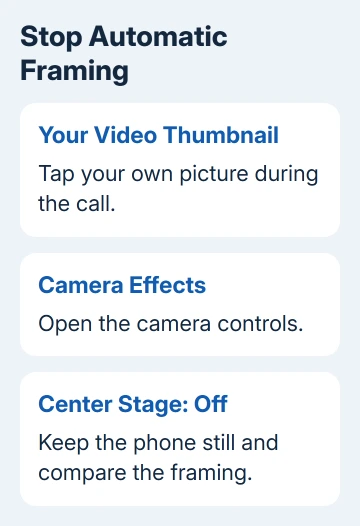
Keep the phone still and move your head slightly to one side. The camera view should stop automatically following that movement. Your face can now move away from the middle of the picture without the camera adjusting to follow it.
The phone's physical position still matters. If someone is holding it and moving their hand, the whole view moves too. Turning off software framing won't stabilize a camera that's being carried around the room.
Rest the phone on something steady while you check. Keeping it in one place makes it easier to see what changes when you switch Center Stage off.
Once the picture stays still, position the phone where you want the frame to remain.
Check the camera before searching for a missing switch
Center Stage requires a compatible camera. An iPhone 16 or earlier doesn't gain the iPhone 17 front camera's native FaceTime framing control just because it runs a newer iOS version.
Don't reset the phone for a button its camera doesn't support.
An older iPhone can also serve as a Mac webcam through Continuity Camera. Supported iPhones can provide Center Stage to the Mac that way.
For that setup, change the Mac's video control using the Mac steps later in this article.
The front and rear cameras also have different jobs. If you're showing a room or a document with the rear camera, check the view and any zoom you've selected.
Don't assume a tight rear-camera view means front-camera tracking is still enabled.
When writing appears backward instead, FaceTime's inversion checks help decide whether the preview or the received video needs attention.
When your own preview stays steady but the other person's picture moves, ask them to check their device. Your Center Stage control changes the video leaving your camera; it can't switch off the framing built into theirs.
For a picture that's cut off on the receiving side, FaceTime cropping on an iPad needs a different check. Both the framing at the sender's end and the shape of the receiver's display can affect what fits.
I'd make that sender-versus-receiver check before changing any general settings. It tells you whose control needs attention, and avoids turning off useful features on the wrong device.
Turn it off on a supported iPad
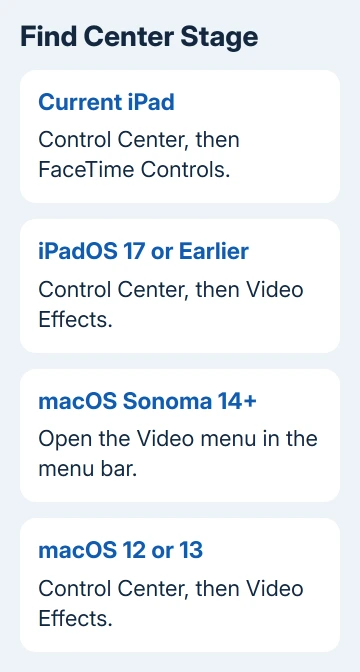
During the video call, swipe down to open Control Center, starting at the iPad's upper-right corner. Tap FaceTime Controls, then tap Center Stage in the extra controls to turn it off.
In iPadOS 17 or earlier, the entry is called Video Effects instead of FaceTime Controls. Open that panel and switch off Center Stage there. The different label is why guides for earlier versions can seem to describe a missing button.
During FaceTime, supported versions also offer the shortcut through your video thumbnail > Camera Effects > Center Stage. Both routes change the framing of the video you send, so you only need to use one.
Supported iPads include iPad Pro 11-inch, third generation and later, iPad Pro 12.9-inch, fifth generation and later, iPad Air, fifth generation and later, iPad, ninth generation and later, and iPad mini, sixth generation and later.
Keep the exact model in mind when helping someone remotely. Two iPads can run the same software and still have different camera features. The iPad camera-following controls cover that device's menus in more detail.
Use the Mac's video menu for a Mac call
In macOS 14 Sonoma and newer, keep the supported Mac camera active and open the menu bar's Video control. Click Center Stage to disable it. Use the live video controls, rather than FaceTime's account settings.
On macOS Ventura 13 or Monterey 12, open Control Center in the menu bar, choose Video Effects, then click Center Stage. Those versions use a different entry point for the same feature.
Camera support matters on Mac too. Examples include a 2024 or newer MacBook Pro, a 2025 or newer MacBook Air, or a Mac using a supported Studio Display camera or Continuity Camera setup.
With Continuity Camera, the support list includes iPhone 11 and later, excluding iPhone SE models. That list applies when the iPhone is your Mac's webcam. Center Stage in the iPhone's own FaceTime app has different camera requirements.
For a camera that stays too tightly framed after tracking stops, use the supported Mac's manual framing controls.
With Center Stage off, move the pointer over the preview in the Video menu to reveal its controls and adjust the available framing.
Match the remaining effect to the right control
A blurred room is Portrait, not Center Stage. A brighter face against a darker background is Studio Light. The iPhone's Camera Effects panel lists these separately, so leave them enabled or disabled according to the result you want.
Eye Contact is also a different effect: it adjusts the apparent direction of your eyes rather than panning the camera. Seeing Eye Contact on your device doesn't tell you whether its camera supports Center Stage.
If the frame still moves with Center Stage off and the device held steady, note the model, software version, camera, and whether it happens in your own preview.
Contact Apple Support and ask them to check FaceTime's camera framing for that setup.
The Short Version
Turn off Center Stage on the device sending the moving picture. Use Camera Effects on supported iPhones, FaceTime Controls on current iPads, or the Mac Video menu. Check the camera's support before searching for a missing button.
Checked November 15, 2026.






