To stop your MacBook ringing for iPhone calls, turn off the switch for that Mac in Calls on Other Devices on your iPhone. Use Do Not Disturb for temporary quiet without disconnecting calls.
FaceTime calls and other app alerts have separate controls. Check which app is making the sound so you can change the right setting.
In this guide
Disable iPhone call relay for this Mac
On an iPhone with iOS 18 or later, open Settings > Apps > Phone > Calls on Other Devices. Turn off the switch beside your MacBook. Leave the other devices enabled if you still want calls to reach an iPad or another Mac.
With iOS 17 and earlier, use Settings > Phone > Calls on Other Devices, without the Apps section. The per-device switch does the same job. Turning off Allow Calls on Other Devices instead disables the feature for every listed device.
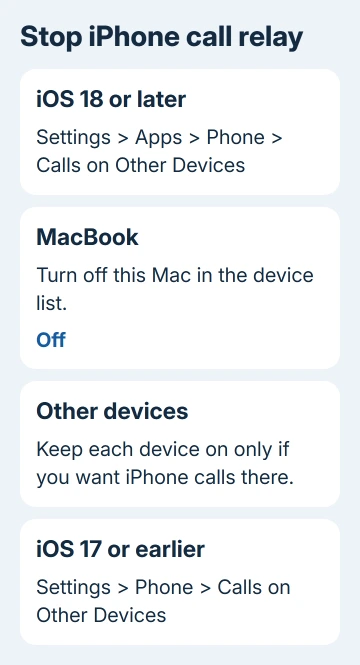
With that switch off, your Mac no longer receives those calls from your iPhone. It isn't just a lower ringtone volume. Your iPhone can still receive its own calls with its usual sound settings.
Apple's iPhone calling setup explains how the devices share calls. The switch on your iPhone works even when the Mac's calling app looks different on your version of macOS.
Ask someone to call your phone number. The iPhone should receive it without the Mac ringing for that relayed call. If the Mac still sounds, check for a FaceTime call or another app notification.
Use the matching calling app on the Mac
On Macs that handle iPhone calls through FaceTime, open FaceTime, then choose FaceTime > Settings > General. Clear Calls from iPhone. On older macOS releases, the menu item can be Preferences instead of Settings.
You'll see this option only when the devices can be set up for iPhone calling. If it isn't there, use the iPhone's per-device switch rather than searching every FaceTime pane. It controls which Mac is allowed to receive the relayed calls.
Macs with the separate Phone app also have Phone > Settings, with General and Calls panes. A Ringtone choice changes the sound used for incoming calls; don't assume that choosing a different tone disables calls or creates a silent mode.
Use the device switch on your iPhone when you want this Mac to stop receiving your iPhone's calls. Keep that separate from FaceTime audio and video calls, which can reach the same Apple Account independently.
Make the Mac quiet temporarily with Do Not Disturb
Click Control Center in the Mac menu bar, then Focus and Do Not Disturb. Choose how long you want quiet from the options offered, such as an hour or until the evening. Turn it off from the same control when you're ready.
Do Not Disturb can quiet interruptions during a meeting while keeping your calling setup in place. It also affects other apps. To keep messages and other alerts as usual, change the calling setting instead.
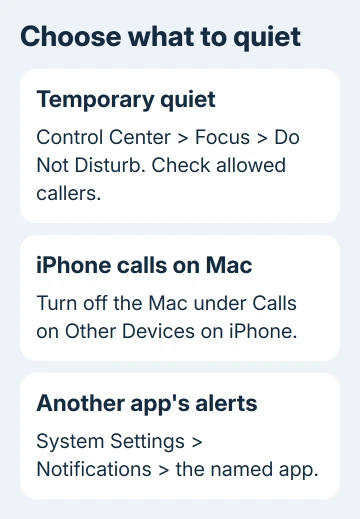
Open System Settings > Focus > Do Not Disturb to review allowed people and apps. Check the call permissions and repeated-call option as well. An exception can let a caller interrupt even though the Focus is on.
Review Share across devices if Focus also silences your iPhone or iPad. Shared settings can enable the same Focus across your Apple devices. Check this before using Focus for Mac-only quiet.
I'd use the iPhone's Mac switch for a permanent change and Do Not Disturb for a short quiet period. That keeps the setting matched to what you actually want, rather than leaving a meeting setting on indefinitely.
Handle FaceTime calls separately
A FaceTime call can still arrive after you stop iPhone call relay. Look at the app named on the incoming alert. A FaceTime call reaches your Apple Account directly; a mobile call comes through your iPhone.
For FaceTime alerts, open System Settings > Notifications > FaceTime. Review Play sound for notification, or disable Allow notifications. These settings control app notifications, so check an actual incoming call afterward.
If your goal is to stop receiving FaceTime calls on this Mac entirely, open FaceTime > Settings > General and choose Sign Out. This is stronger than changing an alert sound: FaceTime calls won't reach the signed-out app.
Use the FaceTime disabling guide to change availability across your Apple devices. Signing out on the Mac alone doesn't turn off FaceTime everywhere your Apple Account is used.
Silence other alerts without muting everything
For Messages, Mail, a calling app or a website alert, use System Settings > Notifications and choose the named app or website. Turn off its notification sound while keeping visual notifications if you still want to see alerts.
For an alert mirrored from an iPhone app, check the iPhone-notification controls in your Mac's Notifications settings. These differ from the call-relay switch. Match the alert's app before making changes.
Muting the Mac's overall output also silences music, video and other sound through that output. Use the keyboard mute control or Control Center > Sound only when you want to silence all of that sound. It isn't a dedicated ringer switch.
If you later lose ordinary playback after changing the output or volume, the MacBook sound checks cover output selection and mute. Keep that playback problem separate from whether the Mac is allowed to receive calls.
When the Mac still rings
Write down the app shown on the call alert, whether the call was to your phone number or FaceTime, and which switch you changed. Check another incoming call with the Mac's iPhone-call switch off and Focus exceptions reviewed.
If ringing continues, contact Apple Support about Phone or FaceTime calls on Mac. Give your macOS and iOS versions and the exact result. Support needs to know which kind of call is ringing, or whether other sound is affected too.
The Short Version
Disable the Mac under Calls on Other Devices to stop iPhone call relay. Use Do Not Disturb for temporary quiet, and change FaceTime or another app separately when it causes the ringing.
Checked November 10, 2026.
 If you have any business, I can build it online