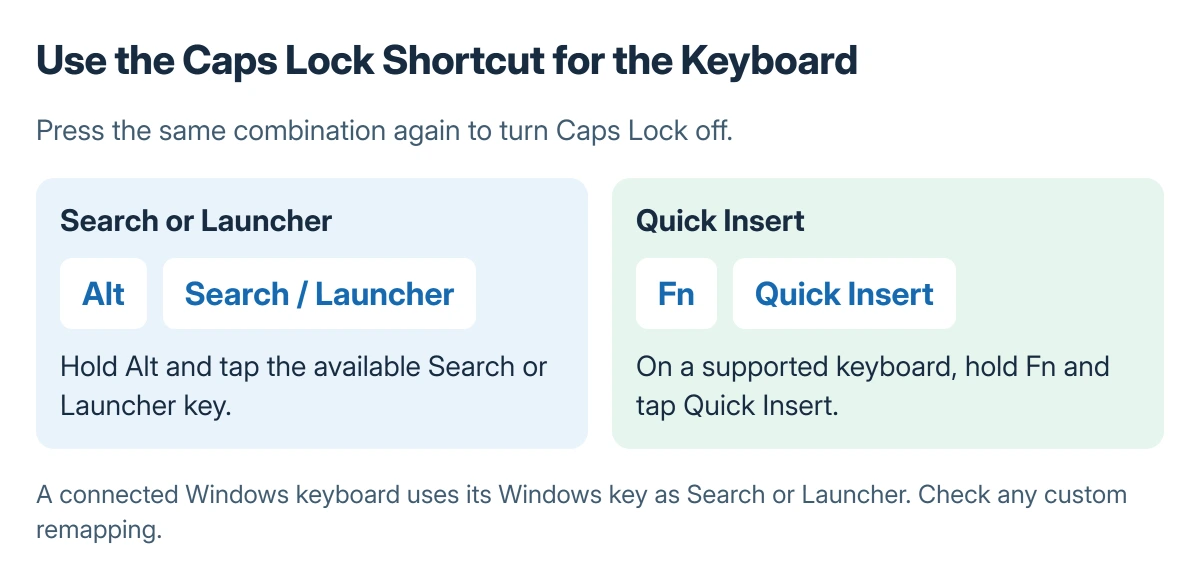
Chromebook Caps Lock usually turns on or off with Alt + Search or Alt + Launcher. The Search or Launcher key is the Chromebook key used to open search and apps; its symbol depends on the keyboard.
Press the same combination again to reverse the setting. A remapped keyboard can behave differently, so check the key assignment if the usual shortcut does nothing.
To keep the session private while you're away, lock the Chromebook screen with Launcher or Search plus L rather than the Caps Lock combination.
In this guide
Match the shortcut to the actual key labels
Hold Alt, tap Search or Launcher, then release. Test a few letters in an empty text field that does not automatically capitalize everything.
Google says both Search and Launcher work for the Caps Lock shortcut. The Chromebook shortcut list also explains that those keys perform the same role across different keyboard designs.
Status: Chromebook Caps Lock and key remapping documented by Google, checked 23 October 2026. Keyboard labels and assignments vary; no Chromebook input was tested.
Google's keyboard guide includes Fn + Quick Insert on keyboards with that key. Use the combination matching the hardware instead of searching for a missing Search symbol.
On a Windows keyboard connected to a Chromebook, Google states that the Windows key acts as Search or Launcher. Confirm the connected keyboard's mapping if that substitution does not behave as expected.
When letters land on different keys, match the active input layout before changing modifier assignments.
For symbols in a message, use the Chromebook emoji picker instead of changing the Caps Lock assignment.
Make one key act as Caps Lock instead
For frequent use, select the time, open Settings, and go to Device > Keyboard. Under Built-in keyboard, open Remap keyboard keys.
Select the Search or Launcher key assignment and choose Caps Lock. This gives that key a different job; note the old assignment so it can be restored later.
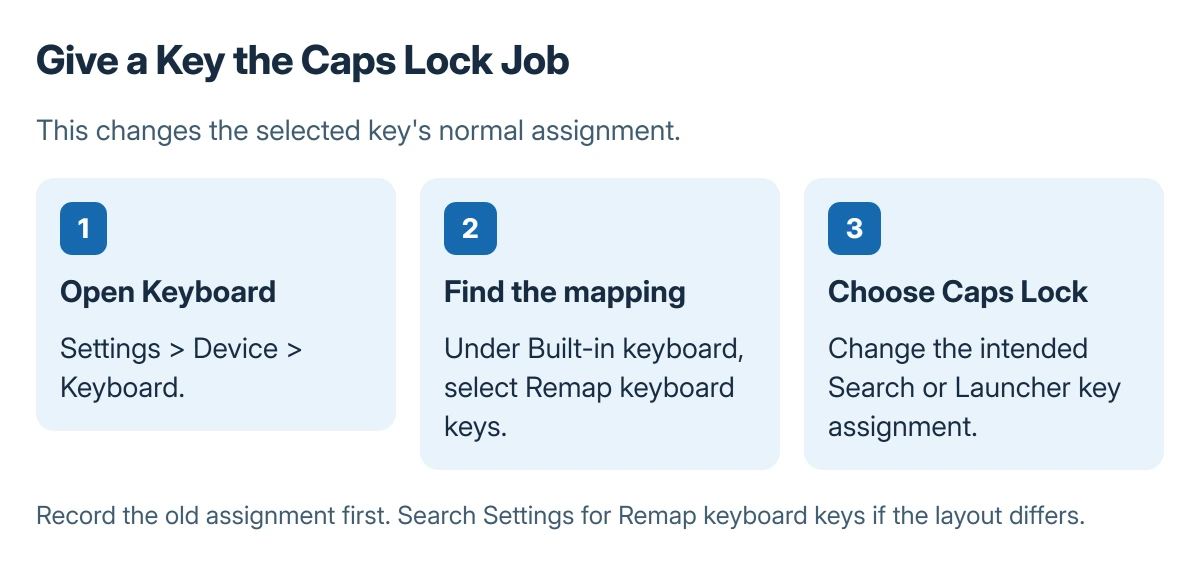
Google documents that remapping option in its keyboard guidance. If the settings layout differs, search Settings for Remap keyboard keys and select the keyboard actually being used.
When capital letters continue after Caps Lock is off
Check whether Shift is being held or stuck, then try an ordinary text field in another app. A field that forces uppercase can look like Caps Lock without changing the keyboard state.
For another Chromebook modifier gesture, the right-click methods explain Search and Alt click behavior. A wireless keyboard that is not connected needs the Bluetooth pairing controls.
If individual keys also fail, open Settings > About ChromeOS > Diagnostics and use the keyboard test. Google directs unresolved hardware problems to the Chromebook manufacturer.
The Chromebook keyboard testing procedure covers Guest mode, the internal key test and the Downloads risk of a hardware reset.
The Short Version
Use Alt with Search or Launcher to toggle Caps Lock. Match newer keyboard labels to Google's shortcut list, or deliberately remap one key in Keyboard settings. Test ordinary text before treating the problem as hardware.
Where to Next
Restore any experimental key assignment once the preferred method is chosen. Keep the resulting shortcut consistent on keyboards used for school or work.
 If you have any business, I can build it online