
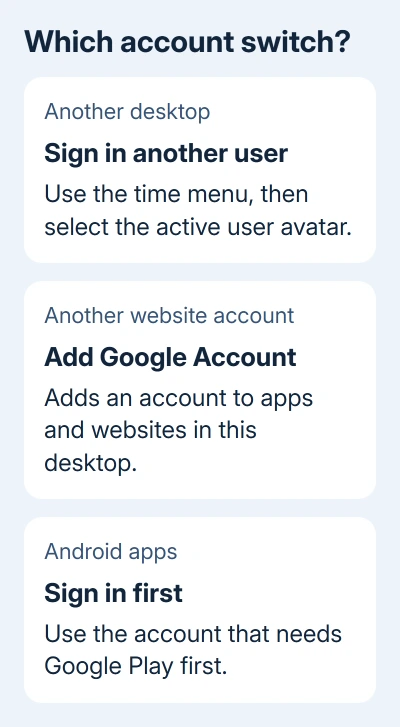
To switch between Chromebook desktops, both users need to be signed in at the same time. Adding a Google Account in Settings lets apps and websites use that account; it doesn't create another desktop to switch to.
Use Sign in another user in the time menu to start the second session. On managed Chromebooks, policy may block that control. Android apps have a separate first-user limit too.
In this guide
1. Choose between a desktop and a website account
Decide whether you want another person's desktop, a different Gmail inbox, or Android apps under another user. The profile picture inside a Google website switches that website's account; it doesn't switch the Chromebook's desktop user.
For another desktop, use the time menu in the lower-right corner. For an extra Google account within your current desktop, open Settings > Accounts > Add Google Account and follow the sign-in prompts.
Google explains in its account management instructions that additional accounts differ from people signing into the Chromebook. That distinction explains why an account can appear in Gmail but be absent from the desktop switcher.
Check the email address shown in the place you're trying to switch. Two accounts with the same profile picture are easy to confuse, especially when one is a school address and the other is personal Gmail.
If your goal is only another inbox in the same desktop, use that Google service's account menu after adding the account. Continue with the desktop steps only when you need the other person's own files, bookmarks and settings.
2. Sign the second desktop user in
The other person must already appear on the Chromebook's sign-in screen. If they haven't, use the separate guide to adding a person to a Chromebook before trying simultaneous sign-in.
Once that person is available on the device, sign into your own account and follow this sequence:
- Open the lower-right time menu.
- Open the Power menu.
- Select your Google Account email, then Sign in another user.
- Read the trusted-user reminder and select OK.
- Pick the other person and enter their password.
Up to five users can stay signed in at the same time. A Chromebook can remember more people at its sign-in screen than it can keep active in one session, so those two lists aren't supposed to have the same limit.
Use simultaneous sign-in with trusted people only. Active users share some settings, including networks. Separate bookmarks and profile pictures don't protect an unlocked session from someone untrusted.
If the second person signs in successfully, return to the time menu and check the avatar menu. If you can't select them or their sign-in is refused, check the account restrictions in section 4 instead of retrying that password.
3. Switch from the avatar menu before testing shortcuts
With both people signed in, select the time, then your avatar, and choose the person you want. The desktop should change to that person's session. Confirm the account address rather than judging by the wallpaper alone.
These keyboard shortcuts switch only between accounts that are already signed in:
- Press Ctrl + Alt + Period to switch to the next account.
- Press Ctrl + Alt + Comma to switch to the previous account.
If the menu switches correctly but the shortcut doesn't, the desktop accounts are set up. Check the keys being pressed and the keyboard layout before changing account settings. The Chromebook shortcut guide covers other key combinations.
If the menu lists just one active person, a shortcut can't sign another person in for you. Return to the previous section and complete that sign-in. An account remembered from last week isn't automatically active today.
I'd use the menu first because it shows which people are actually available. It also avoids mistaking a shortcut problem for a missing account.
4. Check owner and school restrictions
A managed Chromebook may accept only approved accounts, and multiple sign-in can be restricted by its administrator. A personal Gmail account working on your phone doesn't mean the managed Chromebook must accept it too.
If the device says you don't have permission to sign in, ask the Chromebook's owner to check who can use it. For an organization-owned device, send IT the rejected email address together with the error text.
Ask specifically whether multiple sign-in is allowed and whether that account can be a secondary user. That gives IT something specific to check when your password already works elsewhere.
Don't erase the Chromebook to get around an organization's restriction. Ask the administrator to allow the account or change the sign-in policy. A reset also puts local files at risk without addressing the permission you need.
On a personal device, also check that the email address includes its full domain. An account missing from the sign-in screen may need adding again; ChromeOS can remove an account from the device to free storage space.
5. Sign in first with the Android-app account
When several users are signed in, Google Play and downloaded Android apps work only for the first account to sign in. Switching to another desktop doesn't transfer that first-user role.
Save open work, select the time > Power menu, then Sign out all. Use the Google Play or Android-app account for the first sign-in. Add the other user afterward if multiple sign-in is allowed.
That changes the sign-in order for the session. It isn't the same as changing a payment account inside an app, and it won't transfer app purchases or files between Google Accounts.
When several people are signed in simultaneously, they must sign out together. One person can't sign out while leaving the other desktop sessions running. Save work in each active session before choosing Sign out all.
6. Use a separate sign-in when switching is unavailable
The practical alternative is to save your work, sign out, then choose the other account at the Chromebook's sign-in screen. That lets the other person use their desktop without keeping both users signed in.
If even a separate sign-in fails, record the message and check the account on another device. Ask your administrator about an account restriction, or use Chromebook Help's sign-in troubleshooting for a personal device.
If switching still fails with two personal users, post to the Chromebook Help Community with the ChromeOS version, whether both users can sign in separately, and whether menu switching or only the shortcut fails.
The Short Version
Add Google Account serves apps and websites. For desktops, use Sign in another user, then the avatar menu or Ctrl + Alt + Period. Check managed-account rules. The Android-app account must be the first user to sign in.
Checked November 13, 2026.





