
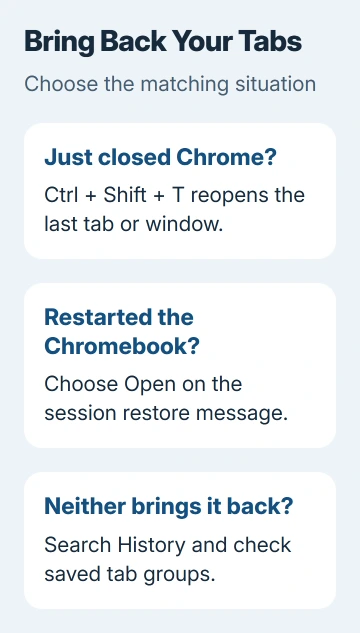
Press Ctrl+Shift+T in Chrome to reopen a closed Chromebook tab or window. After a Chromebook restart, choose Open if the session restore message appears; it can bring your previous apps and tabs back together.
If neither brings your pages back, check History and saved tab groups. They can reopen the pages, though the text you were typing may not come back with them.
Reopen the tab or window that just closed
Open Chrome and hold Ctrl and Shift, then tap T. Release the keys and look for your missing page. If you're using another app, click inside Chrome's window first so the shortcut reaches Chrome.
Google's Chromebook keyboard reference lists this shortcut for the last closed tab or window. That means it can bring a closed window's tabs back together.
If a page you closed more recently appears, press the keys again to work back through the list. Once the window you need returns, check its tabs before closing anything else.
Don't sign out, clear browsing data or reset the Chromebook while trying to recover the session. Those actions aren't tab recovery steps and can remove information you still need.
For the other key combinations used while browsing, keep the Chromebook shortcut guide handy. Reopening a tab uses different keys from switching to a window that's still open.
Accept the session prompt after a Chromebook restart
After restarting and signing in, look for the message showing your last opened apps and tabs. Select Open to bring them back. No thanks takes you to the desktop without opening them.
This restores apps and tabs from your ChromeOS session, rather than just the last closed Chrome tab. Use it when your work disappeared after a Chromebook restart instead of closing a single tab by accident.
To choose what happens after a restart, follow the ChromeOS session instructions to Settings > System preferences > Startup. Open Settings through the bottom-right clock.
The choices have different effects:
| Startup choice | What happens after restart and sign-in |
|---|---|
| Ask every time | A notification offers to restore the session |
| Always restore | The previous session restores automatically |
| Off | ChromeOS doesn't restore the previous session |
Choose Ask every time if you want to check what's offered before reopening it. Use Always restore if you usually want your apps and tabs back after a restart.
This setting changes what opens after future restarts; it can't rebuild an old session that's already gone. Try History and saved groups for pages that are still missing.
Search History when the closed window is missing
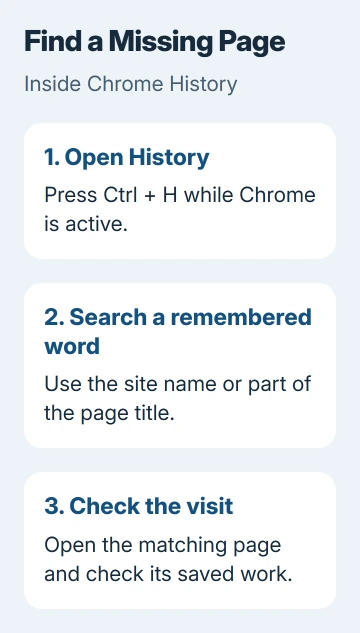
In Chrome, press Ctrl+H, or open More > History > History. Search for the website or words you remember from the page title. Open the entry that matches your missing page.
Start with the page you remember best. Once it's open, look for the site's recent-files list, saved cart or drafts. Those may take you back to the work you need.
Chrome keeps 90 days of visited pages, as the Chrome History guide explains. Deleted history, Chrome's own internal pages and Incognito visits won't appear there.
Opening a History result loads the page again. An unsent message, unfinished form or recent document changes may be missing, so check the site's saved work after the page loads.
If you see several similar entries, compare their titles and visit dates. A page from an earlier week may open fine but show a different document or an earlier part of your task.
A school or company administrator can turn History off. Visits made while it's off won't appear in the list. Ask IT about that restriction if the record is empty.
Check whether the tab group was closed or collapsed
A group showing only its name or colored circle may still be open. Select the label to expand it. A collapsed group can make the tab strip look much shorter even though its pages are still there.
For a saved group you closed, open More > Tab groups and select it. The group may also appear in the bookmarks bar, depending on your settings. Open it and check that the pages you expected are there.
The tab management instructions explain the difference between Close group and Delete group. A closed group stays available; deleting it removes it from devices using that account.
If a group from another device is missing, check that you're using the same Google Account and that tab and history syncing is on there. A different account won't have the same saved group.
I'd check groups before reopening a long research session one page at a time. A collapsed label is easy to miss, and a saved group can bring back the pages with their grouping intact.
Keep future work separate from recovery
Bookmark important reference pages so you're not relying entirely on open tabs. A bookmark keeps the address for you; restoring a session depends on its saved information still being available.
To open the same set of pages whenever the browser starts, use the Chrome startup-page controls. That chooses your starting pages rather than recovering a window you closed yesterday.
Save your changes inside the website or app too. Reopening a tab gets you back to the document; saving inside the app keeps your writing, spreadsheet edits or uploaded work.
If restoring keeps failing, note your ChromeOS version, Startup choice and whether it happens after a restart, sign-out or closing Chrome. Tell Chromebook support or your administrator what happened and which recovery steps worked.
If History has no record and the closed session or group is gone, use bookmarks or the sites' recent-item lists to reopen what you can. These controls can't restore a session once its saved information is gone.
The Short Version
Try Ctrl+Shift+T in Chrome. After restarting, choose Open on the ChromeOS session prompt. Search History for missing pages and check saved tab groups. Set Startup for future restores, and save important work inside its app.
Checked November 5, 2026.

Isaac Smith is the founder and editor of PC Glance, a website that covers computers, laptops, and technology. He is a tech enthusiast and a computer geek who loves to share his insights and help his readers make smart choices when buying tech gadgets or laptops. He is always curious and updated about the latest tech trends.