
Chrome's homepage and startup pages are separate settings. The Home button opens the homepage, while On startup controls pages opened when Chrome starts. Set both when the same website should appear for both actions.
Changing the default search engine is a third, separate setting.
Set the destination for the Home button
Open Chrome's Settings > Appearance and turn on Show Home button. Choose the custom-page option and enter the complete intended address. Choose New Tab instead when that is the desired Home destination.
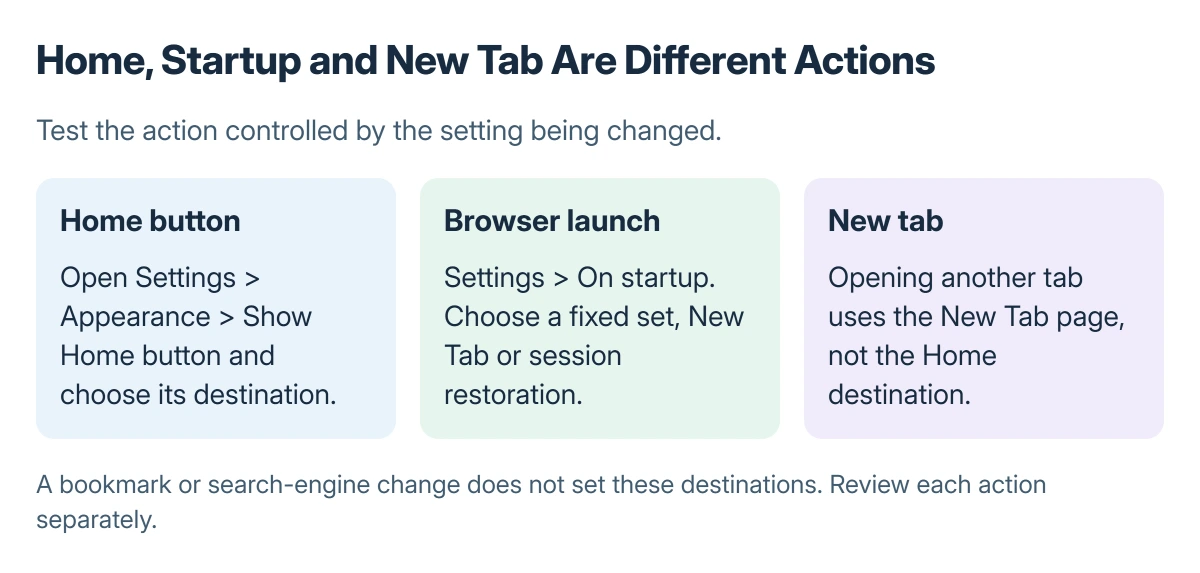
Status: Google's desktop Chrome homepage and startup instructions reviewed 23 October 2026. Home, browser launch and New Tab are separate actions. No browser preferences were changed here.
Google says the homepage is the page reached by selecting Home. Test by clicking the Home button beside the address bar. A new tab is not the correct test for this setting.
The Chrome homepage instructions document both page types. A website saved only as a bookmark remains a bookmark; the Chrome bookmark export guide is useful when preserving those saved addresses separately.
Choose what opens when Chrome starts
Open Settings > On startup. Select Open a specific page or set of pages, choose Add a new page, enter the address and confirm Add. Add another page only when both should launch.
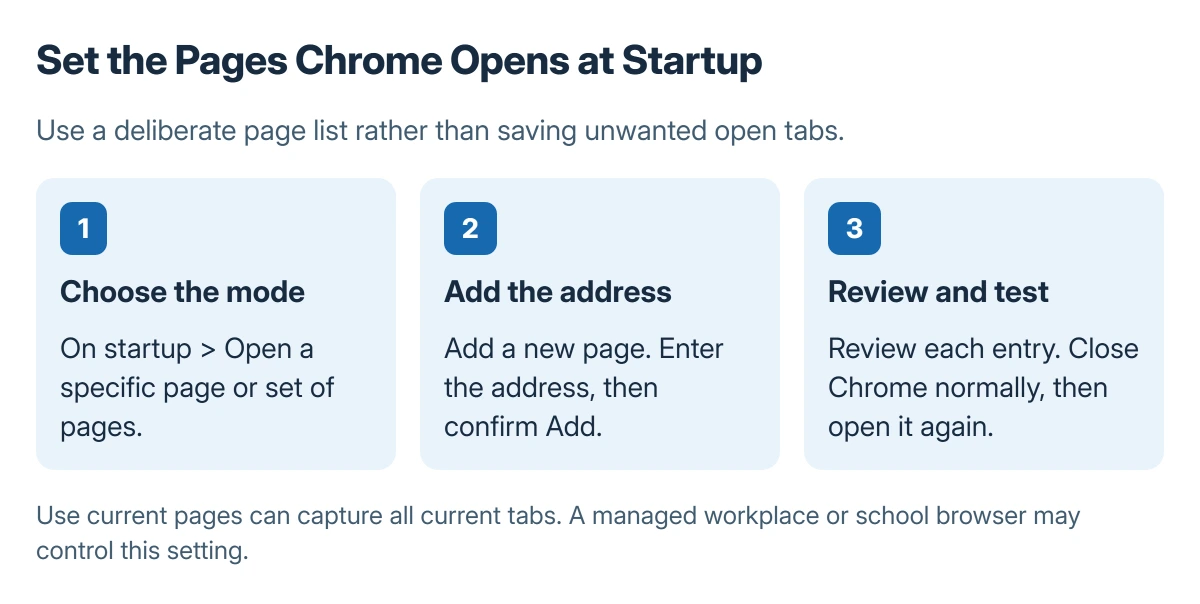
Google adds Use current pages as another option. Inspect the open tabs before choosing it, since the current set can include pages that should not reopen every time.
To change an entry, use its More > Edit or Delete control. Close Chrome normally, then launch it again and inspect the result. Testing another tab in a still-open session does not test a fresh startup.
Choose restoration or New Tab deliberately
Continue where you left off restores the prior browsing pages rather than using a fixed list. Open the New Tab page selects a new-tab start instead. Choose the behavior intended for a normal browser launch.
Google states that continuing the session saves cookies and data so previous sign-ins can remain. A browser set to delete site data on closing can behave differently at login; the cookie clearing explanation describes the data involved.
Check unexpected or locked changes
Inspect the startup list when an unwanted page appears. Remove its entry and check installed extensions if the change returns. Google notes that unexpected homepage, startup or search changes can involve unwanted software.
An organization's administrator can set these pages on a managed Chromebook. Ask about the policy when the option is locked rather than trying to override the organization's browser settings.
If an unwanted page persists, use Google's linked unwanted-software troubleshooting and report the address and when it appears. Distinguish browser launch, Home and New Tab so the right setting is examined.
The Short Version
Set the Home button destination in Appearance and launch pages in On startup. Test each action separately. Review every saved startup entry, and ask the administrator about locked controls on a managed browser.

Isaac Smith is the founder and editor of PC Glance, a website that covers computers, laptops, and technology. He is a tech enthusiast and a computer geek who loves to share his insights and help his readers make smart choices when buying tech gadgets or laptops. He is always curious and updated about the latest tech trends.