
On a computer, open Chrome's Settings > Search engine, select Change, and choose your provider. On Android, iPhone or iPad, use Chrome's own Search engine setting.
The setting controls searches you start from Chrome's address bar. It doesn't choose which app opens links, and it doesn't change the search box on a website you've already opened.
Choose the provider in desktop Chrome
Open Chrome on your Windows computer, Mac or Chromebook. Click the three-dot menu, select Settings, then choose Search engine. Look for the current provider and its Change control.
Choose the provider you want from the list and confirm your choice. Before closing settings, check that Search engine shows the provider you picked.
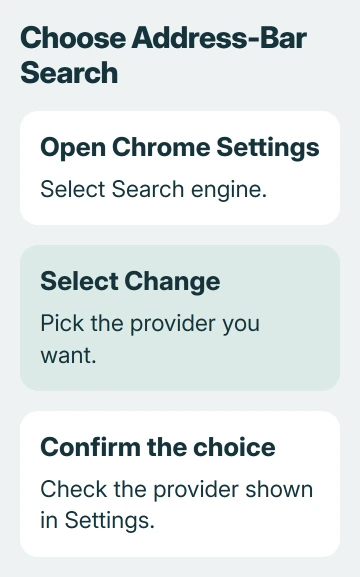
Google describes this default-search choice in its instructions. Available providers vary by region, so your list may look different from someone else's screenshot.
Use the Chrome profile you normally browse with. The profile picture near the upper-right corner lets you check which one is open. Changing this setting in another personal or work profile can leave your usual window unchanged.
Once the right provider is selected, you're done. You don't need to clear your history or reset Chrome just to change search providers.
Change it separately on Android
Open Chrome, tap its three-dot menu and select Settings. Under Basics, tap Search engine, then choose your preferred option. Check the selected provider before returning to your tabs.
A missing provider may appear after you visit it. The Android instructions explain how recently visited search engines can become options.
Check which app you're using when you look for the setting. A Samsung phone can have Chrome, Samsung Internet and the Google app installed together, each with separate controls.
Chrome's choice doesn't change another app's search box. If a search still opens somewhere unexpected, check which app launched before changing Chrome again.
Find the same choice on iPhone or iPad
In Chrome for iPhone or iPad, open the three-dot menu, then Settings > Search engine. Select the provider you want. This setting belongs to Chrome, even though your device also includes Safari.
The iPhone and iPad procedure also covers recently visited providers. Make your choice in Chrome; you don't need to change Safari's settings.
If you want ordinary links to open in Chrome, that's a separate choice. The iPhone default-browser guide covers which app opens links from other apps.
You can keep Chrome as your default browser while using a different search provider inside it. Likewise, choosing Google for searches doesn't make Chrome your device's default browser.
Understand the search choices on a new installation
In some regions, Chrome shows a search-engine choice screen during setup or after a restart. Scroll through the full list; you may need to reach the end before you can confirm your choice.
The choice-screen help covers a missing confirmation button and a screen that won't respond. Browser or device zoom can affect how the controls fit, so check the sizing if part of the dialog is out of view.
After setup, go back to Chrome's Search engine settings whenever you want to change providers. The browser doesn't need to be reinstalled.
Some Chrome features need support from your chosen search engine. Think about which features you use as well as which results you prefer. Switching providers can change more than the logo.
Keep the Home button and startup page separate
Changing search providers doesn't necessarily make that provider's homepage appear when Chrome opens. The Home button, startup pages and address-bar searches each have their own setting.
Use the Chrome homepage and startup controls when you want a particular page at launch. I'd check those settings separately instead of resetting a working search choice.
The homepage reference explains the difference between what the Home button opens and what starts with Chrome. Chrome can open one website while sending your typed searches to another.
If links open in the wrong app on your Mac, check the default-browser setting. That decides which app handles a link. The search provider you choose inside Chrome is a separate setting.
Manage a site shortcut without replacing the default
In desktop Chrome, open Settings > Search engine, then Manage search engines and site search. A site shortcut searches one particular site when you use it, while other searches keep using your normal default.
Check existing entries before adding another. The menu beside an eligible entry offers Make default; Deactivate stops a shortcut from being active instead. Those commands do different things.
For a custom entry, use a search-results address with %s in place of the search words. A website's homepage alone isn't that address. Use the search format your provider supports.
When Chrome won't let the choice stay selected
Your work or school administrator may control the search setting. If Chrome says it's managed, ask which providers are allowed. The administrator will need to change a locked setting for you.
If your personal computer keeps switching providers without permission, follow the search-engine takeover checks. That guide covers extensions, installed programs and policies that restore an unwanted choice.
If the choice won't save and Chrome doesn't show a management message, contact Chrome Help. Include your platform, Chrome version and current provider. Say whether the control is missing, unavailable or reverts after a restart.
The Short Version
Use Settings > Search engine > Change on desktop. On Android, iPhone or iPad, select the provider inside Chrome settings. Home, startup pages, site shortcuts and the default browser have separate controls.
Checked November 5, 2026.

Isaac Smith is the founder and editor of PC Glance, a website that covers computers, laptops, and technology. He is a tech enthusiast and a computer geek who loves to share his insights and help his readers make smart choices when buying tech gadgets or laptops. He is always curious and updated about the latest tech trends.