

A Galaxy Watch Active2 stuck in a boot loop needs a forced restart first. If it still won't stay on, check charging next. Leave Recovery until later, because selecting it on this older model resets the watch and erases its saved data.
The watch needs to reach its normal face and keep responding. Seeing the logo once isn't enough; if it restarts afterward, the loop is still happening.
In this guide
1. Release the buttons after the forced restart
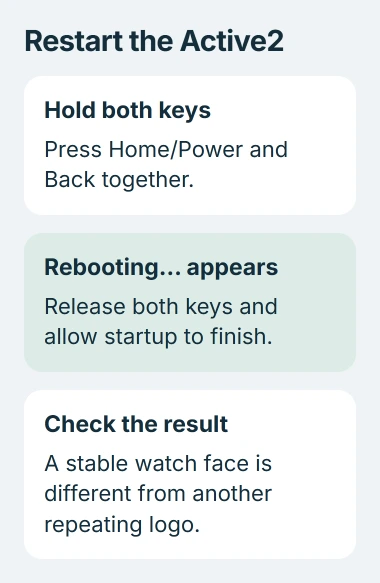
For an intact, dry watch, hold Home/Power and Back together until Rebooting… appears. Release both buttons at that message, then let the watch start without pressing either button again.
Samsung's watch restart and recovery checks use this forced reboot before the later reset. Holding the keys can take up to 30 seconds on some models, so watch for the message.
Check whether either button stays pushed in or feels jammed. Remove any accessory pressing against a button.
If the watch reaches its face, swipe through a normal screen and see whether it restarts again. If it stays usable, go to the software and backup checks in section 3. If the logo keeps returning, check charging next.
Have a stuck or damaged button checked instead of repeatedly holding it. Stop using a watch that's swollen, unusually hot or visibly damaged, and have it checked before charging or trying a reset.
2. Check charging with a dock made for this model
Connect the Active2's charging dock to a suitable wall adapter, then center the watch on it. Use a dock made for this model. A charger that fits another round Galaxy Watch may not work with the Active2.
The charging checks call for at least an hour of charging. If no indicator appears, press Home once. If the dock light flashes red or the screen shows an error, lift the watch and place it on the dock again.
If a metal band keeps the watch from lying flat or interferes with charging, remove the band for this check. Keep the watch's back flat against the charging surface instead of balancing it at an angle.
After charging, take the watch off the dock and try starting it. Note whether it loops both on and off the charger, whether a charging indicator appears and whether the battery level rises when you can use the screen.
Those observations help the repairer tell a charging fault from a watch that charges but can't finish starting. A battery percentage can't identify the internal part that needs replacing.
If the watch won't charge and won't turn on with the right equipment, have both the watch and dock checked. Don't order a battery just because the logo keeps returning.
3. Use a working session to back up and check software
If the watch stays on long enough to connect, open Galaxy Wearable on the paired phone. Check for updates for the watch, the phone app and its watch plugin, the phone software that connects to this model.
Install the updates available for this model. An old Active2 may have no newer watch software available; software made for a newer Galaxy Watch isn't a substitute. Note your model and installed version for support.
Before a reset, open the watch's backup controls in Galaxy Wearable. The older Active2 layout uses Home > Account and backup > Back up and restore > Back up data. Select the items to save, then tap Back up.
The Active2 backup instructions cover saving selected watch data to Samsung Cloud. Check which items you've selected and wait for the backup to finish.
If the phone itself has stopped responding, restart the Samsung phone before checking Galaxy Wearable again. Restarting your phone doesn't reset the watch.
If the watch won't stay connected long enough to back up, tell the repairer before resetting it. Decide whether you need the data still on the watch, and check whether it was saved rather than assuming a backup ran automatically.
4. Use Recovery only when a factory reset is acceptable
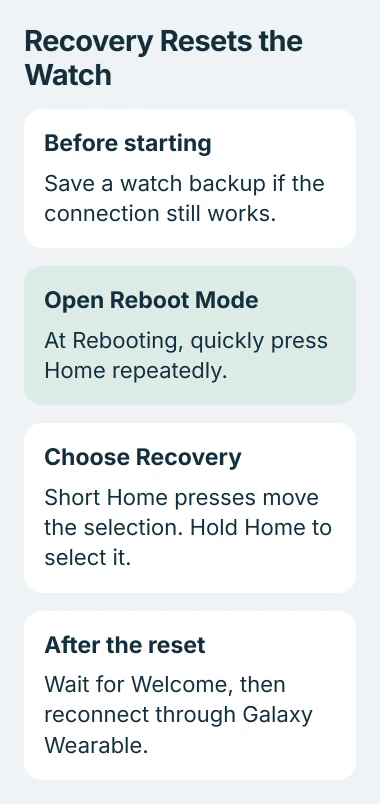
Recovery erases personal data and returns settings to their defaults. Have the watch's previous Samsung account sign-in details ready for setup afterward. For an LTE model, check with your carrier about restoring mobile service.
To reset this model, use the reset through Reboot mode procedure. Hold Home/Power and Back until Rebooting appears, then quickly press and release Home/Power repeatedly to open Reboot Mode.
Press Home to highlight Recovery. Hold Home to select it, then release the button when recovery starts. If you leave the menu idle, the watch can return to normal startup before you've selected the option.
The Active2 uses the older recovery process. Newer Wear OS watch instructions have an extra Wipe data/factory reset menu that you navigate by swiping. That extra step doesn't appear on every Active2.
When a newer Wear OS Galaxy Watch starts restarting after a download, remove the recent watch app before erasing it, if it can still connect.
After those checks, I'd try Recovery once. If the watch never reaches setup, repeating the same reset won't show what broke or give you another way to save its data.
5. Check the welcome screen, then arrange service if it loops
After the reset finishes, wait for Welcome, then connect through Galaxy Wearable and follow the setup prompts. Check for an offered update and see whether the watch stays on as you move through its screens.
For an LTE watch activated by QR code, ask your carrier about reactivation if setup requests it. Getting the watch running again doesn't automatically restore its mobile service.
Recovery doesn't fix every loop. One owner on a support thread reported that selecting Recovery still left their Active2 blinking through its startup logo. A moderator directed them to service.
If your watch still loops, tell the repairer its model number, how it charges, whether its buttons stick and whether Recovery reaches Welcome. Mention any recent water exposure, drop or display repair.
For physical display damage, use the separate Galaxy Watch Active screen assessment. Ask for a full repair quote before buying a screen or battery when the cause of the loop is still unclear.
The Short Version
Force restart and release the buttons, then check the correct charger. Back up if the watch stays on long enough. Recovery resets the Active2, so save its data first. If it still loops after recovery, have it checked for repair.
Checked November 5, 2026.






